
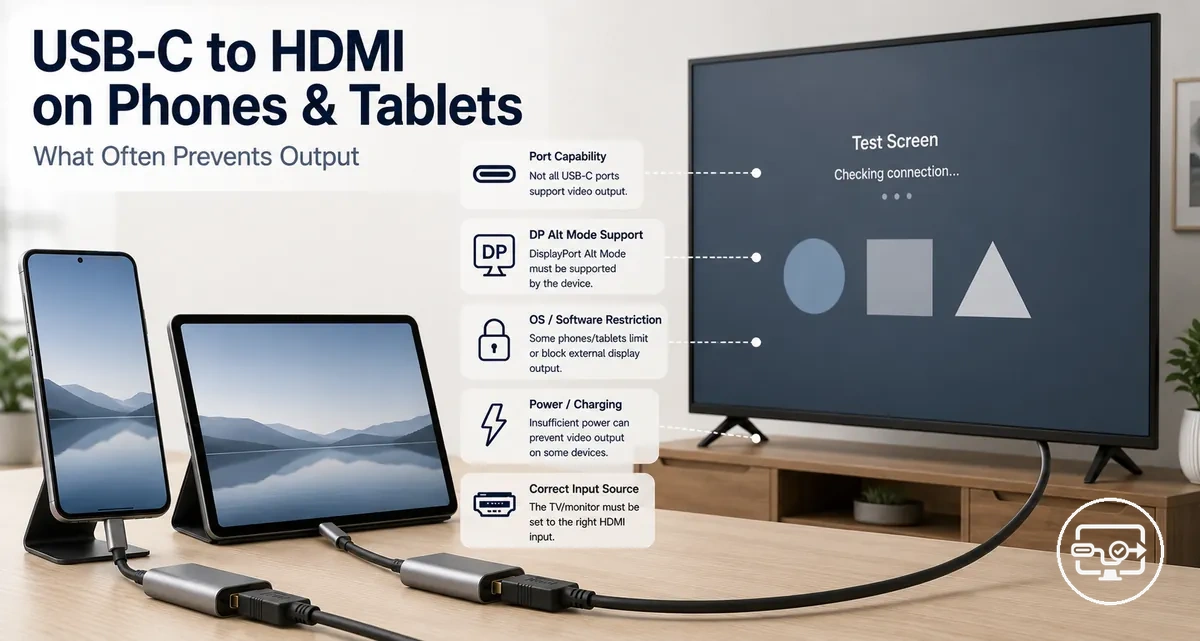
USB-C to HDMI compatibility for phones and tablets: what determines output and why it often fails
USB-C to HDMI compatibility for phones and tablets depends on:
- the device's video output capability
- the accessory pathway
- the display handshake
A working connection allows the phone or tablet to send video to a TV or monitor, but the physical USB-C connector shape alone does not equal video output support – the port must include DP Alt Mode for video signals to pass through.
A typical scenario illustrates this gap: a user plugs a USB-C to HDMI cable into a phone or tablet and sees no signal on the external display. For a broader overview of how USB-C video output varies across devices, see the USB-C to HDMI Compatibility hub.
Many users assume that any USB-C cable or adapter will work with any phone or tablet, but the accessory pathway – whether using a passive cable, an active adapter, or a hub – can introduce additional compatibility constraints.
If any of these three variables is mismatched, video output may not appear.
When video output fails, the cause may lie with the device itself or with the accessory. This page distinguishes between device-level limitations – such as a port that lacks DP Alt Mode – and accessory-related issues, such as an incompatible cable or power delivery inconsistencies. Understanding this separation helps users identify the real bottleneck.
Because the symptoms – no signal, flickering, or no display – are similar regardless of the root cause, users often misdiagnose the problem. Checking the three gating variables first provides a systematic way to determine whether the phone or tablet, the cable or adapter, or the display handshake is responsible.
What “USB-C to HDMI” means on phones and tablets and what it does not imply
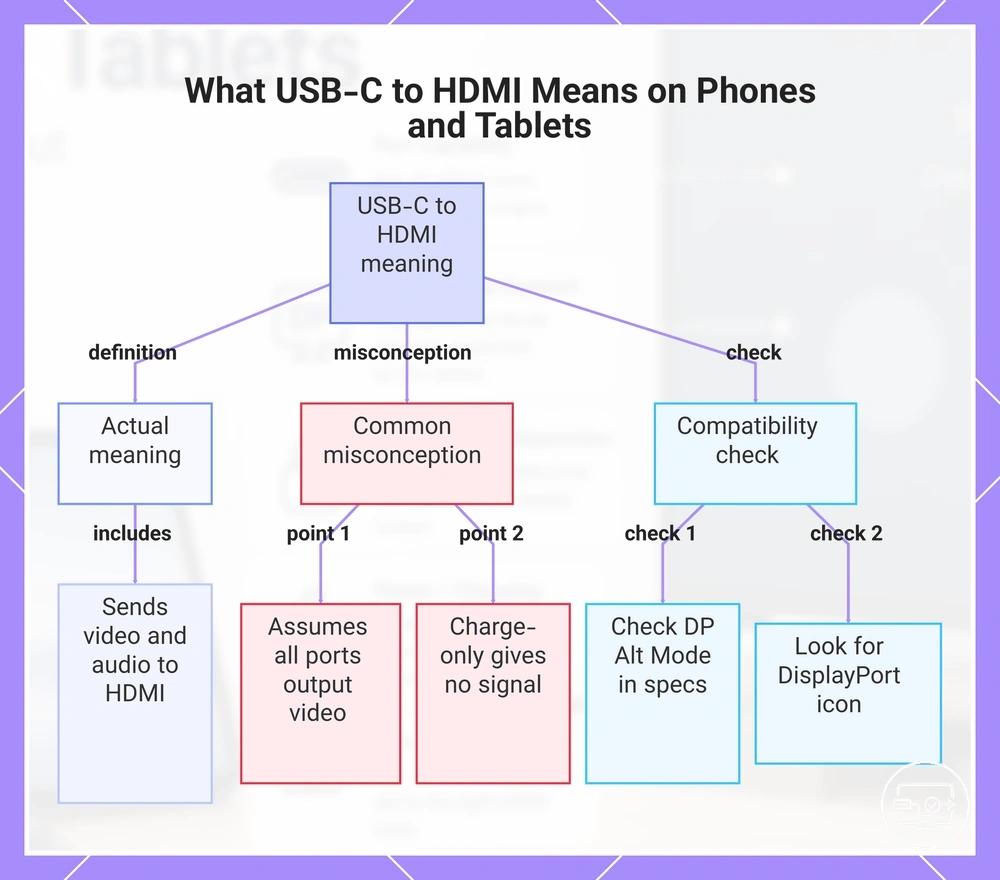
USB-C to HDMI on phones and tablets is the process of sending video and audio from a device’s USB-C port to an HDMI display using a compatible adapter or cable. This does not mean every USB-C port can output video; the port must support DisplayPort Alternate Mode (DP Alt Mode) or a similar video-capable standard.
Many assume that a USB-C port automatically means HDMI output is possible. In reality, many USB-C ports on phones and tablets handle only charging and data transfer.
For instance, connecting a phone with a charge-only USB-C port to a TV via a USB-C to HDMI cable will typically result in no signal.
To check compatibility, look for DP Alt Mode support in the device’s specifications or a DisplayPort icon near the USB-C port.
This chart explains the definition of USB-C to HDMI, the common misconception that all USB-C ports support video, and the compatibility check for DP Alt Mode.
Why phone and tablet USB-C ports are not equally capable of HDMI output
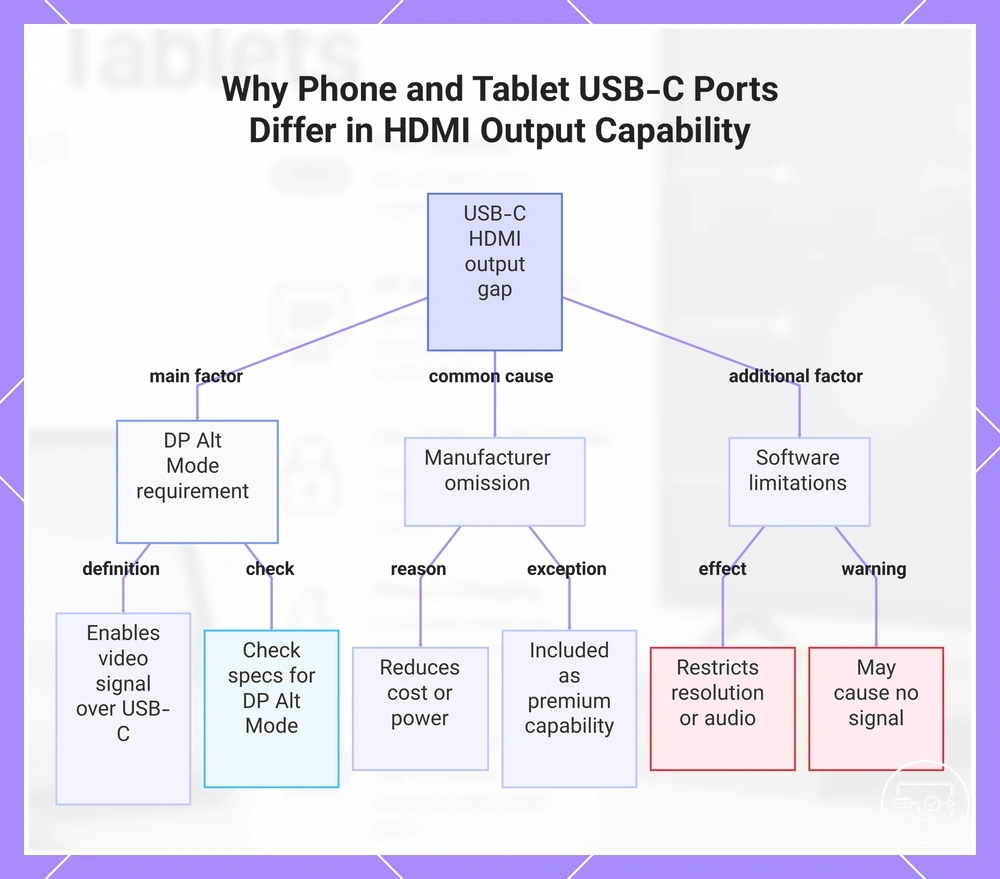
Phone and tablet USB-C ports vary in their ability to output HDMI because the port itself is only a physical connector, and the underlying feature set depends on the device manufacturer’s choices. A USB-C port may support charging and data transfer but lack the alternate mode needed for video output. Two devices with identical-looking USB-C ports can therefore behave differently when connected to the same HDMI adapter or cable.
- DisplayPort Alternate Mode (DP Alt Mode) is the primary hardware requirement. DP Alt Mode allows the USB-C connection to carry a video signal to an external display. Without DP Alt Mode, the port cannot typically output video over HDMI, even with a compatible adapter. Many phones and tablets omit this feature to reduce cost or power consumption, while others include it as a premium capability. The USB version alone does not guarantee video output support; the presence of DP Alt Mode is the deciding factor.
- Operating system and output mode support also influence compatibility. Some devices restrict video output to specific modes, such as screen mirroring only, while others allow extended desktop use. Even when a phone or tablet has DP Alt Mode, the OS may limit resolution or disable audio over HDMI. Software-level decisions can cause a no signal message on the TV or monitor, even though the hardware connection appears correct.
Two users each buy the same USB-C to HDMI adapter. One connects a tablet that supports DP Alt Mode and sees the display appear immediately. The other connects a phone that lacks DP Alt Mode and gets no signal. The adapter is the same, but the port capability differs.
Checking the device’s technical specifications for DP Alt Mode or video output support helps avoid wasted purchases by confirming compatibility.
This chart explains the main hardware and software reasons why identical-looking USB-C ports may not support HDMI output, and how to check compatibility.
Common device-level patterns that correlate with HDMI output support
Common device-level patterns can indicate whether a phone or tablet supports HDMI output over USB-C, but always confirm directly before assuming compatibility.
- USB-C port that supports DisplayPort Alt Mode — suggests video output support via a USB-C to HDMI adapter or cable. Check the device’s specification sheet for 'DisplayPort over USB-C' or 'DP Alt Mode'.
- Device marketed with desktop-mode or extended-display features — often correlates with video-output capability through USB-C. Try enabling the desktop mode in settings and connecting an HDMI adapter to confirm.
- USB-C port rated for USB 3.1 Gen 2 (10 Gbps) — more likely to carry video signals than a lower-speed USB-C port. Check the device’s USB version in its technical specs to confirm.
- Official USB-C to HDMI adapter included in the product box or sold as an accessory — often indicates that the device supports HDMI output. Test with that adapter on a known-working display to verify.
- Tablet equipped with a full-size HDMI (Type A) port — usually provides direct HDMI output without requiring an adapter. Connect an HDMI cable to the port and check for a signal on a TV or monitor.
- Phone or tablet shipped with Android version 8.0 or later and a USB-C port — may support video out, but implementation varies by manufacturer. Check the official specifications for 'video output' or test with a compatible adapter.
Device-side requirements for wired display output over USB-C
The minimum device-side requirement for HDMI output over USB-C is a USB-C port that supports video output, typically via DisplayPort Alt Mode or Thunderbolt. Without this built-in video output capability, an adapter or cable cannot produce a display signal.
USB-C port labels indicate video output support; connection fails when the port is charge-only or data-only.
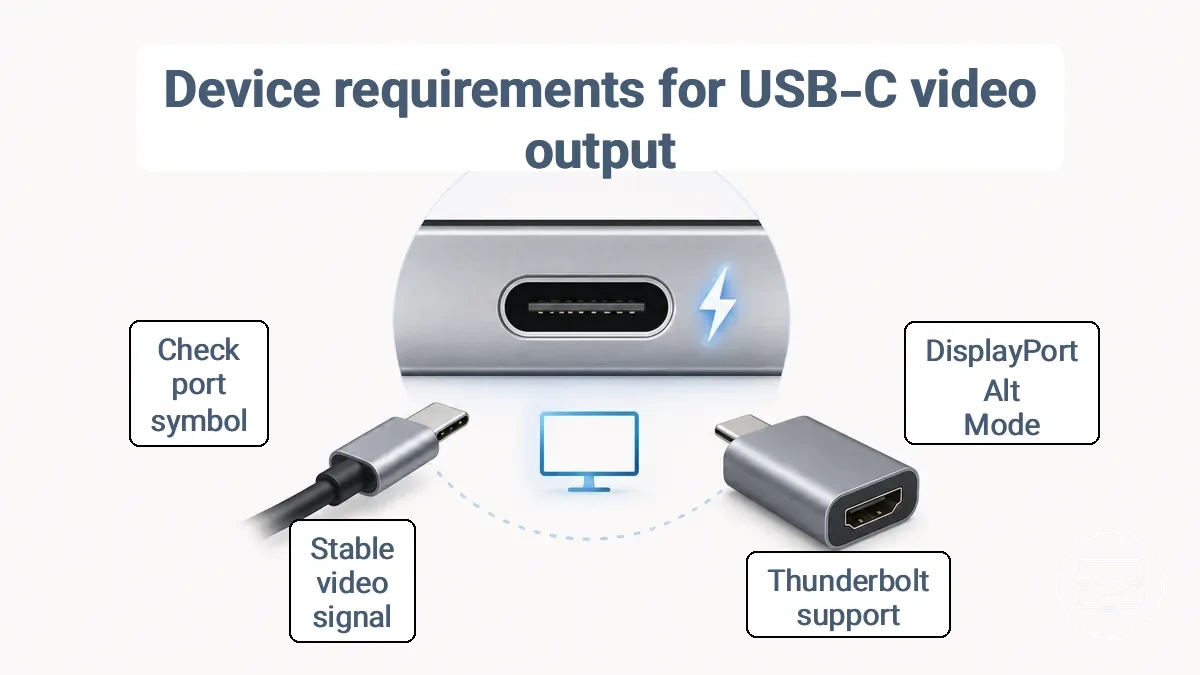
DisplayPort Alt Mode (DP Alt Mode) enables a USB-C port to output a DisplayPort video signal. If the device's port includes DP Alt Mode support, the port can send video to an HDMI adapter or a direct-connected monitor. Many phones and tablets support DisplayPort Alt Mode, though implementation varies by model and manufacturer.
To verify video output support, you can check USB-C video output support in the device specifications or look for a DP or lightning bolt symbol near the port. If the port lacks this support, connecting an adapter may result in no signal on the display.
After confirming video output capability, the device negotiates a video mode with the adapter or monitor, determining resolution and refresh rate. A stable video signal from the port is necessary for proper HDMI conversion. If the port only supports charging or data transfer, the display remains blank.
- USB-C port with DisplayPort Alt Mode or Thunderbolt support.
- Device software that enables video output over USB-C.
- Stable video signal output from the USB-C port.
The presence of video output support depends on the device model and its implementation of USB-C features.
USB-C video output capability on the device: DisplayPort Alt Mode and practical limits
A phone or tablet can output video through USB-C only if its USB-C port supports DisplayPort Alternate Mode (DP Alt Mode). Without DP Alt Mode, the port may charge and transfer data but typically does not send video to an external screen.
Common port descriptions and their video-out implications include:
| Port Description in Specs | Likely Video-Out Capability |
|---|---|
| USB-C with DisplayPort Alt Mode / DP Alt Mode | Video output supported; resolution and refresh depend on device and negotiated mode |
| USB-C (no video mention) / USB-C for charging and data only | Video output typically not supported; likely no DP Alt Mode support |
Checking the manufacturer's specification sheet for phrases like 'DP Alt Mode' or 'DisplayPort Alternate Mode' is a direct way to confirm support.
Even when a phone or tablet supports DP Alt Mode, the maximum resolution and refresh rate vary by device and negotiated mode, depending on the USB controller and available bandwidth.
Software and mode constraints on phones and tablets: mirroring vs desktop-style output
Working video output over a USB-C to HDMI connection depends on whether the phone or tablet is mirroring its internal screen or running a desktop-style extension on the external display. In mirroring mode, the external monitor shows a copy of the phone screen, so app layouts and touch-optimized interfaces appear exactly as they do on the phone screen. In desktop mode, the phone presents an independent workspace with resizable app windows, a taskbar, and cursor input, which can make apps appear and behave differently.
- Mirroring: The display duplicates the phone or tablet screen at its native resolution; apps stay phone-sized and may not use the full screen. Scaling depends on the monitor’s ability to upscale; blur or black bars can occur.
- Scaling: When the phone or tablet’s resolution exceeds the monitor’s native resolution, the output may appear cropped or letterboxed. Desktop mode handles scaling by adjusting the virtual display dimensions independently.
- App-specific behavior: Many apps are not designed for windowed use and can open in full-screen mode despite the taskbar; others may not resize or may become difficult to use with a mouse.
Users may misinterpret these differences as hardware failure. For example, a blank screen can occur if the phone or tablet drops into a mirror resolution the monitor doesn’t support; freezing or lag can happen when the desktop mode is still in early software stages. These symptoms are often OS-level rather than port-level issues.
Accessory-side requirements: choosing the correct USB-C to HDMI pathway for phones and tablets
Selecting the correct USB-C to HDMI pathway for a phone or tablet depends on whether the device’s USB-C port supports video output through DisplayPort Alternate Mode. Without DP Alt Mode support, no adapter, cable, or hub can deliver a signal to an external display.
The image compares the three common pathway types—USB-C to HDMI adapter, cable, and hub—along with the distinction between passive and active conversion and the key decision criteria.
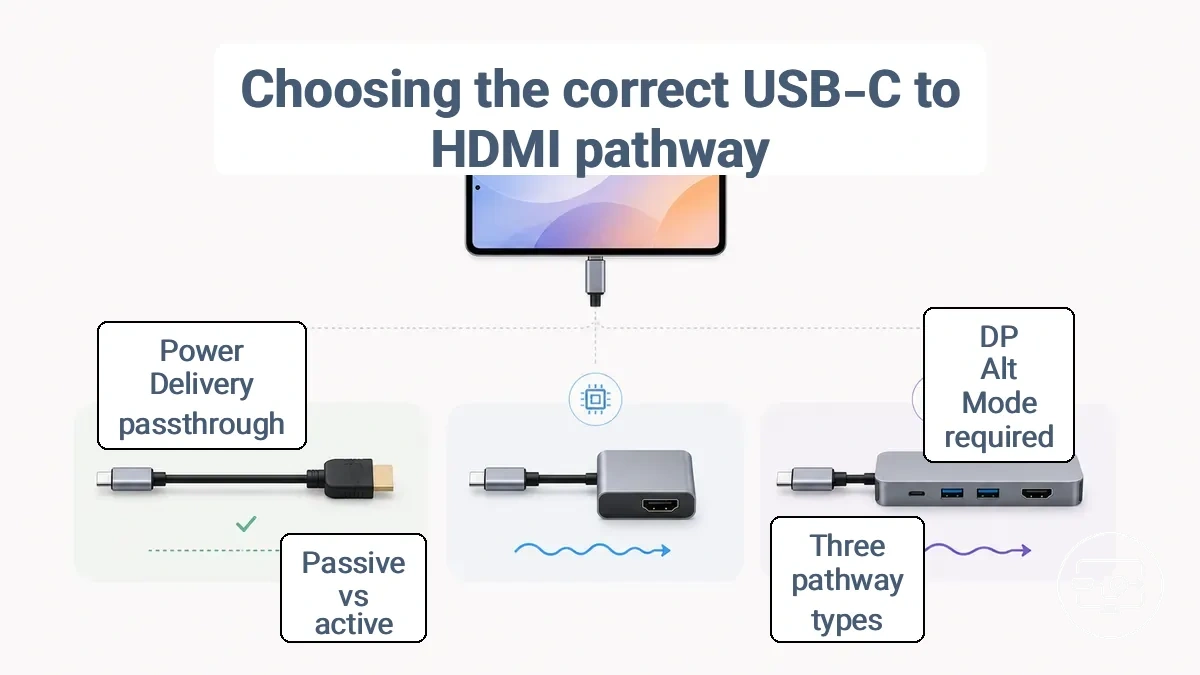
For devices that support DP Alt Mode, a simple pathway is a direct USB-C to HDMI cable, which integrates the conversion chip inside the cable housing. If you already own an HDMI cable, an active USB-C to HDMI adapter can serve the same purpose. Both options handle conversion from the DisplayPort signal native to USB-C to standard HDMI.
When the phone or tablet also needs to charge during output, a hub with Power Delivery passthrough becomes a practical pathway. A hub adds extra ports but introduces more complexity in compatibility.
A laptop with a Thunderbolt or full-featured USB-C port often works with any active adapter or cable, providing a reliable display output. The same accessory may produce no signal when connected to a phone that lacks video output capability. For a clearer breakdown of which solution type to use based on your device, the comparison of adapter versus cable versus dock explains the differences.
Start by confirming whether your phone or tablet supports video output via USB-C. If it does, choose an active adapter or cable that matches the resolution and refresh rate you need. Matching the pathway to the device’s capability is a reliable way to avoid wasted purchases and connection failures.
Passive USB-C to HDMI vs active conversion: when each works and why it matters on mobile devices
Whether a USB-C to HDMI connection works on a phone or tablet depends on the conversion type: passive or active. A passive adapter or cable depends on the device's USB-C port supporting DP Alt Mode (video output over USB-C), while an active adapter uses a chip to convert a video signal that must already be present. Passive works only if the device supports DP Alt Mode; otherwise it produces no signal.
A USB-C to HDMI adapter that works on a laptop may fail on a phone because laptops often include DP Alt Mode but many phones do not. Active conversion (using a chip inside the adapter or hub) still requires a video output from the port; it cannot create video.
The table below shows the requirements and expected outcomes for each conversion type.
| Conversion Type | Requirements and Outcome |
|---|---|
| Passive | Device must support DP Alt Mode (video output over USB-C). If supported, connection may work; if not, no signal. |
| Active | Device must still supply a video output; the active chip converts that signal to HDMI but cannot generate video. Outcome depends on device support. |
Neither passive nor active conversion can create a video signal if the phone or tablet lacks USB-C video output — device support remains the deciding factor.
USB-C hub vs compact adapter vs cable: what changes for phones and tablets
Choosing between a USB-C hub, a compact adapter, or a cable for phone or tablet video output depends on how many ports you need during use and whether charging needs to stay available.
Phones and tablets typically have a single USB-C port, so connecting an external display via HDMI often prevents charging unless the accessory includes pass-through charging. A compact USB-C to HDMI adapter can work when the phone supports DisplayPort Alt Mode and charging is not needed simultaneously. When both charging and video output are required, a hub with power delivery and an HDMI port is more practical. The trade-off is portability: adapters are smaller and lighter, while hubs add size and additional USB ports.
Not all USB-C cables or adapters that work with laptops work with phones, because the phone must support video output over USB-C (DisplayPort Alt Mode). A cable that connects a laptop to a monitor may produce no signal when attached to a phone lacking this support. Check the phone's video output capability before choosing a cable or adapter.
Stability is another factor. A compact adapter dangles from the phone’s port, which can strain the connection during movement. A hub, while bulkier, provides a more secure base and often includes a dedicated charging port to maintain power during extended use. For users who need only occasional video output without charging, a simple cable or adapter is sufficient. For regular use with an external display and accessories, a hub is justified despite the added bulk.
Power and negotiation dependencies on mobile: when charging passthrough affects video output
When charging passthrough is active, a phone or tablet's ability to output a stable HDMI signal depends on how the adapter's power state, USB-C negotiation, and the device's power limits interact. If negotiation fails or is incomplete, symptoms like flicker, intermittent disconnects, or a persistent 'no signal' message may appear.
Many hubs and adapters include power delivery passthrough to let the phone or tablet charge while sending video. If the hub cannot negotiate power correctly with both the charger and the device, the configuration channel (CC) lines may not enable the required Alternative Mode for HDMI display. The device may then stay in a low-power state and not activate video output.
Instability often stems from:
- the hub drawing too much power for itself
- the charger not supporting the negotiated voltage
- the device limiting its own power draw during passthrough
The exact behavior varies by phone or tablet model, charger, and hub firmware.
A fast compatibility check before buying: how to separate device limitations from accessory issues
A fast compatibility check shows whether the limitation is in your phone or tablet or in the accessory chain (adapter, cable, and display). Using known-good parts in a simple test lets you see where the problem is before buying new accessories. If the test passes with known-working components, the accessory pathway likely works; if it fails, the device likely has a limitation.
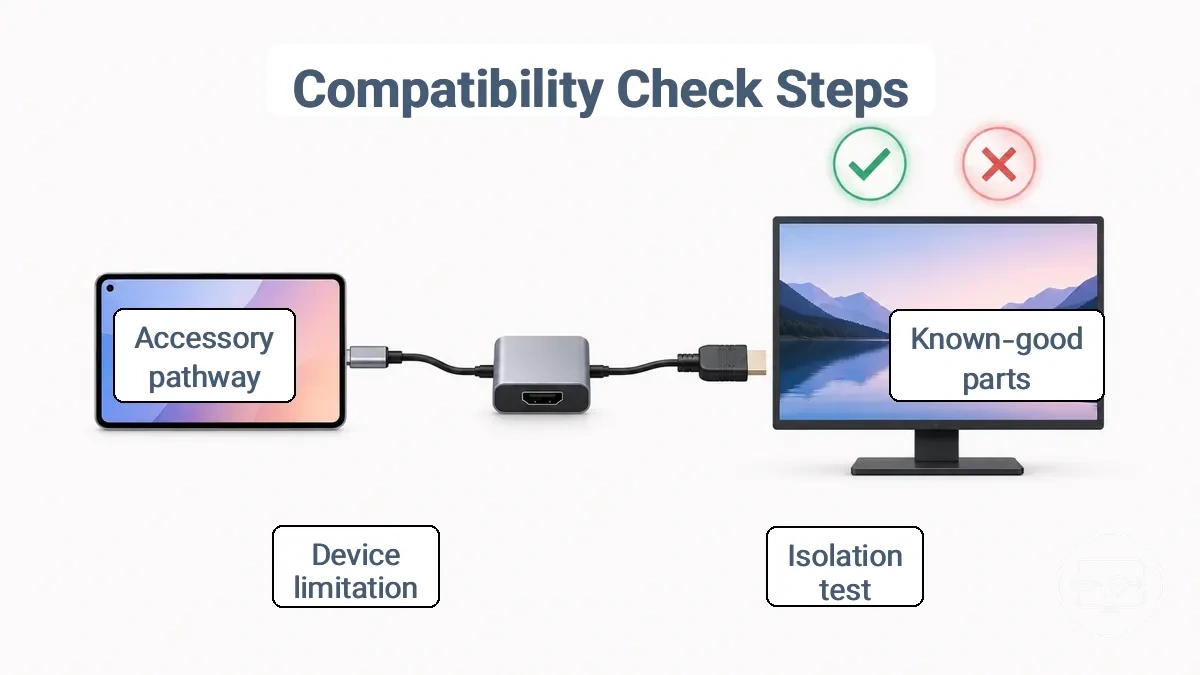
- Connect your phone or tablet to a known-working display using a known-good HDMI cable and a USB-C to HDMI adapter.
- Check if the display shows video output from your device; note any "no signal" message.
- If no signal appears, swap the HDMI cable with another known-good cable and test again.
- If still no signal, replace the adapter with a known-good adapter and repeat the test.
- Test the same adapter and cable combination with a different phone or tablet known to support video output.
- Verify that your original device supports video output over USB-C (DP Alt Mode) by checking its specifications.
- Use the consistent failure or success pattern to determine whether the limitation is in the device or the accessory pathway.
Compatibility depends on the device model and USB-C port, so one test may not be enough; retesting with another known-working setup is recommended. If the accessory chain passes the isolation check, you can follow the setup steps for a working connection to get a reliable setup.
Spec and port signals that usually indicate wired display output support
The following signals in technical documentation usually indicate a phone or tablet supports video output over USB-C:
- DP Alt Mode listed in official technical specifications suggests the USB-C port supports video output; confirm by checking the device datasheet or manufacturer spec page for explicit ‘DisplayPort Alternate Mode’ or ‘DP Alt Mode’.
- USB-IF certification flags that include a video class suggest the port is designed for video output; confirm by looking for a USB-IF logo or certification number that references video or DP Alt Mode.
- Thunderbolt 3 or 4 support noted in the product sheet suggests the USB-C port can carry DisplayPort signals alongside PCIe data; confirm by verifying the Thunderbolt logo or ‘TBT3/TBT4’ mention in official documentation.
- Maximum external display resolution and refresh rate stated in specs points to the port being intended for video output; confirm by checking the ‘external monitor support’ or ‘USB-C video output’ line in the detailed specifications.
- Adapter compatibility listed in the user manual or quick start guide points to the device supporting external displays; confirm by finding phrases like ‘USB-C to HDMI adapter’ or ‘connect to a TV’ in official support content.
- DP Alt Mode visible in the operating system device manager or system report suggests the port driver exposes the alternate mode; confirm by checking advanced system information (e.g., Windows Device Manager > USB-C properties, macOS System Report > USB).
- Manufacturer support page that explicitly describes connecting to an external display suggests the feature is supported; confirm by searching the model on the brand’s support site for ‘video output’ or ‘external display’ articles.
- Model‑specific technical bulletin or specification update that mentions video‑over‑USB‑C may indicate a verified capability for that particular unit; confirm by matching the exact model number and reading the bulletin.
Verify via official manufacturer documentation; assuming video output from a port alone may result in a ‘no signal’ situation when trying to connect a phone or tablet to a TV or monitor.
A minimal isolation test to confirm whether the phone/tablet can output video at all
To confirm whether a phone or tablet can output video, start with a known-good USB-C to HDMI adapter and cable connected to a display. The test gives a clear pass/fail result: if the display shows the device screen, the device likely supports video output; if the display shows 'no signal', the device likely lacks video output capability or the pathway may be mismatched.
- Use a known-good USB-C to HDMI adapter and a standard HDMI cable you have verified on another device.
- Connect the USB-C end of the adapter to your phone or tablet.
- Plug one end of the HDMI cable into the adapter and the other end into a known-working display input (TV or monitor).
- Ensure the display is powered on and set to the correct input source.
- Observe the display: pass if the device screen appears; fail if 'no signal' appears.
- If the first test fails, repeat with a second known-good adapter to separate device capability from pathway mismatch.
This isolation test separates device capability from pathway or accessory issues.
Phone-to-TV expectations with USB-C to HDMI: what “setup” typically consists of on mobile
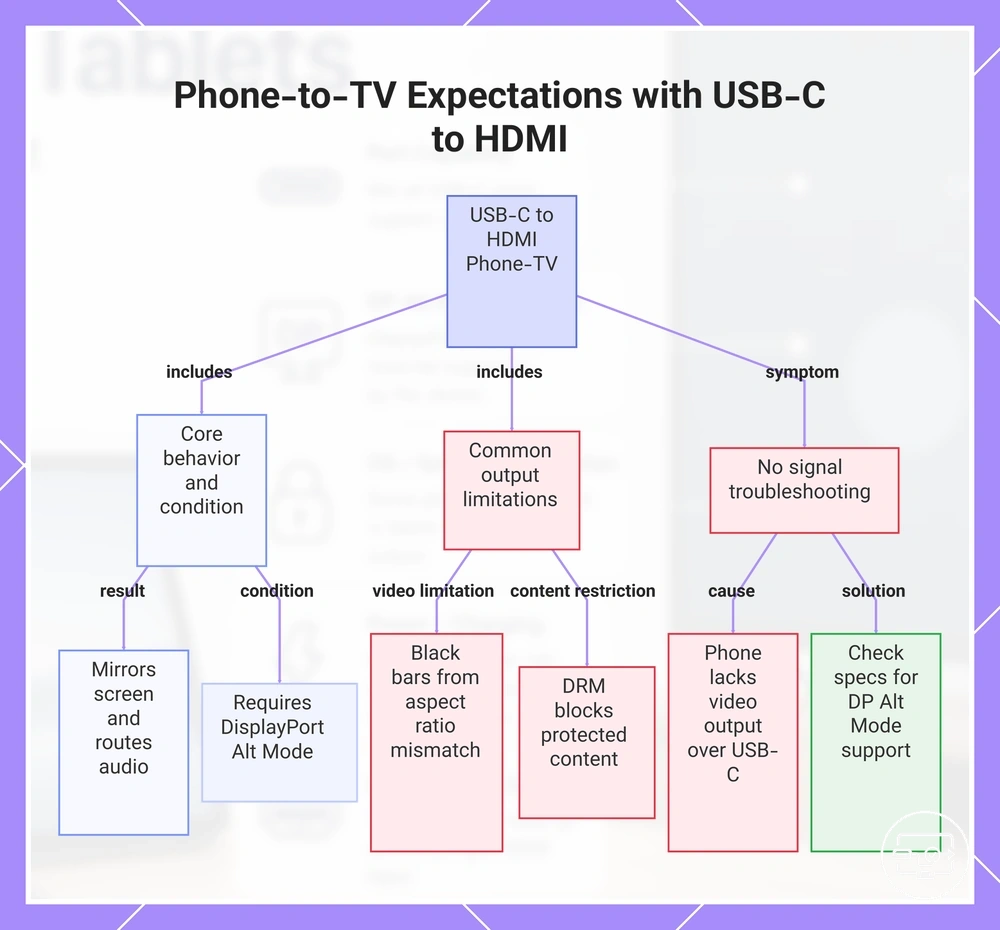
When you connect a phone or tablet to a TV using a USB-C to HDMI adapter, the screen typically mirrors and audio routes through the TV speakers. The wired setup works immediately when the phone supports DisplayPort Alt Mode through its USB-C port. This behavior depends on the phone model, the HDMI adapter or cable, and the TV’s input selection.
- Video output uses the phone’s native aspect ratio, which may appear with black bars on certain TVs if the phone’s screen ratio differs from the TV’s.
- Audio output may be limited to stereo only on some adapters, depending on the phone and adapter capabilities.
- Latency over a wired USB-C to HDMI connection varies by phone model and resolution, affecting the expected TV experience.
Signal compatibility with older TVs or projectors may vary; see TV and projector compatibility.
Protected content from streaming apps may sometimes not play over an external display due to digital rights management restrictions, particularly when the app detects an HDMI connection. This is a normal limitation on some phones and apps, not a sign of hardware incompatibility.
If the TV shows no signal after a secure connection, the likely cause is that the phone does not support video output over USB-C. Some budget and mid-range phones lack this feature. In such cases, the phone’s USB-C port charges and transfers data but cannot send video. Checking the phone’s specifications for DisplayPort Alt Mode support clarifies whether the issue is normal limitation or incompatibility.
This chart shows the typical setup behavior, common output limitations, and troubleshooting for no signal when connecting a phone to a TV via USB-C to HDMI.
What usually prevents output on phones and tablets: the dominant “no signal” failure classes
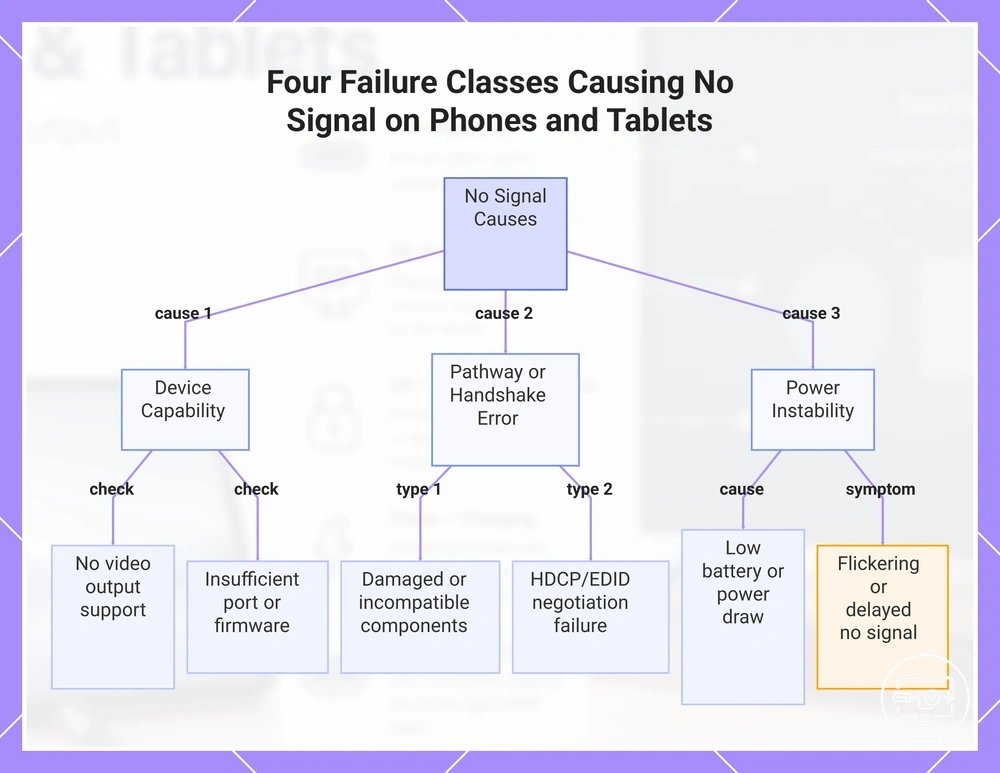
Four failure classes of compatibility usually cause 'no signal' or 'not working' after connecting a phone or tablet: device capability, pathway mismatch, handshake or protection errors, and power instability.
- Device capability – The phone or tablet may not support video output over USB‑C, or the port version or firmware may be insufficient.
- Pathway mismatch – The adapter, cable, or HDMI input may be damaged or incompatible with the source.
- Handshake or protection – HDCP, EDID, or other protocol negotiations may fail between the device and the display.
- Power instability – The connected device may not supply enough power for the adapter’s conversion chip.
Device capability is often the cause: the USB‑C port may lack DisplayPort Alt Mode support, or the device’s firmware may be outdated. Checking the device’s specs for video output is a first step; if the issue remains, troubleshoot common phone-to-display failures to isolate the cause.
When a display is detected intermittently or shows 'no signal' after a brief moment, the problem likely lies in the pathway or handshake. The adapter, cable, or HDMI input may be incompatible, or HDCP authentication may fail.
Power instability may produce 'no signal' after a few seconds or cause flickering. This can happen when the tablet or phone has a low battery or the USB‑C port cannot sustain the adapter’s power draw. Checking the device’s charge level and power delivery capability can help.
For any failure class, testing one variable at a time—such as confirming device support, swapping cables, trying a different display, or checking power conditions—can help isolate the cause.
This chart shows the four main failure classes that cause 'no signal' when connecting a phone or tablet to an external display, along with key checks and symptoms for each.
No video-out support on the USB-C port or the feature is limited by the device design
A phone or tablet that does not provide a video output signal over USB-C regardless of the adapter or cable used typically has a USB-C port that does not support video output.
A common symptom is a consistent 'no signal' message on the external display, even with known-good HDMI cables and USB-C adapters. The host device may detect the connection but still output no image. Such behavior indicates that the USB-C port likely lacks video output support, especially when observed with multiple cables and displays.
To confirm whether the port lacks video output support, check the device specifications for 'DisplayPort Alt Mode' or 'Thunderbolt'. The absence of these indicates that the USB-C port typically does not support video output. Testing the same adapter and cable with a device known to support video output over USB-C can rule out pathway issues.
Mismatch between device capability and adapter pathway: the most common reason “it works on laptops but not on phones”
A mismatch between the phone’s video output capability and the adapter’s pathway requirement is the most common reason a USB-C to HDMI adapter works on a laptop but fails on a phone. Laptops and phones handle video output differently over USB-C, even when using the same adapter.
| Scenario | Outcome |
|---|---|
| Laptop connected via USB-C to HDMI adapter | Display works (video output supported) |
| Phone connected via same adapter | No signal (video output not supported) |
The symptom pattern—the phone shows “no signal” or “not detecting display” while the same adapter works on a laptop—indicates the phone may lack the necessary video output pathway over USB-C. Correction depends on pathway choice: using a phone that supports video output over USB-C, or selecting an adapter compatible with the phone’s specific port configuration.
Compatibility depends on the phone’s USB-C port capabilities. Checking the phone’s specifications for video output support is advisable before assuming any USB-C to HDMI adapter can work.
Handshake and Content-Protection Failures That Look Like a Cable or Adapter Problem
When a phone or tablet connects to a TV or monitor via a USB-C to HDMI adapter and the display remains black or shows 'no signal', the issue is often a handshake or content-protection failure rather than a faulty cable or adapter. The connection involves a chain of negotiations: the phone's video output (usually through DisplayPort Alt Mode) must handshake with the adapter, the adapter must communicate properly with the display, and any protected content must pass digital rights checks.
A handshake failure can block both video and audio, even when the cable and adapter are fully functional. Content-protection constraints, for example, may cause streaming apps to output a blank screen while other apps work fine. Whether the problem appears as a black screen, intermittent signal, or missing audio depends on the specific app, the display's capabilities, and the phone's port and driver support.
Testing with a different source (like a laptop) or another phone can help identify whether the handshake or protection mechanism is the limiting factor.
- The phone either detects the external display or plays video on its own screen, but the external screen remains black or blank.
- Only certain apps or streaming services fail while others display correctly.
- Audio works but video does not, or vice versa.
Power instability on mobile: why charging passthrough can trigger flicker, dropouts, or no-start behavior
Charging passthrough can destabilize a phone's power state, causing HDMI output issues like flicker, dropouts, or no-start. When the power source — whether a wall charger or power bank — introduces ripple or voltage sag, the phone's power management may reset or drop the video signal.
The negotiation between the charger, phone, and HDMI adapter depends on a consistent power budget. If the charger cannot maintain a steady voltage during the handshake, the phone may renegotiate repeatedly, causing the external display to show 'no signal' or 'not detecting display'. Such behavior often points to a power pathway mismatch rather than a defective cable or adapter.
Connecting a phone to a TV via a USB-C to HDMI adapter while it is charging can push the power source into an unstable region, especially if the charger is already near its limit. The result may be a phone that starts charging, then reboots or drops HDMI output within seconds — a possible indicator that the power delivery chain is insufficient for the current load.
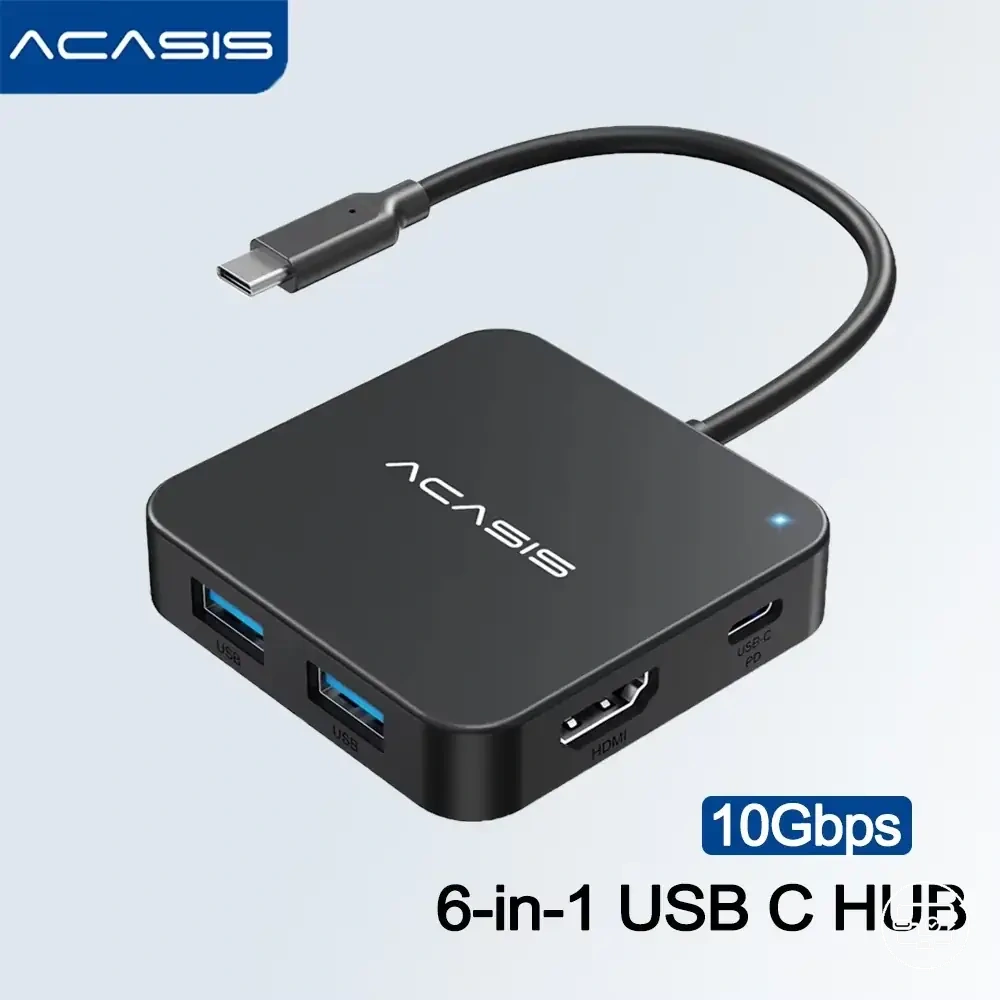
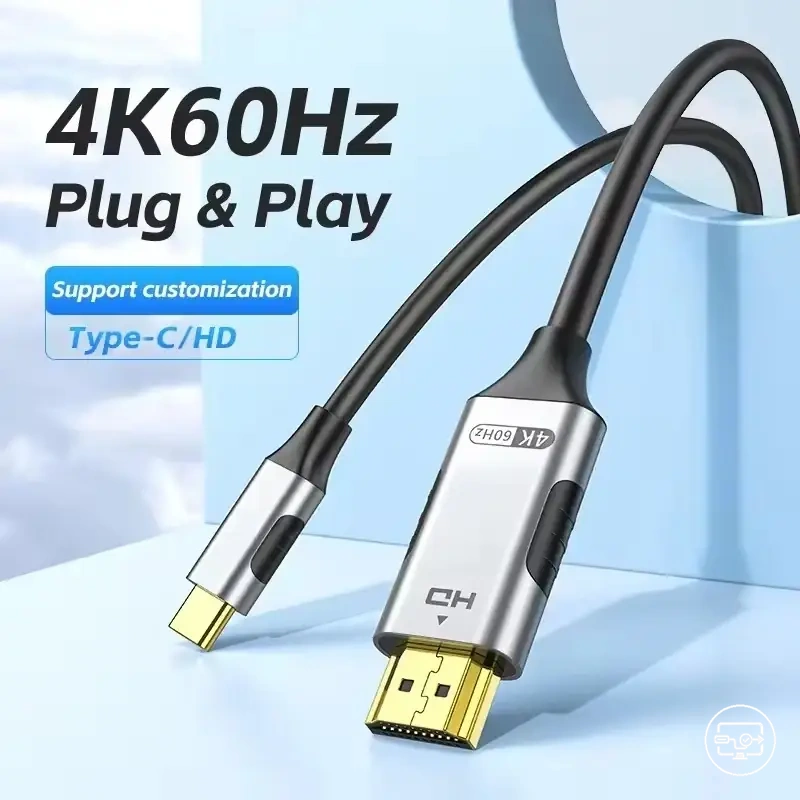
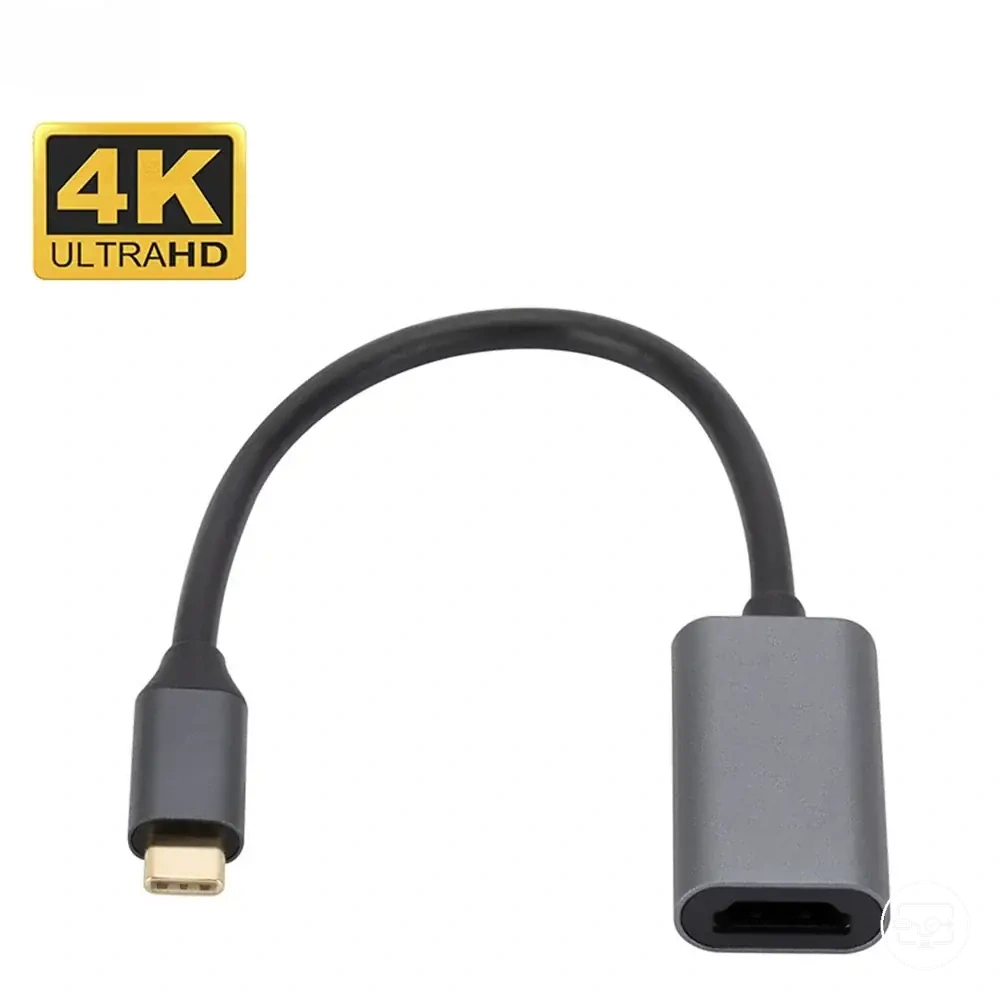
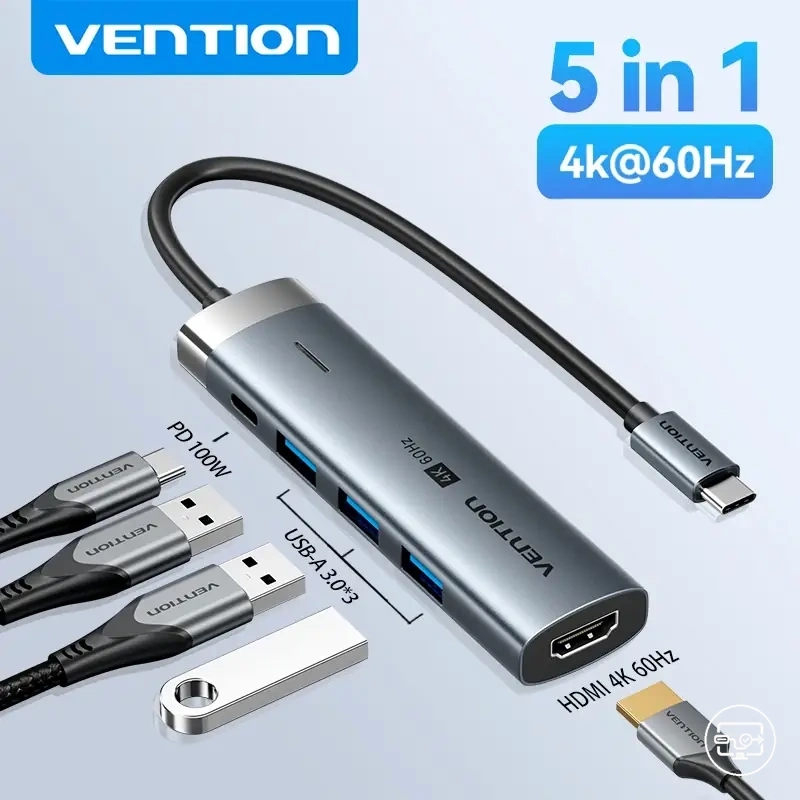
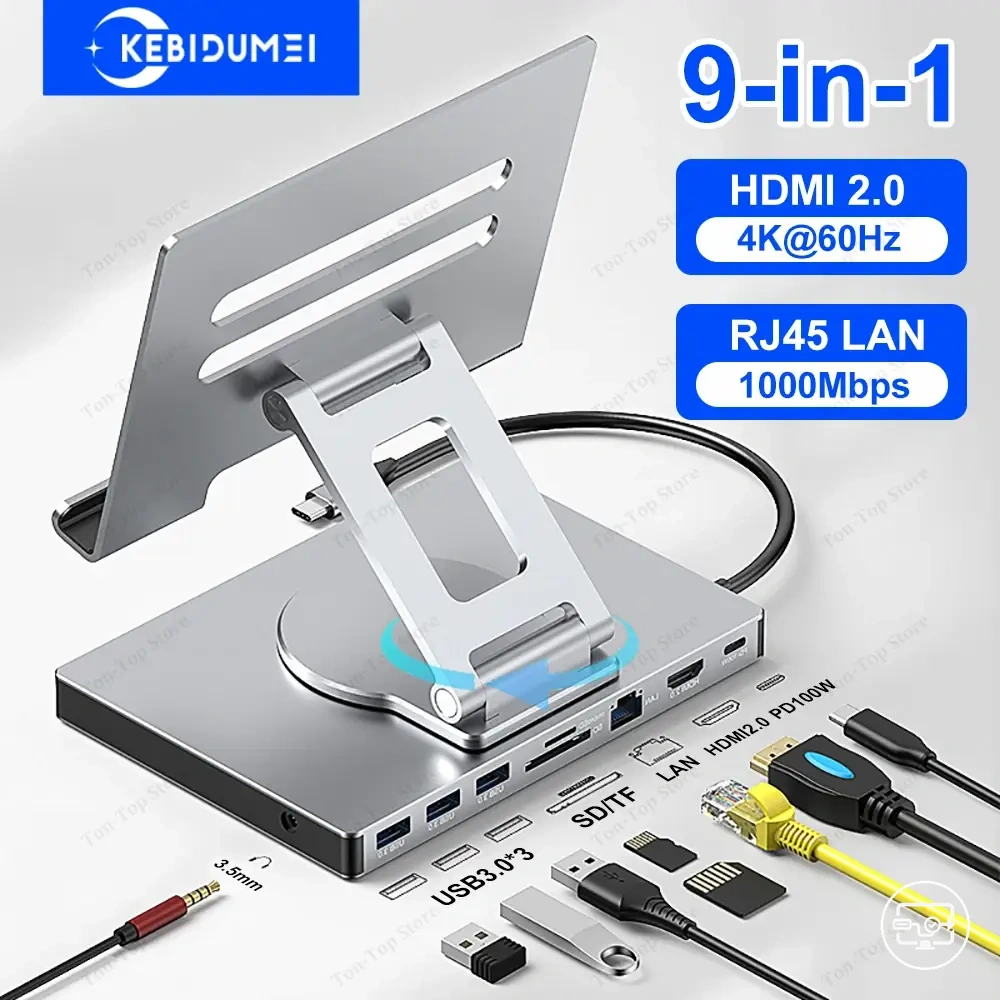
Here are product examples that may make comparison easier. Before buying, always review the compatibility criteria, essential features, and product details.
FAQ: quick answers for recurring phone and tablet USB-C to HDMI compatibility questions
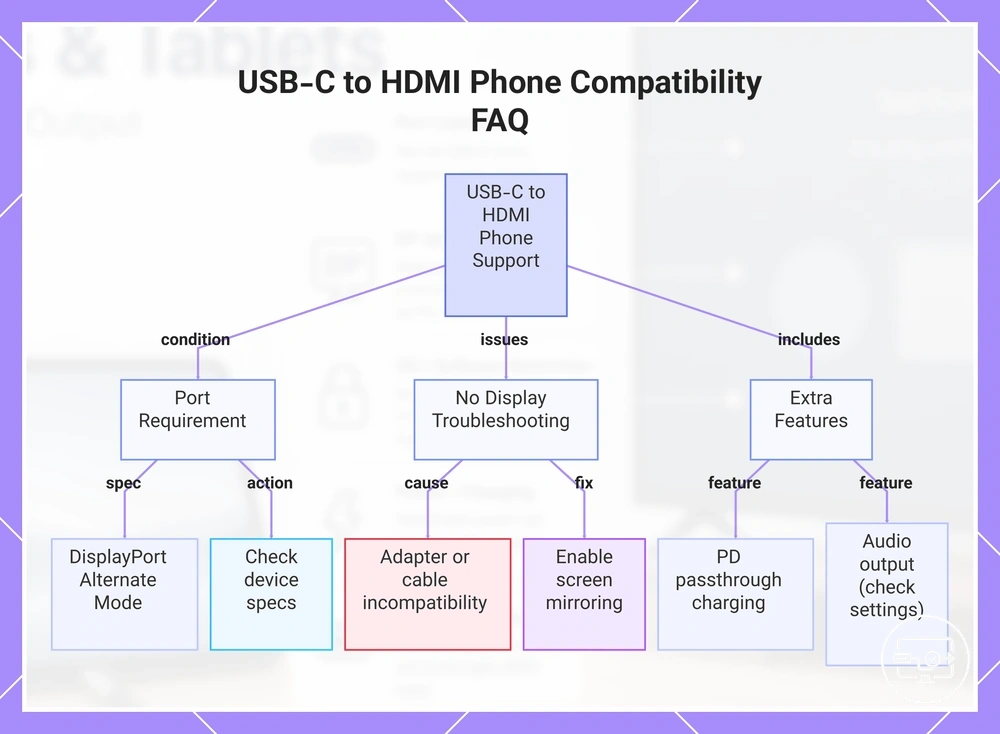
Question: Will a USB-C to HDMI adapter work with my phone?
Answer: It depends on whether your phone's USB-C port supports DisplayPort Alternate Mode, a feature found in many modern Android phones and some tablets. Check your device specs or manufacturer documentation to confirm video output support before buying an adapter.
Question: Why won't my USB-C to HDMI connection show anything on the TV?
Answer: This usually happens when the adapter or cable is not fully compatible with your device. Some devices require enabling screen mirroring for video output.
Question: Can I charge my phone while using a USB-C to HDMI adapter?
Answer: Some USB-C to HDMI adapters include a Power Delivery (PD) pass-through port, which allows charging the device while it outputs video. Not all adapters have this feature. If you need simultaneous charging, look for an adapter that lists PD pass-through support.
Question: Will audio play through the TV when I connect via USB-C to HDMI?
Answer: HDMI carries both video and audio, so in most cases sound will play through the TV speakers once the connection is established. However, some phones may route audio to the phone speaker or require you to manually select the HDMI output in sound settings. If you hear no sound, check the audio output settings on your device.
This chart explains the key requirement, common troubleshooting steps, and extra features for using a USB-C to HDMI adapter with a phone or tablet.
Do all USB-C phones and tablets support HDMI output?
No, HDMI output is not supported by every USB-C phone or tablet. It depends on whether the USB-C port includes DisplayPort Alternate Mode (DP Alt Mode). Even if the port supports video output, the USB-C to HDMI adapter or cable must be able to carry the video signal, and the device must also support video output over that connection.
Does USB-C to HDMI Always Require DisplayPort Alt Mode on Phones and Tablets?
Phones and tablets commonly require DP Alt Mode support to output HDMI over USB-C.
Whether HDMI video output works depends on the device’s port capability and the specific pathway (adapter or cable) used.
Can you charge a phone or tablet while using HDMI without breaking the connection?
Charging a phone or tablet while using HDMI can work, but stability depends on power negotiation between the charger, hub, and device, and on the device's own power draw—see setup steps for a working connection. USB-C adapters and hubs that combine video output and charging input can work, but results vary.
If video works but HDMI audio does not, what does that usually indicate?
If video works on the TV but audio doesn't, it usually indicates an output-routing or device/app limitation, not total HDMI incompatibility. Whether audio passes through depends on how the phone or tablet routes audio over USB-C and HDMI—the device's operating system or the app in use may block the audio routing. For a step-by-step approach, see the guide to troubleshoot common phone-to-display failures.