
USB-C to HDMI Compatibility: Choosing Between an Adapter, Cable, or Dock
USB-C to HDMI compatibility depends on the USB-C port's video output support and which solution type you choose: an adapter, a cable, a hub, or a dock. Not every USB-C port carries a video signal — some support only charging or data transfer.
Adapters, cables, hubs, and docks convert USB-C to HDMI but differ in conversion method, port count, and typical use limits.
The choice depends on factors such as video output support, resolution needs, and the need for extra ports or charging passthrough, with trade-offs between portability and capability that vary by device and setup. A USB-C port with video output can drive a 4K 60Hz display through a suitable adapter; a port without video support may require a dock with video conversion technology.
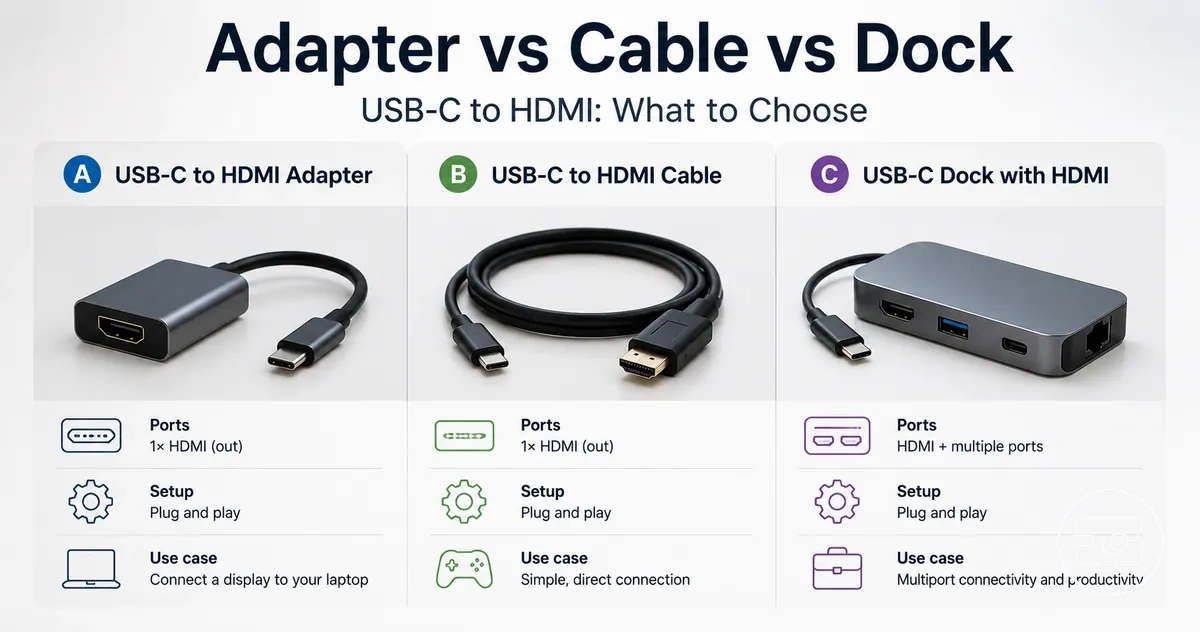
The featured image below shows the three solution types side-by-side to help you compare them.
What USB-C to HDMI compatibility means in practice
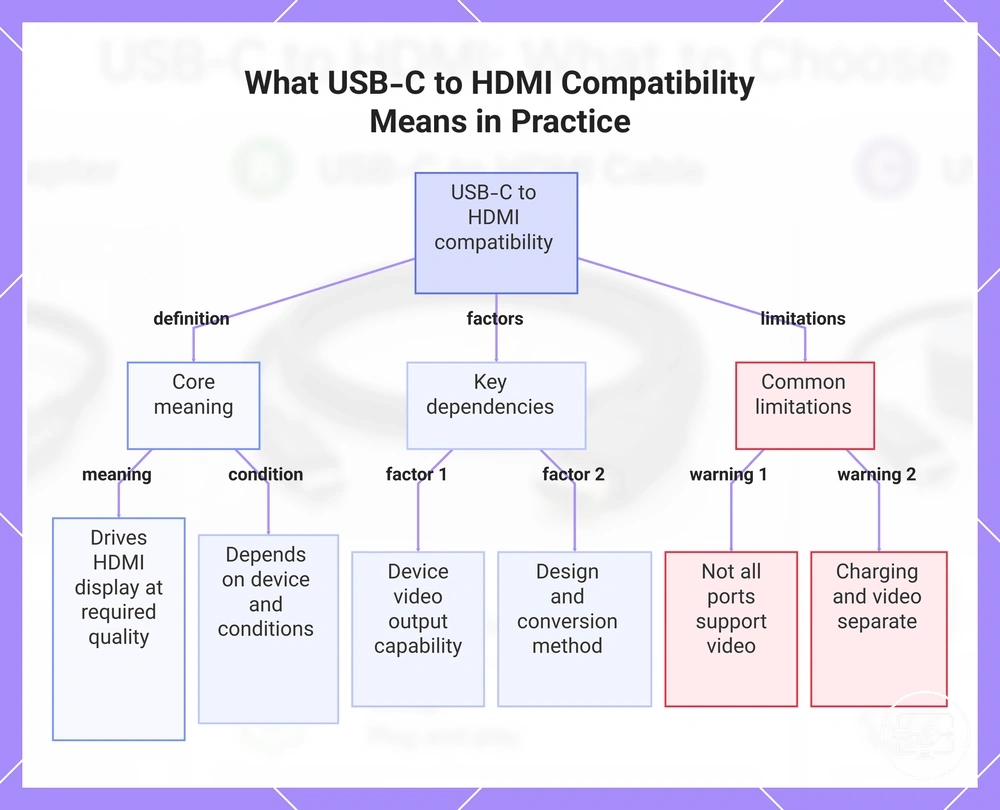
USB-C to HDMI compatibility is a device's ability to drive an HDMI display at a required quality level under specific conditions. It depends on the host device's video output capability and the conditions of use. Achievable resolution and refresh rate depend on the device's design and the conversion method.
Capability does not guarantee universal performance. Many USB-C ports on laptops, tablets, and phones can output video, but some are limited to charging or data transfer only. Charging support and video output support are separate capabilities; a USB-C port that can power a device may not necessarily deliver a video signal, and vice versa.
For example, a laptop with a full-featured USB-C port often drives high-resolution displays based on its specifications, while a smartphone may output lower resolutions or require additional conversion equipment. These differences show that compatibility depends on the device and its conditions; see the USB-C to HDMI Compatibility hub for details.
This chart explains the definition of USB-C to HDMI compatibility and the key factors and limitations that determine its real-world performance.
Compatibility Checkpoints That Decide Whether HDMI Output Will Work
Compatibility checkpoints tell you whether your USB-C port can deliver HDMI output, so you avoid wasted purchases. The image below shows what to look for on a port or spec sheet — check these before buying.
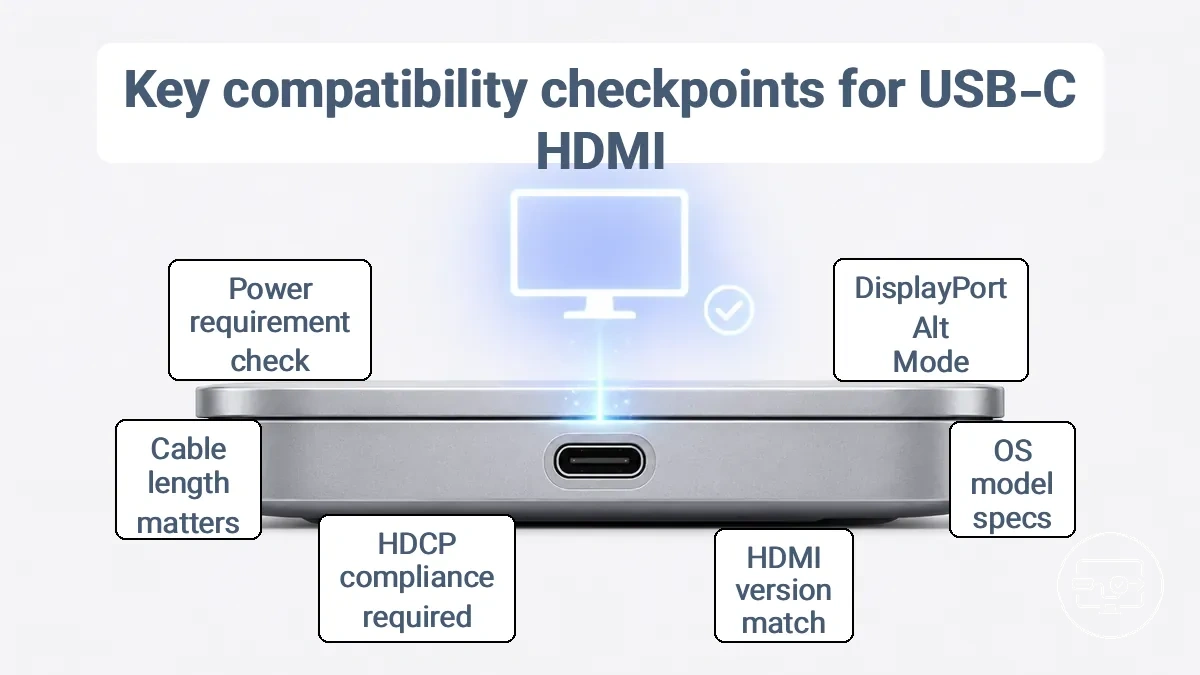
If these checkpoints pass, most solutions can work; if they fail, no accessory type fixes missing host video output.
- Check that your USB-C port supports DisplayPort Alt Mode or Thunderbolt/USB4 — without it, HDMI output is impossible.
- Look up your device's operating system and model specs for external display support; most laptops support it, but some tablets or phones may restrict output.
- Make sure the HDMI version your display needs matches the adapter cable's bandwidth — high-resolution displays typically require HDMI 2.0 or higher.
- If you stream protected content, ensure the cable or adapter is HDCP compliant; without HDCP support, the display may show an error or lower resolution.
- Consider cable length — short passive cables usually work; longer runs may need an active cable.
- Check whether your adapter or dock needs external power — high-resolution or high-refresh-rate outputs often require more power than the USB-C port alone can provide.
- Review your display's HDMI port capabilities — even if the source is capable, an older HDMI 1.4 port limits output to 4K at 30Hz.
If you're unsure about any checkpoint, check your device's spec sheet or contact the manufacturer before buying an HDMI accessory.
USB-C video output support and the role of DisplayPort Alt Mode
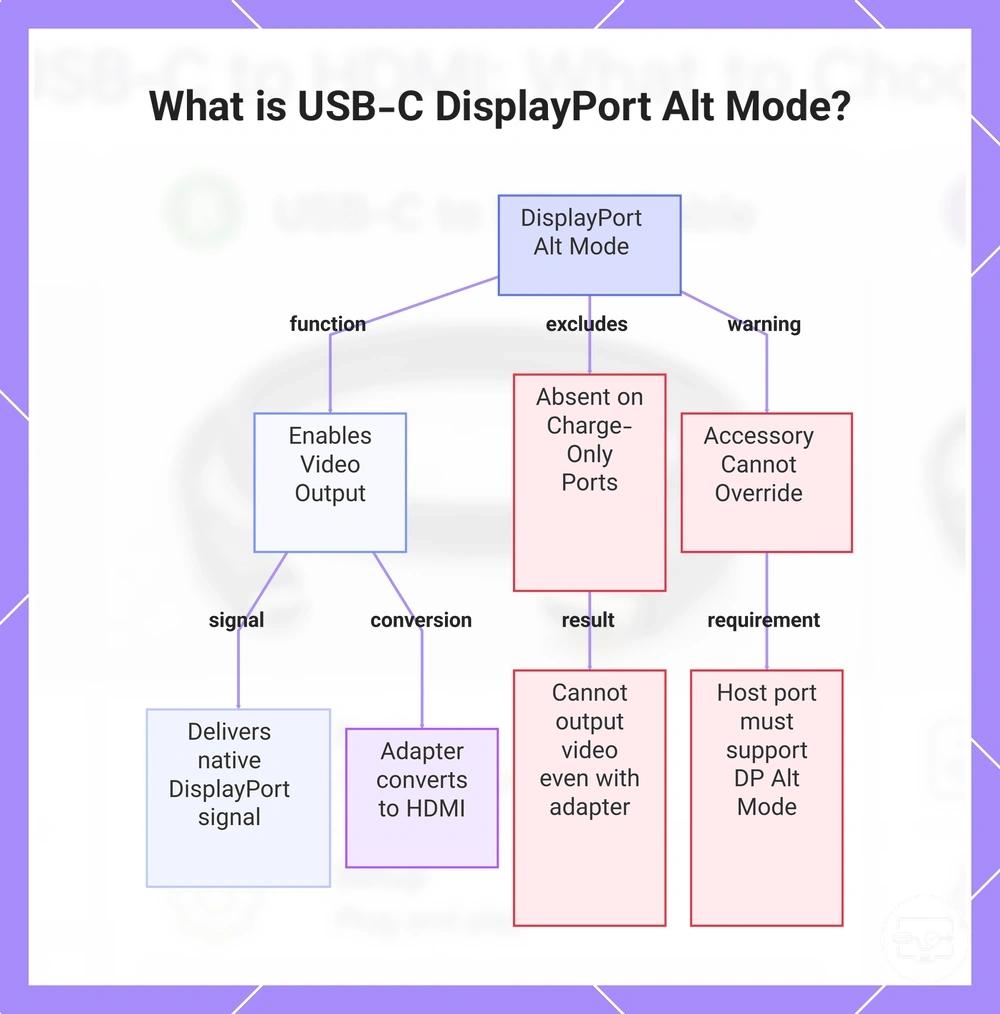
DisplayPort Alt Mode support on the host’s USB-C port enables video output to an HDMI display via USB-C to HDMI adapters, cables, or docks. When present, the USB-C port delivers a native DisplayPort signal, which the adapter then converts to HDMI, completing the video path.
A charge/data-only USB-C port may power a device and transfer files but typically cannot output video, even when connected to a USB-C to HDMI cable or dock. A video-capable USB-C port with DP Alt Mode, however, can drive an HDMI display at high resolutions when paired with the correct converter. Accessory choice cannot override a host port lacking DP Alt Mode.
This chart shows how DisplayPort Alt Mode enables video output on USB-C ports, the difference from charge-only ports, and the limitation of accessories.
When Thunderbolt or USB4 changes device and accessory expectations
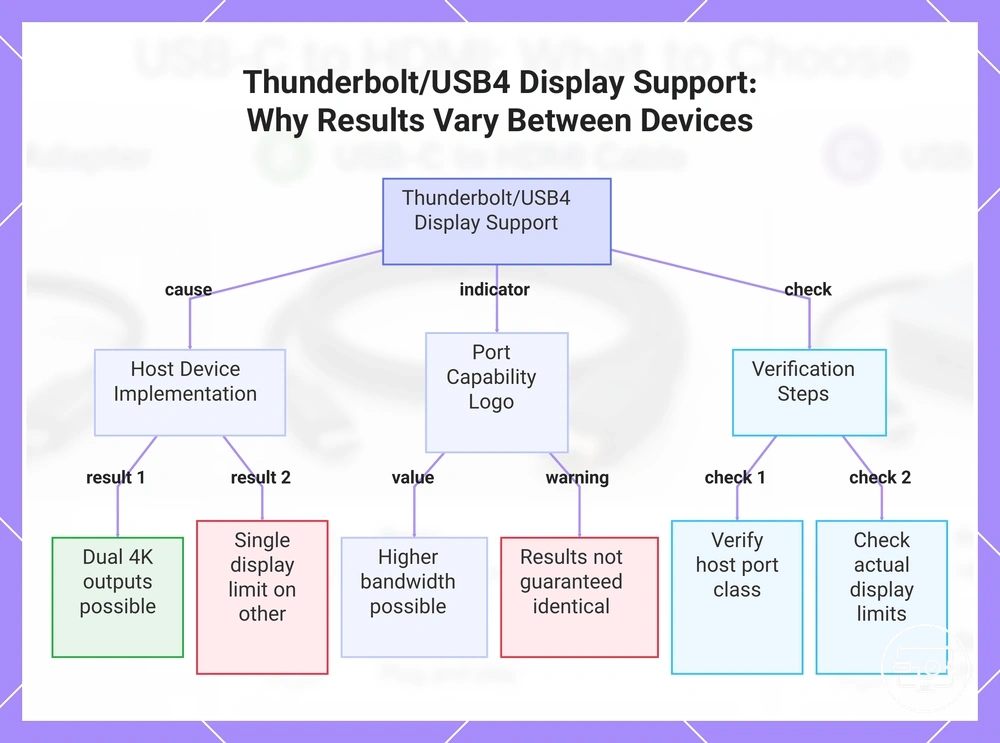
Thunderbolt or USB4 may expand docking options and display features your setup supports, but actual outcomes depend on host device implementation and can vary even between devices with the same port label. A USB-C port with Thunderbolt or USB4 may offer higher bandwidth for video routing, supporting connections that a plain USB-C port might not.
A Thunderbolt or USB4 logo indicates higher port capability, but display results are not guaranteed to be identical across devices. For instance, a Thunderbolt laptop may support dual 4K outputs through a dock, while another with the same logo may limit video to a single display due to internal design choices. When selecting a dock or adapter, verify both the host port class and your device's actual display limits to confirm the outcome you need.
This chart shows how Thunderbolt/USB4 display support depends on host device implementation and why a logo alone does not guarantee identical outcomes across devices.
Charging passthrough and power constraints that affect hubs and docks
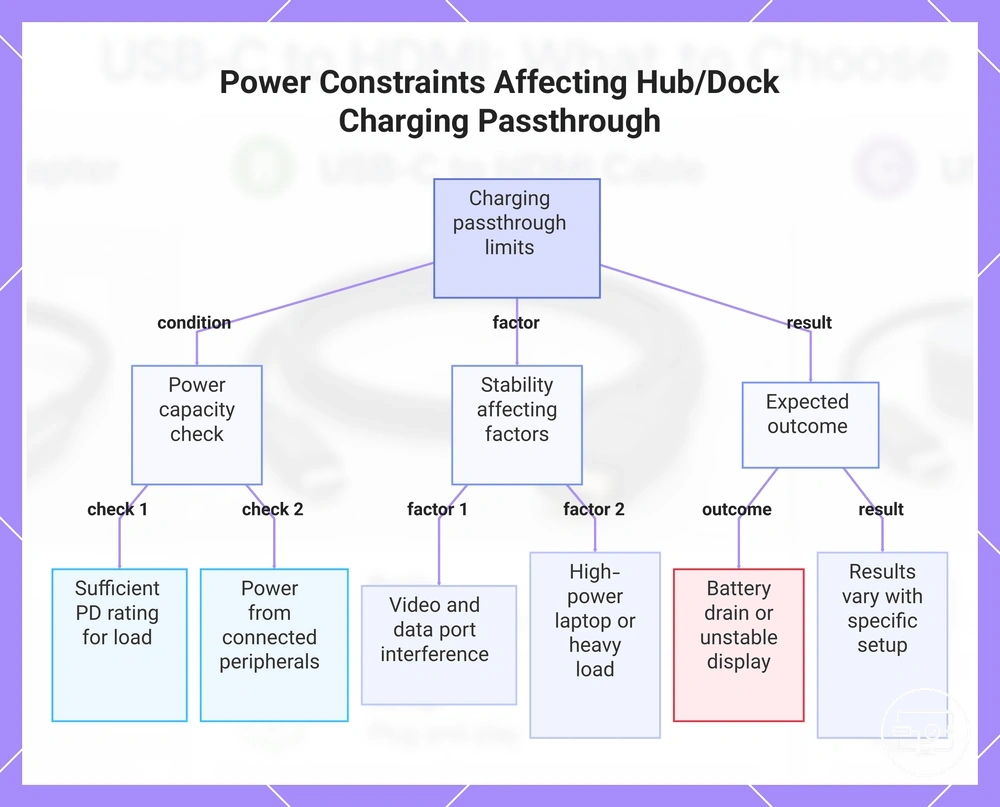
Charging while using HDMI is possible, but it depends on the hub or dock’s power design and your device’s power needs. Under load, the battery may drain or the display may become unstable if the hub or dock reserves too much power for its own operation.
Compatibility depends on these factors:
- Confirm the hub’s PD rating is high enough to charge your laptop under load.
- Account for power drawn by connected peripherals, such as external drives or additional monitors.
- Bandwidth sharing between video and data ports can affect stability when multiple high-power devices are connected.
High-power laptops or a heavy peripheral load can affect charging behavior, so results may vary with your specific setup.
This chart shows the key conditions, factors, and outcomes that affect charging passthrough when using a hub or dock with an HDMI display.
Adapter vs cable vs dock as solution types and what each actually does
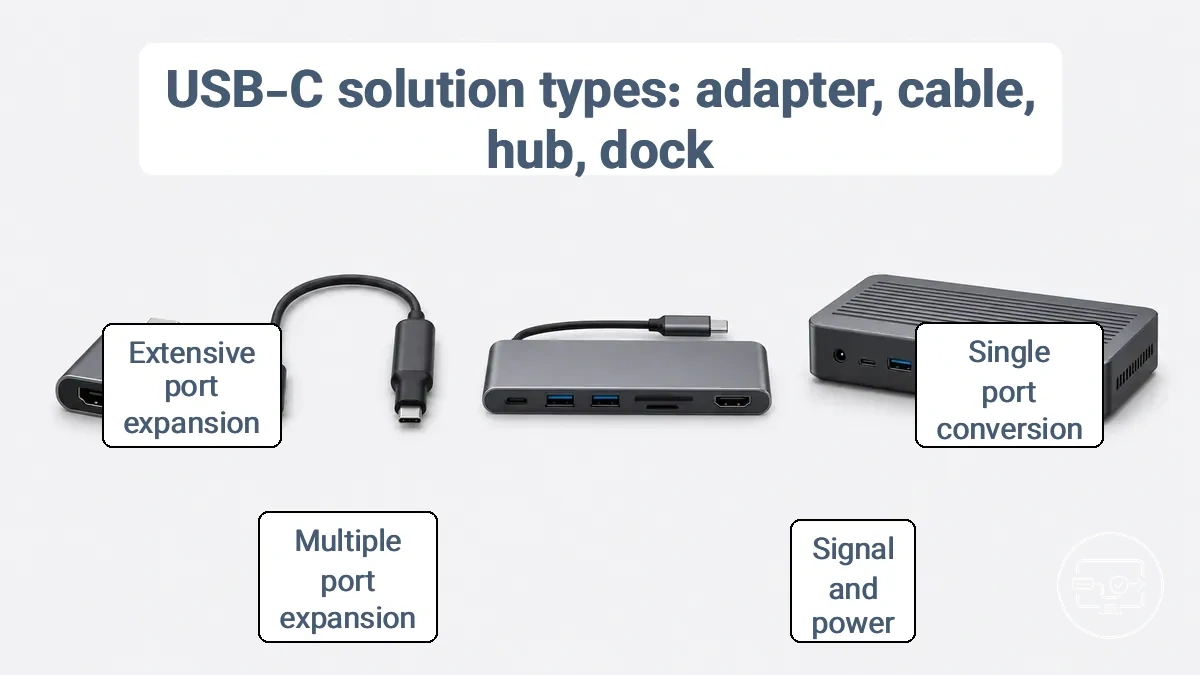
Adapter, cable, dock, and hub are four distinct solution types for adding or converting USB-C connections, each handling signal conversion, power delivery, and port expansion differently. The choice depends on whether the task requires a single port conversion, a portable multi-port expansion, or a permanent multi-device workstation.
The image labels the physical form factors of adapter, cable, hub, and dock and shows where signal conversion occurs within the connection path.
| Solution type | What it does | What it depends on | Typical trade-off |
|---|---|---|---|
| Adapter | Converts one port format to another (e.g., USB-C to HDMI) with no port expansion. | Host must support the required video output mode (e.g., DP Alt Mode). | Typically supports only a single display; draws power from the host, which may limit output quality. |
| Cable | Carries signal and power between two devices; conversion may be built into the cable; no port expansion. | Relies on cable specifications for speed and power delivery. | No additional ports; poor cable quality can limit performance. |
| Hub | Adds multiple ports via a single USB-C connection; often includes video output. | Depends on host USB-C capabilities and available power budget. | Bandwidth is shared across ports, which can affect display resolution or data speeds; typically bus-powered. |
| Dock | Creates a stationary workstation with extensive ports and often multiple video outputs. | Requires a compatible host connection (USB-C or Thunderbolt) and may need driver support. | Larger and more expensive; provides external power, can enable higher performance and more stable connections. |
The term 'active' is used inconsistently across product listings and may not reliably indicate a higher performance level.
USB-C to HDMI adapters and when an active conversion matters
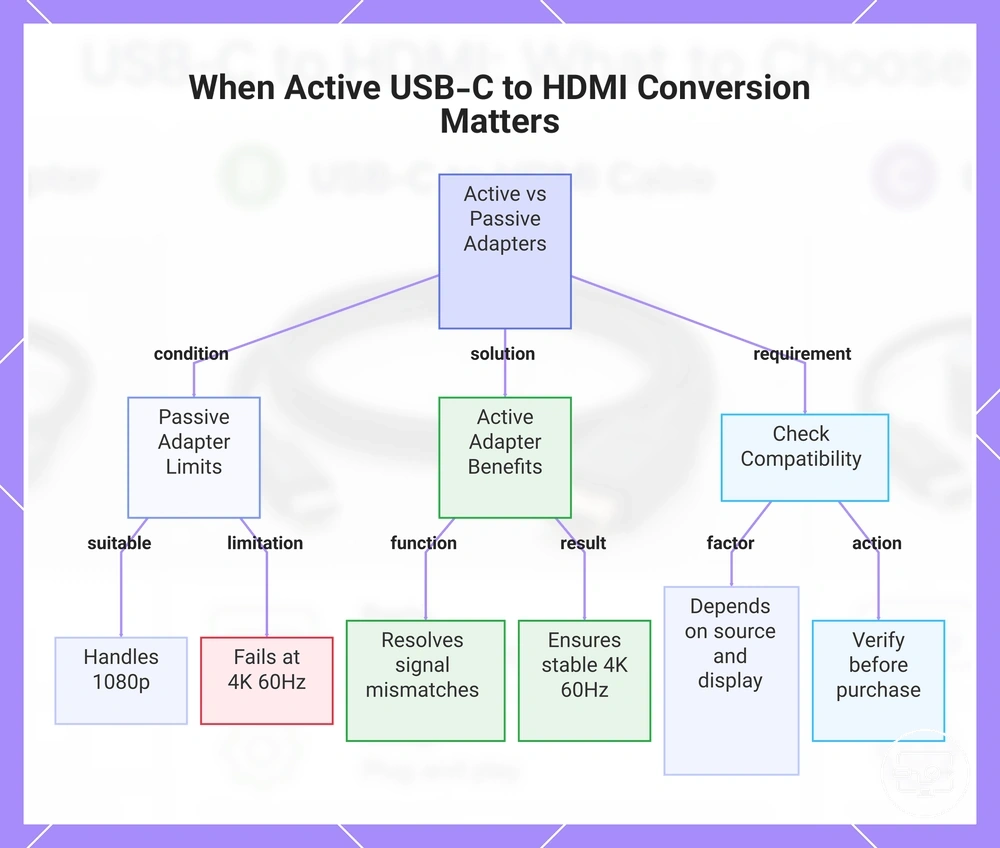
Choosing between a passive USB-C to HDMI adapter and an active converter depends on the resolution and cable length needed. A passive adapter may handle 1080p output. It often cannot maintain stability for 4K at higher refresh rates.
A laptop outputting a DisplayPort signal may need to connect to a 4K 60Hz monitor. A passive adapter may fail to maintain a stable signal, causing flickering or no display. An active adapter, with signal processing, often resolves such mismatches by ensuring the conversion meets the display's requirements. The outcome depends on source and display capabilities, so checking compatibility remains necessary.
This chart compares passive and active USB-C to HDMI adapters and shows when active conversion is needed for stable 4K 60Hz output.
USB-C to HDMI cables and the limits of 'simple' one-piece connections
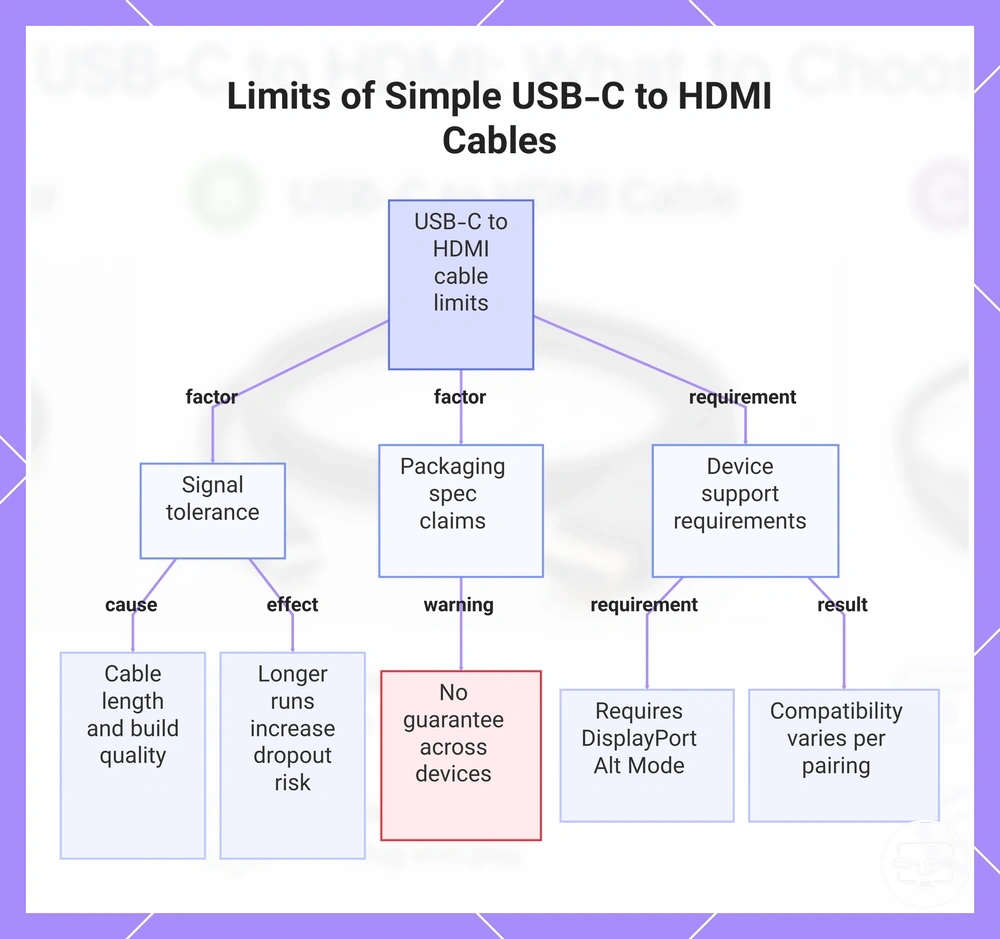
A one-piece USB-C to HDMI cable offers the convenience of a single connector on each end and no extra parts, but its performance can hit distinct limits compared to an adapter or a dock. The cable's wiring, length, and build quality affect signal tolerance and stability, while the actual result often depends on the specific device pairing.
Key constraints are:
- Cable length and build quality can limit signal tolerance, increasing dropout risk with longer runs or higher resolutions.
- Packaging spec claims do not guarantee the same resolution and refresh rate across all devices.
- If the source port lacks DisplayPort Alt Mode support, the cable may not work for video at all, regardless of its rating.
- A cable that works flawlessly with one laptop may show no signal when paired with a different tablet or phone.
For instance, a cable that drives a 4K display from a Thunderbolt laptop may fail to produce any image when connected to a smartphone that only supports data and charging.
This chart shows the main factors limiting the performance of one-piece USB-C to HDMI cables, including signal tolerance, unreliable specs, and device dependency.
USB-C hubs and docking stations and why they behave differently
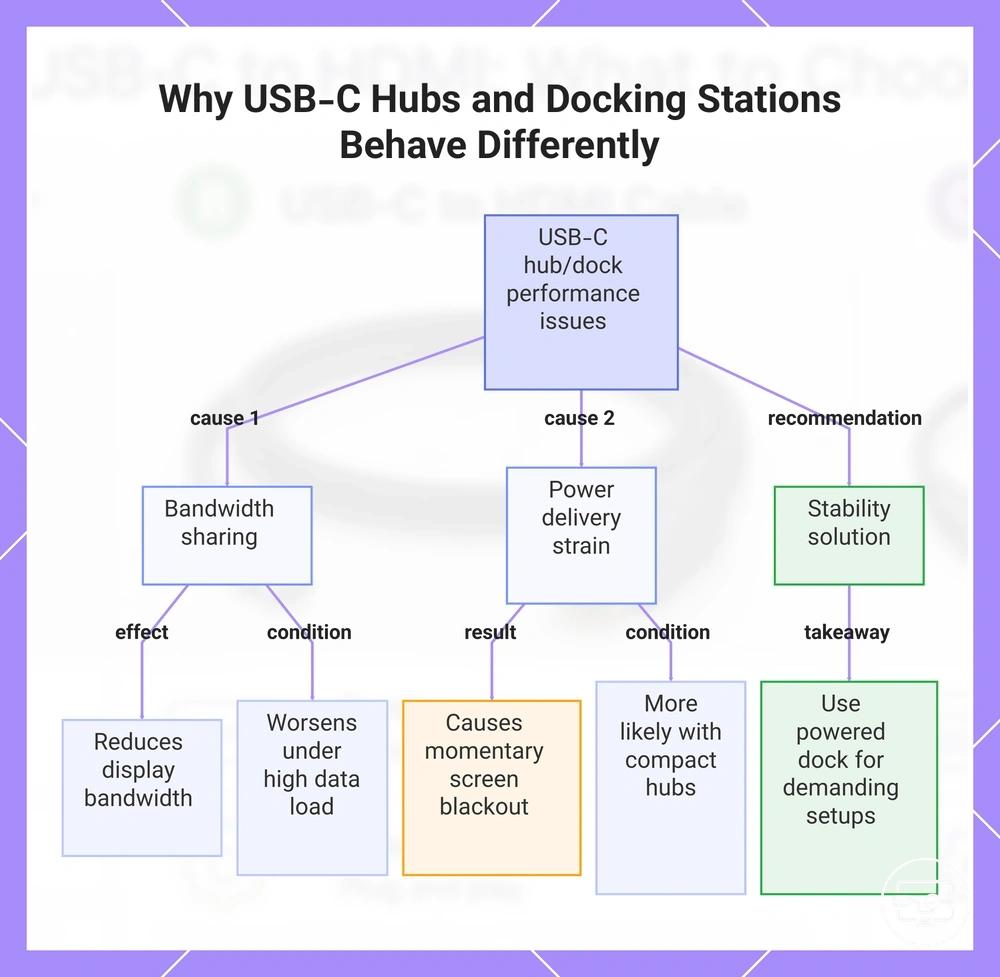
Hubs and docking stations behave differently because they share bandwidth and power across multiple functions, so display stability and data throughput depend on the device's load. When multiple peripherals draw power simultaneously, the power delivery path can become strained, which may cause instability or intermittent connectivity under load.
Bandwidth sharing can affect display output. For example, when a hub or dock handles high-speed storage, an Ethernet adapter, and a 4K monitor at the same time, the video signal's available bandwidth may decrease, leading to lower refresh rates or occasional flicker. Bandwidth contention is more noticeable under high data transfer loads.
Heavy USB peripheral usage can also affect display stability. When multiple high-power devices such as external SSDs or chargers are connected, the power delivery to the monitor may drop, causing the screen to black out momentarily. This issue is more likely with compact USB-C hubs that lack separate power regulation, so a powered dock may be a more stable option for demanding setups.
This chart explains the key causes of instability in USB-C hubs and docking stations and a recommended solution for demanding setups.
Video and audio capabilities that differ by solution type
Output capabilities commonly differ by solution type due to differences in chipset, supported standards, and bandwidth. These factors affect maximum resolution, HDR support, audio passthrough, and HDCP compliance. The following table organizes these capability dimensions across common USB-C to HDMI solution types: adapters, cables, hubs, and docks.
| Solution type | Max resolution/refresh | HDR support | Audio passthrough | HDCP risk |
|---|---|---|---|---|
| Adapter | Up to 4K; refresh may be 30 Hz without sufficient bandwidth. | Depends on chipset; may not include HDR metadata handling. | Stereo audio typically; multichannel requires specific firmware. | May include HDCP 2.2+; older adapters may fail with protected content. |
| Cable | 4K at 60 Hz if high-speed rated; passive cables may cap lower. | Certified cables may pass HDR; uncertified may drop metadata. | Full channel support if built to spec; bandwidth limiting can reduce quality. | Compliance depends on certification; risk of playback failure on unrated cables. |
| Hub | Shares bandwidth; top resolution may drop under peripheral load. | Varies by chipset and power; some hubs strip metadata. | May be limited to stereo if USB bus shared; dedicated passthrough often absent. | Chain may break if hub controller lacks full HDCP support; edge-case failures possible. |
| Dock | Full host resolution and refresh with dedicated video processing; depends on dock chipset. | May support HDR, but may require specific firmware or host settings. | May support multichannel; surround formats require compatible display and source. | Compliance may be present; multi-monitor setups add failure points. |
Even with a high-spec accessory, the host device's USB-C port capabilities and the connected display's EDID can cap the final output, so results may fall short of the accessory's rated maximum.
4K 60Hz expectations and common reasons you may not reach it
Achieving 4K 60Hz through USB-C depends on the host device's video output capability, the solution class (adapter, cable, or dock), and how each handles bandwidth and refresh rate. The host must support the required bandwidth and color format, while the adapter or dock must pass that signal without bottlenecks.
Several common factors may prevent 4K 60Hz from being reached:
- Host may lack DisplayPort alternate mode or HDMI 2.0 output.
- Cable bandwidth may be insufficient, especially at longer lengths.
- Hub or dock may share bandwidth among ports, reducing throughput.
- Display may not accept 4K 60Hz due to EDID or HDMI version limits.
- Adapter may be limited to HDMI 1.4, capping refresh at 30Hz.
A direct adapter may deliver 4K 60Hz from a capable host, while the same host through a shared-bandwidth hub may only offer 4K 30Hz under load.
HDR, audio passthrough, and HDCP edge cases that show up with TVs and streaming
HDR, audio passthrough, and HDCP behavior may vary depending on the accessory's chipset, the TV's HDMI port capabilities, and the content source's protection requirements, whether you use a USB‑C adapter, cable, or dock. A USB‑C adapter that does not support HDCP 2.2 or HDR metadata pass‑through may still deliver a basic video signal, but streaming apps may block 4K or HDR playback when the HDCP handshake fails. Similarly, audio passthrough can be limited if the adapter cannot carry multi‑channel formats like Dolby Atmos.
A streaming app may show a black screen or drop to standard definition when video works normally, indicating an HDCP mismatch between the adapter, TV, or intermediate device. When HDR content plays in standard dynamic range, the adapter may strip HDR metadata or the TV may lack HDCP 2.2 support. Selecting a USB‑C to HDMI accessory that explicitly supports HDCP 2.2 and HDR10 pass‑through may reduce these risks.
Choosing the Right Type for Common Setups and Goals
The right choice between an adapter, cable, or dock depends on your primary goal and where you plan to use it. The image below shows a decision tree that maps common goals to the appropriate solution type.
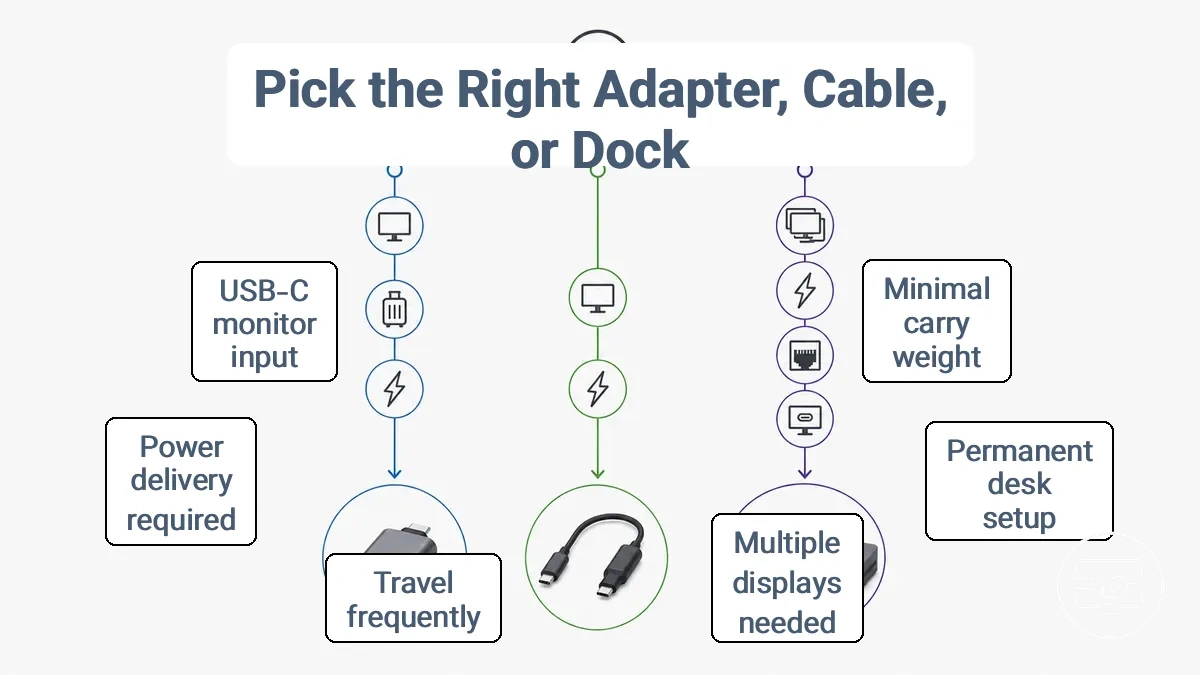
- For a single external display with minimal carry weight, you usually choose an adapter.
- For a single display at a permanent desk setup where you want a clean look, you usually choose a cable.
- For multiple displays, Ethernet, USB ports, or power delivery, you usually choose a dock.
- If you travel often and connect to different monitors at each location, an adapter or cable usually fits better than a dock.
- If you need to charge your laptop while using HDMI, check that the adapter or dock supports power delivery.
- If you already have a USB-C hub with HDMI but need more monitors, you may need a dock with multi-display support.
- If your laptop has only one USB-C port and you need charging plus HDMI, you usually choose a dock with power pass-through.
- If your monitor has USB-C input with video support, a simple USB-C cable may work without an adapter.
Keep in mind that multi-display goals can change the correct solution class, often requiring a dock even if a cable or adapter seemed sufficient at first.
Single display use for laptops, tablets, and phones
For a single external display from a laptop, tablet, or phone, choose a cable when portability matters and you only need standard 1080p; opt for an adapter or hub for higher resolution or HDR. A cable is more convenient for on-the-go use, while an adapter or hub provides better signal processing for higher target quality.
For a phone that supports USB-C video output, a cable alone may drive a monitor, but support varies by device. For a display goal like connecting to a 4K TV for media playback, a hub that manages power and conversion is often the safer single-display choice. Before relying on the decision above, confirm your device supports video output.
Desk setups that need charging and extra USB ports
For a desk setup that needs charging and extra USB ports, a powered hub or docking station is usually the better choice over a simple adapter, provided power supply and bandwidth are sufficient. The decision depends on how many peripherals need simultaneous connection and whether the laptop’s USB-C port can deliver enough Power Delivery for stable charging.
To avoid port shortages or charging interruptions, check a few key factors before choosing:
- Check the laptop’s Power Delivery rating to confirm the hub or dock can maintain charging stability under load.
- Count the peripherals and match them with available ports, confirming the hub provides enough downstream bandwidth.
- Prefer a powered unit when connecting high-power devices to reduce the risk of voltage drops on a bus-powered unit.
- Confirm the hub or dock supports your display’s resolution and refresh rate, especially when multiple peripherals share the data connection.
In some configurations, heavy USB peripheral load can affect display stability, so test the setup with all intended devices before finalizing.
Dual Monitor Goals and When a Dock Is the Correct Class of Solution
Dual-monitor success depends on device support and display routing method, not simply having more HDMI ports. Even a dock with two HDMI ports may mirror the same image on both screens if the host's display support mode or the dock's routing method cannot treat them as separate outputs.
Whether displays extend or mirror often depends on how the dock handles the video pipeline when both displays share the same connection. Some docks route both monitors through a single video stream that the host may not be able to split into independent outputs, while others use a chipset that presents each display separately. Before assuming a dock can extend both screens, check your laptop's display output limits and the dock's routing method. See multiple displays compatibility to determine your host's capabilities.
Buying Checklist to Avoid Mismatches and Misleading Specs
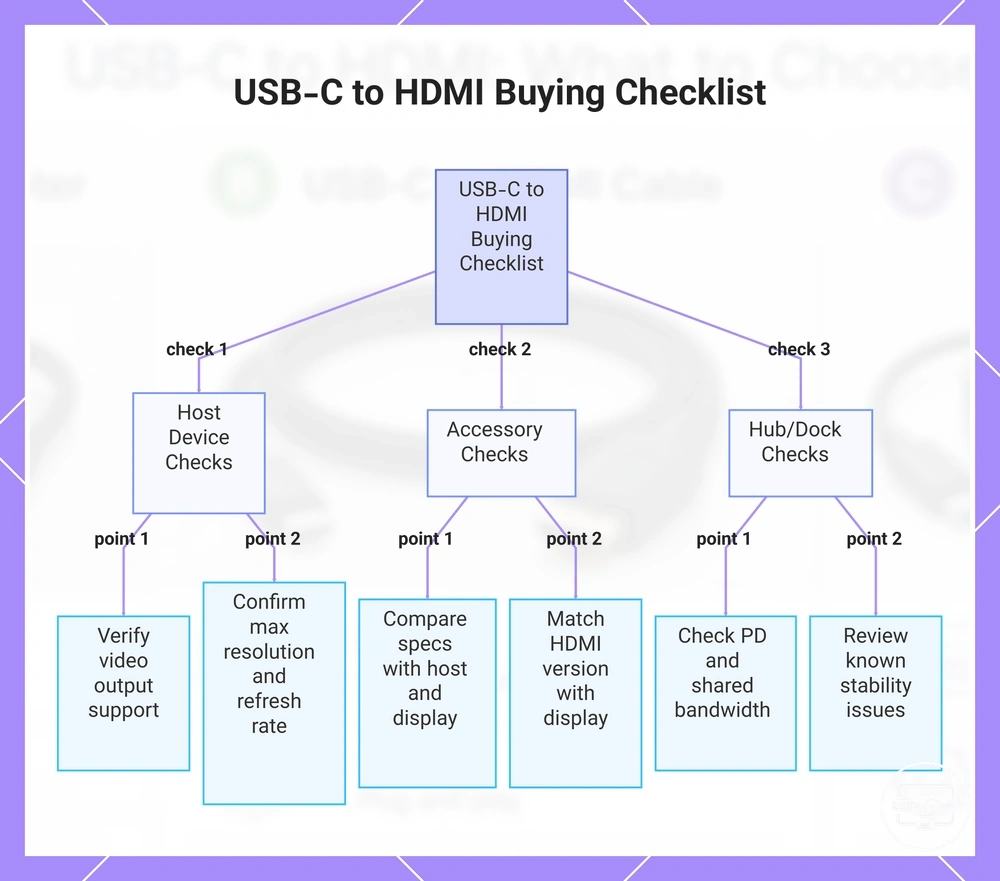
This checklist verifies that the accessory's specifications match the host's output and the display's requirements. Skipping these checks often results in no signal, low resolution, or unstable operation. Use this checklist to avoid such mismatches. For additional guidance, see the USB-C to HDMI buying checklist.
- Host Device: Verify that your laptop, phone, or tablet supports video output over USB-C. Not every USB-C port delivers video—check the device manual or manufacturer spec sheet.
- Host Device: Confirm the maximum video output resolution and refresh rate your host supports. An adapter's output is limited by the host's native capability.
- Host Device: Check if your device uses DisplayPort Alt Mode, Thunderbolt 3/4, or USB4 for video delivery. The accessory should be compatible with that standard.
- Accessory: Compare the accessory’s listed resolution, refresh rate, and HDR support against your display’s inputs and your host’s output. The lowest ceiling among the three determines the actual signal.
- Accessory: Verify that the accessory’s HDMI version matches your display’s HDMI input version. A mismatch can limit features like 4K@60Hz or HDR.
- Accessory: Ensure the accessory includes the necessary cables or adapters; missing parts may require a separate purchase that affects compatibility.
- Hub/Dock: Check the hub or dock's power delivery spec and confirm that shared bandwidth does not throttle HDMI output under load.
- Hub/Dock: Review known stability issues for your specific host model and the hub you are considering. User reports often reveal hidden incompatibilities.
- Hub/Dock: Confirm the hub's firmware is updatable, as some compatibility issues are fixable via firmware update.
If a checkpoint is uncertain, treat it as unknown and choose the safer class that supports broader configurations.
If the host's video output standard is unknown, assume it supports a common baseline like DisplayPort Alt Mode at moderate resolution and refresh rate. A passive adapter rated for that level works in most cases; an active adapter or hub may add power or bandwidth dependencies that complicate compatibility.
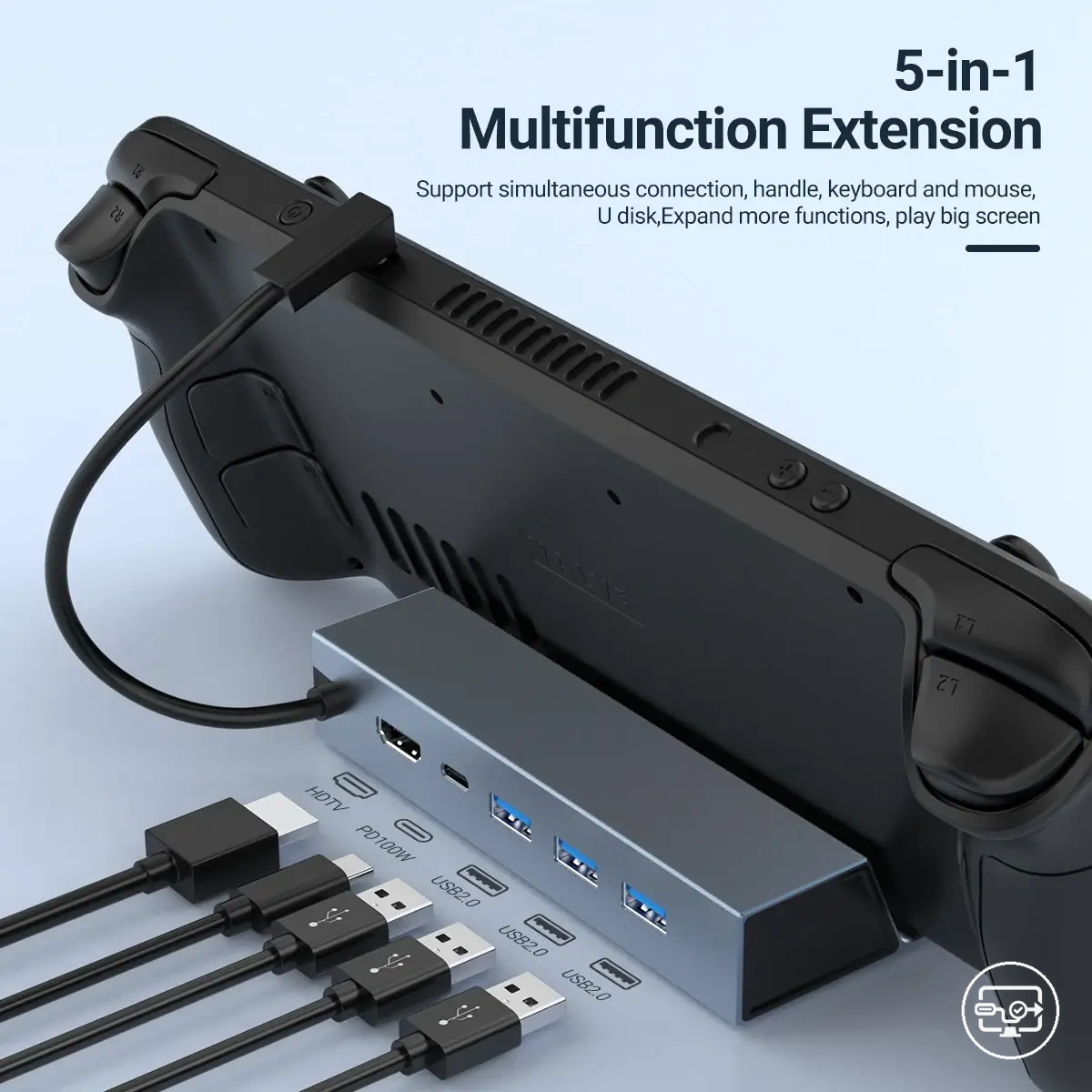
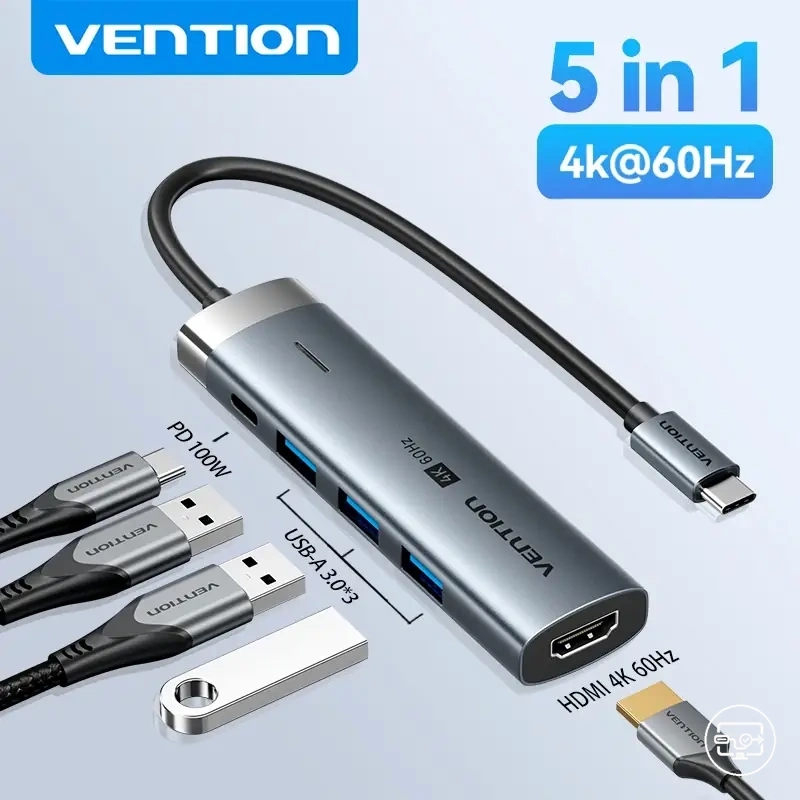
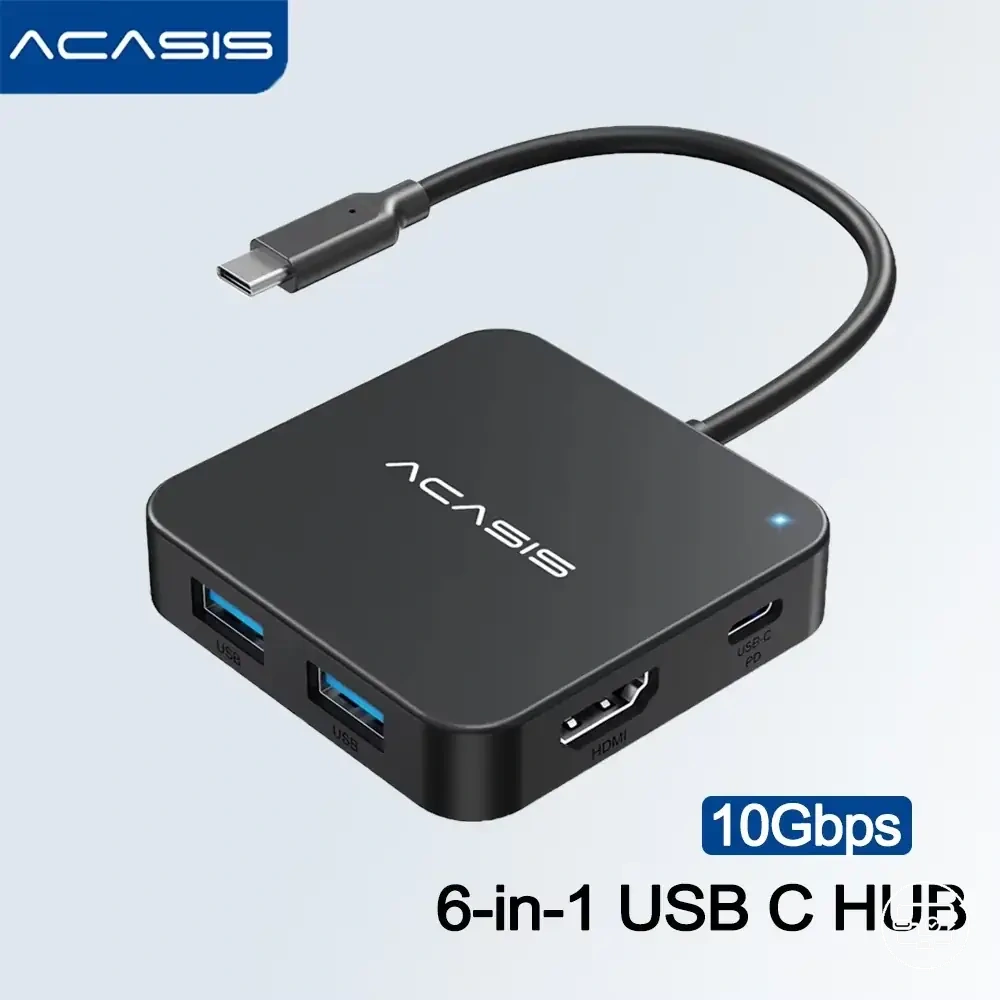
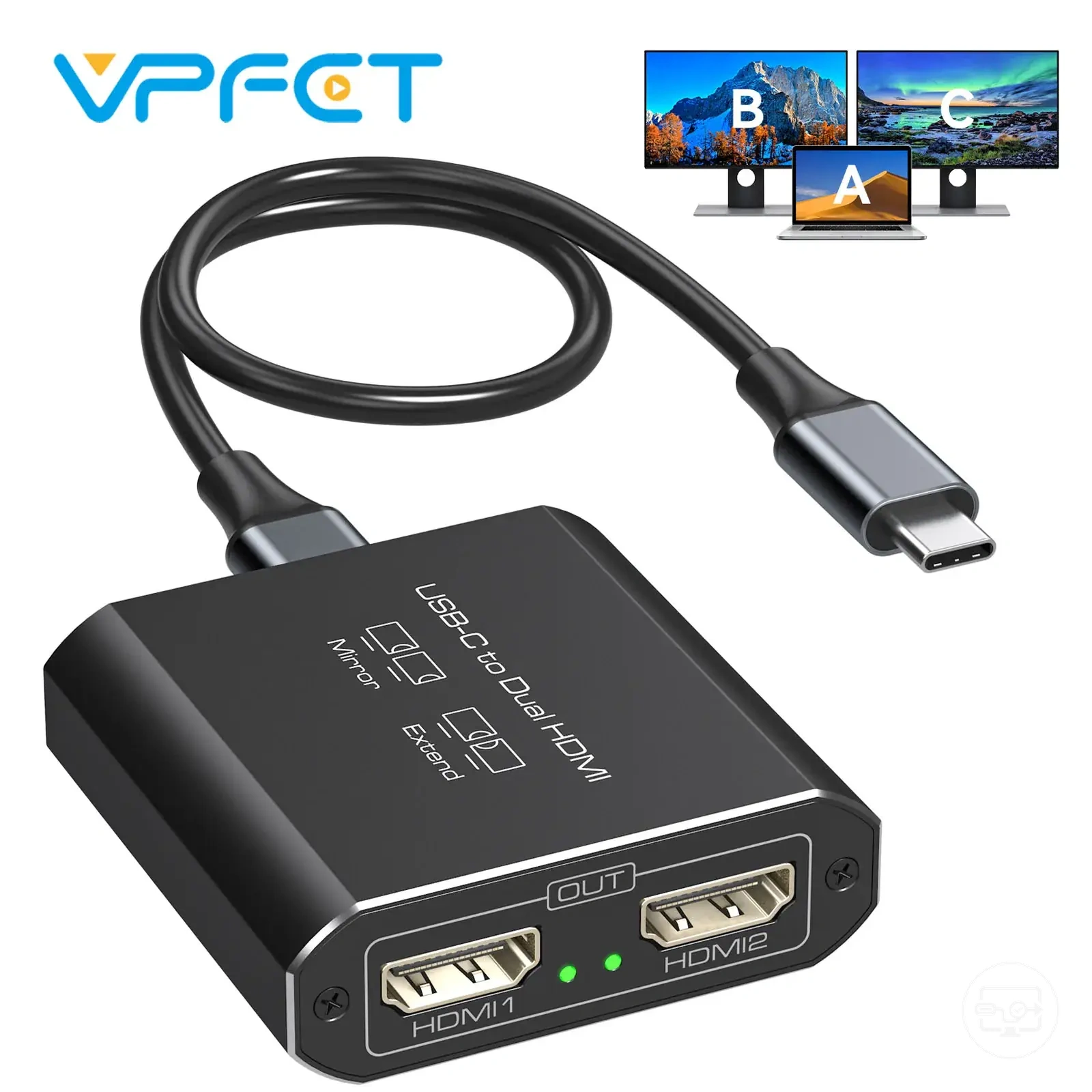
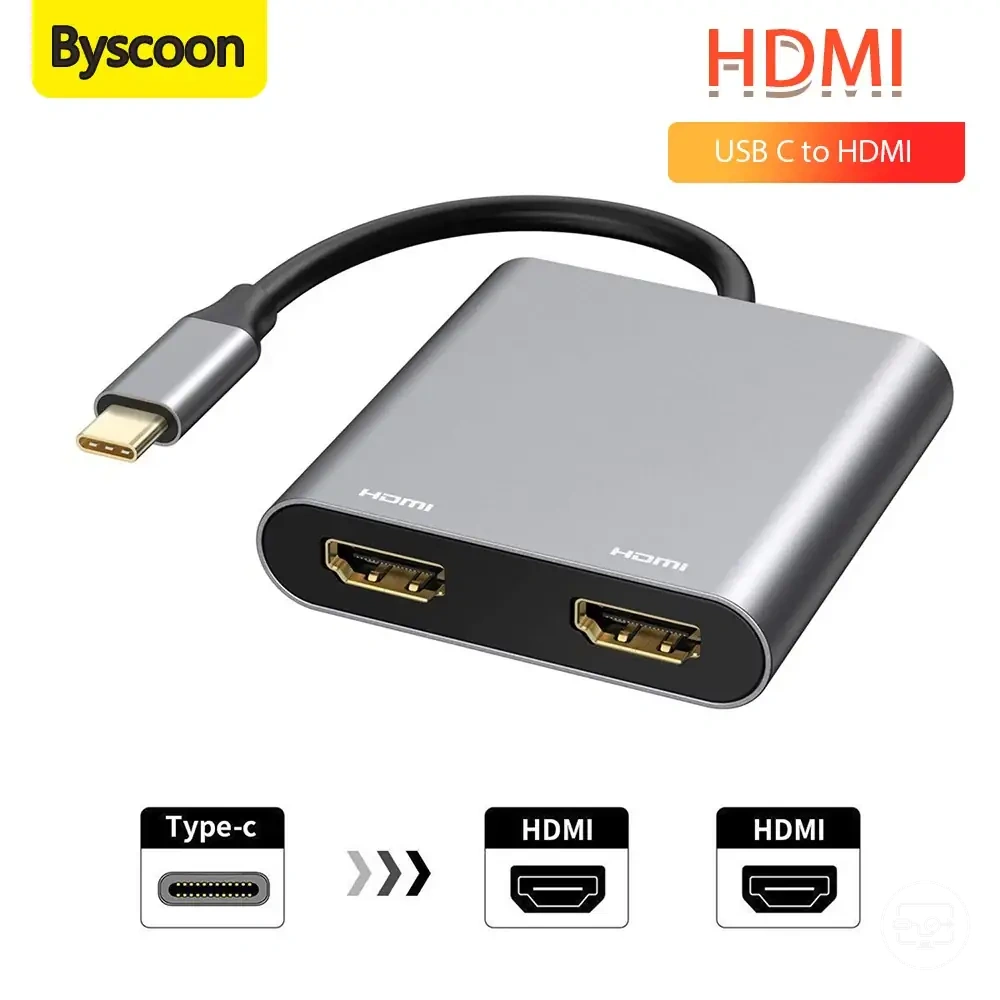
The products below are useful examples for comparing available options. Before buying, check that the compatibility criteria, key features, and product details match your needs.
This chart outlines essential checks for host device, accessory, and hub/dock to prevent no signal, low resolution, or unstable operation.
Active vs passive phrasing and how to validate real compatibility claims
Marketing wording like 'active' or 'passive' is used inconsistently, so compatibility claims need validation against the host's output capability and conversion behavior. Use this checklist to validate what the claim actually requires.
- Does the claim specify a required host capability (such as DP Alt Mode support or power delivery)? If not, the label may indicate only the cable's internal design, not what your device can deliver.
- Does the wording describe a conversion behavior (e.g., signal direction change) or simply a connector type? Passive phrasing often omits the conversion step; active phrasing may imply a chip that converts the signal.
- Is the claim paired with a solution class (cable, adapter, or dock)? Each class has different conversion demands; a mismatch between the label and the class increases risk of non-function.
- Does the product's marketing use conditional phrases like 'may support' or 'works with select hosts'? Such wording signals that the claim is not guaranteed for your specific setup.
Consider a cable marketed as '4K passive cable.' The passive label may imply 4K capability, but a passive cable only passes through the host's signal. It cannot create the signal if the host does not output 4K. Check the host specification before assuming compatibility from any cable label.
Ports, Bandwidth Sharing, and Power Delivery Specs That Change Results on Hubs and Docks
A hub or dock’s ports share bandwidth, and its Power Delivery rating must cover both the host device and connected peripherals under load. When bandwidth is shared across multiple active ports, display quality or data speeds can drop as peripheral draw increases.
When selecting a hub or dock for USB-C to HDMI, verify the following specifications:
| Spec Area | What to Look For | Why It Matters |
|---|---|---|
| Port layout | Shared vs. dedicated lanes | Affects whether performance drops when multiple devices are active. |
| Power Delivery (PD) rating | Available wattage after accounting for peripheral draw | Affects charging speed and overall stability under load. |
| Bandwidth allocation | How bandwidth is divided among ports | Can cause display flicker or resolution drops when multiple displays or high-speed peripherals are connected. |
| Peripheral compatibility | Power requirements of attached devices | Helps ensure enough headroom for both charging and operation. |
| Under load behavior | Real-world performance with several peripherals active | Reveals whether the setup can maintain stable display output. |
In edge cases, heavy peripheral usage can reduce display stability even when bandwidth specifications appear sufficient.
Cable length, heat, build quality, and failure patterns that affect stability
Stability issues with USB-C to HDMI connections often come from physical and build factors rather than compatibility alone. Compatibility determines whether the source and display can negotiate a signal. Intermittent problems—flicker, dropouts, or signal loss—typically trace back to cable length, heat tolerance, or construction quality.
When a cable or adapter is poorly constructed or used beyond its design limits, the following symptoms indicate physical or environmental instability:
- Screen flickering or brief blackouts without an obvious cause.
- Complete loss of signal when the cable is moved or repositioned.
- Dropouts that become more frequent as the cable warms up during extended use.
- No signal detected after the adapter has been in use for an extended period.
- Intermittent connection that improves when the cable is held in a specific position.
- Image artifacts or color distortion that appear only with longer cable runs.
- Signal failure that occurs only after the device or cable has been exposed to heat or physical strain.
To isolate physical instability from capability limits, test the same setup with a shorter, known-good cable in a stationary position and compare behavior. More detail is available in the discussion on stability and reliability factors.
FAQ for USB-C to HDMI adapters, cables, hubs, and docks
This FAQ covers capability conditions and outcome differences for USB-C to HDMI adapters, cables, hubs, and docks. Device variation, hub load, and cable quality affect results and create edge cases.
Question: Why does a USB-C to HDMI adapter work on one laptop but not another?
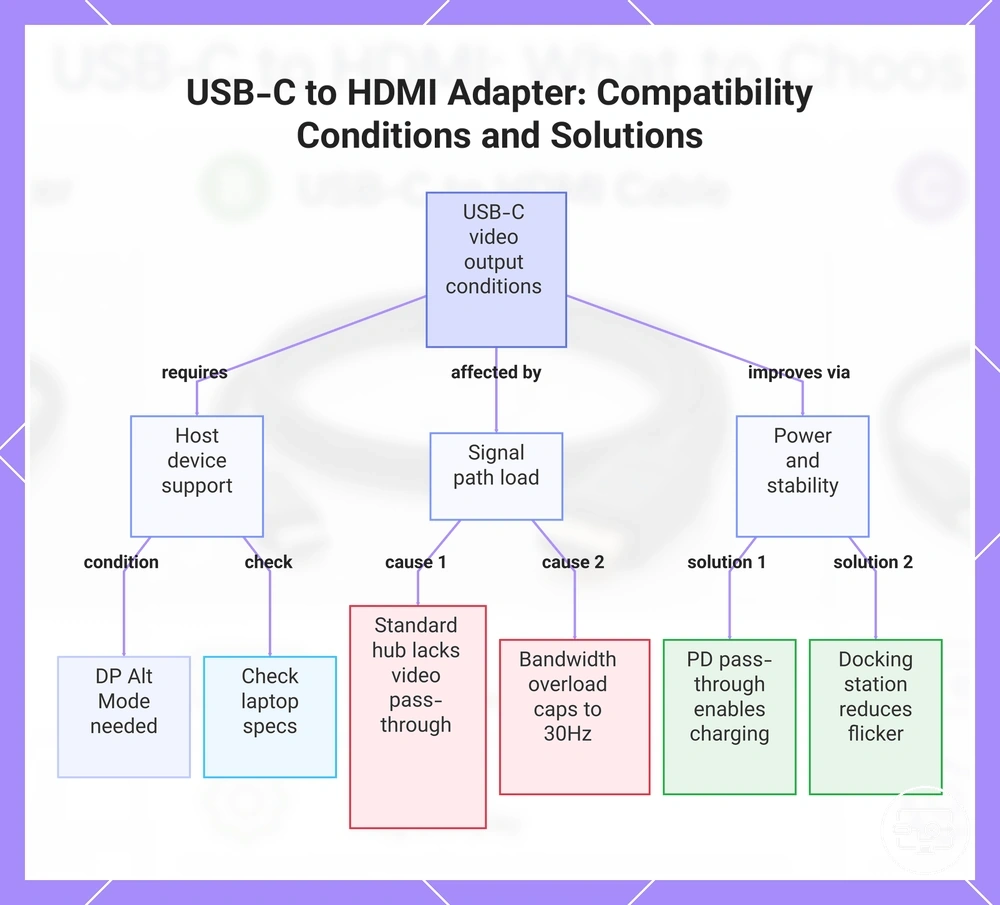
Answer: The adapter depends on the host device's USB-C port supporting DP Alt Mode for video output. If the port only handles data and charging, no video signal passes, so check your laptop's specifications to see if it supports DP Alt Mode.
The products below are useful examples for comparing available options. Before buying, check that the compatibility criteria, key features, and product details match your needs.
Question: Can I connect a USB-C to HDMI adapter to a standard USB hub and get video?
Answer: In most cases, no. USB hubs typically pass data only, not video signals; a dock with its own HDMI output or a hub that explicitly supports video pass-through is needed for external displays.
Question: Why does my external monitor show 30Hz when the adapter supports 4K@60Hz?
Answer: The final refresh rate depends on the HDMI cable, the monitor, and the host device's bandwidth capacity. Some hubs and adapters cap to 30Hz when the combined signal load exceeds the available DP Alt Mode bandwidth, so check that each component supports 4K@60Hz.
Question: Whether using a docking station can avoid the flickering I see with my adapter?
Answer: A docking station can reduce flicker if it provides a stable power source and higher-quality components, but flicker may also originate from the cable or monitor. Test each component individually to isolate the cause.
Question: Can I charge my laptop through the same USB-C port while using an HDMI adapter?
Answer: Yes, if the adapter or hub supports power delivery (PD) pass-through. The amount of power depends on charger wattage and hub internal consumption, with some hubs using a portion for their own operation.
When choosing, confirm your host device's capabilities to set expected performance. Then match them to the correct solution class.
The following products illustrate these solution types.
This chart explains the key factors affecting USB-C to HDMI video output, including host device requirements, signal path limitations, and power stability solutions.
Why a USB-C port can charge but still not output HDMI video
A USB-C port can charge your device but still be unable to output HDMI video because the two functions use different internal wiring. Charging only requires power-delivery support, while video output depends on whether the port includes video-output support. The outcome depends on the device model and manufacturer implementation, so check that your specific port supports video output before buying an adapter or cable.
Why 4K 60Hz works with an adapter but fails with a hub or dock on the same laptop
Hubs and docks reduce effective bandwidth by sharing the USB‑C connection across multiple functions such as peripherals, storage, networking, and power delivery, while an adapter alone does not introduce the same contention. Under load from multiple devices, the display output may not receive enough bandwidth to sustain 4K at 60 Hz, even if the same monitor works when connected through a simple adapter. Whether this happens depends on the hub design, the number of active peripherals, and the monitor’s own bandwidth requirements.
For consistent 4K@60Hz output, using a dedicated adapter instead of a multi‑function dock is often more reliable than adjusting system settings.
Whether You Can Charge While Using HDMI and What to Check First
Charging while using HDMI is often possible, but whether it works depends on Power Delivery passthrough and how much power the device needs under load.
This checklist confirms which parts of the setup determine whether charging keeps up.
- Check your charger's wattage: If the charger does not provide enough Power Delivery capacity for both the hub and the laptop, the battery may still drain during use.
- Check the hub or dock: Hubs with a dedicated PD input port are more likely to support charging the device while outputting HDMI; otherwise the HDMI connection may block or limit charging.
- Check the display and peripherals: Running a large monitor or multiple USB accessories increases power demand, which can make charging less effective even with adequate PD.
The device may charge but still lose battery over time. Caution: Actual results can change depending on workload, display size, and attached peripherals.
For a stable connection, see the setup steps for a stable connection.