
USB-C to HDMI Dual-Monitor Compatibility: Rules, Limits, and Expected Outcomes
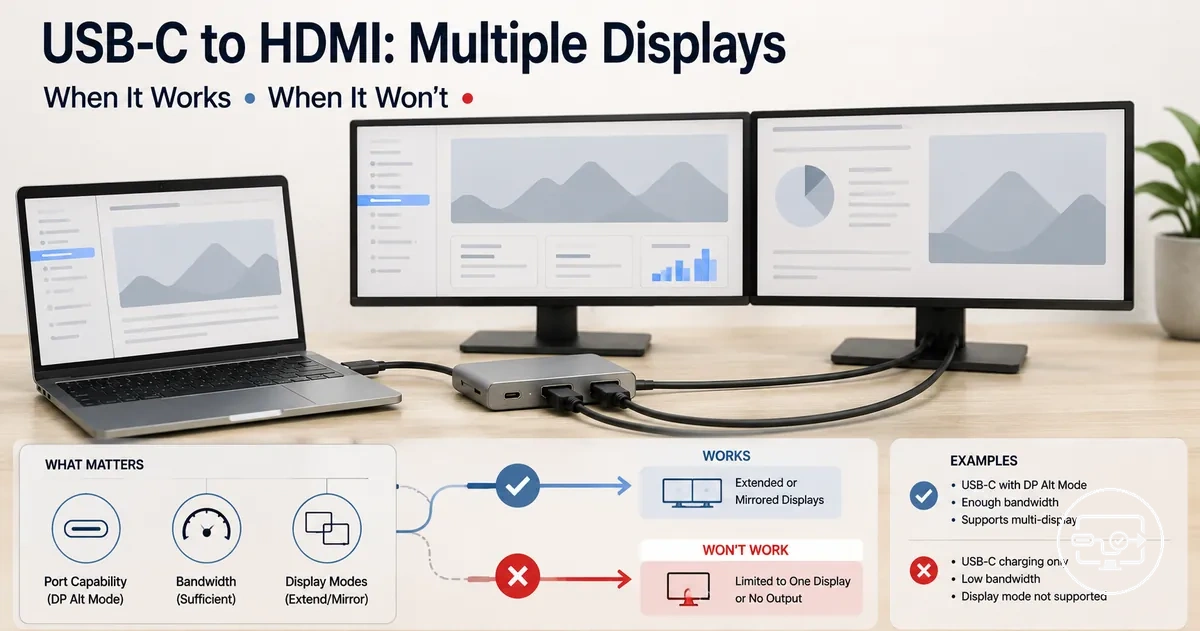
USB-C to HDMI dual-monitor output is the ability to connect two external HDMI displays from a single USB-C source. The outcome depends on the source device's port capabilities, the adapter or hub method used, and the display mode selected—either extending the desktop across both screens or mirroring the same content. Because compatibility varies by device, dock design, operating system behavior, and the target resolution and refresh rate demands, no single setup works universally.
- Port capability: must support DisplayPort Alt Mode or Thunderbolt for video output
- Display pipeline: active adapters convert DP to HDMI; passive adapters rarely work for dual outputs
- Dock/hub method: determines single-stream versus multi-stream transport (MST) capability
- Common blockers: OS limits, insufficient bandwidth, power delivery interference, or low-quality cables
A common misconception is that any USB-C to HDMI adapter or splitter can create two extended desktops. Most splitters only duplicate the same screen unless the source supports multi-stream transport (MST) or a certified hub with DisplayLink technology. This distinction makes clear the difference between true dual-desktop extension and splitter-style duplication, a frequent source of confusion. For broader USB-C to HDMI context, see the USB-C to HDMI Compatibility hub.
When the source device includes a USB-C port with DisplayPort Alt Mode or Thunderbolt, and the user pairs it with a compatible MST hub or USB-C dock, two monitors can often be extended. When the port only supports charging and data, or when a passive splitter is used without MST support, the result is usually mirroring or no signal. The sections that follow define each outcome more precisely and explain the conditions that make them possible.
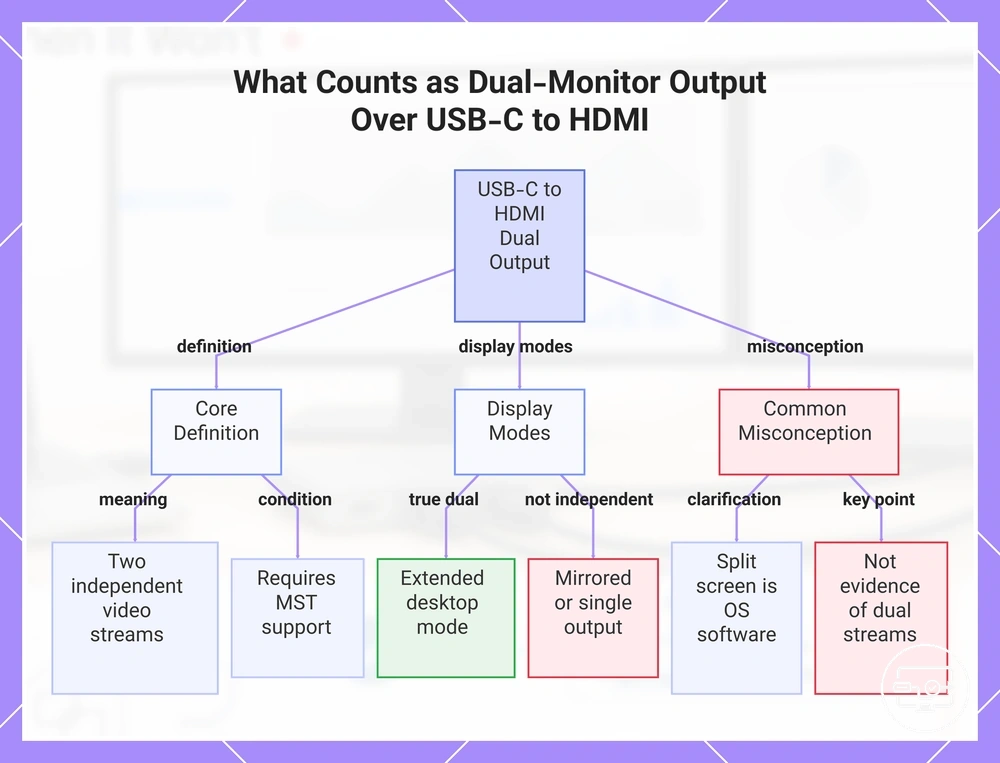
What counts as dual-monitor output over USB-C to HDMI and what it does not
The definition of dual-monitor output over USB-C to HDMI is driving two external displays from a single USB-C source in a mode that treats each monitor as an independent video stream. What you see depends on the active display mode and whether the connection supports independent streams. Without that independence, the monitors may show the same content instead of separate desktops.
Many people assume that plugging two monitors into a USB-C port automatically provides dual-monitor output. In reality, what you get depends on the display mode:
- Extended desktop: Each monitor shows a different part of the desktop, extending your workspace. The user can move windows between screens. What it implies: The USB-C source delivers two independent outputs, so you can multitask across separate desktops.
- Mirrored display: Both monitors display the same content, mirroring the primary screen. What it implies: Only one video stream is duplicated, so the monitors are not independent displays.
- Single external display: Only one of the two connected monitors gets a signal; the other stays blank. What it implies: The USB-C source can output only one video signal, often because the port does not support multi-stream transport.
Window ‘split screen’ behavior—arranging windows side by side on one monitor—is a software feature of the operating system, not evidence of two separate video streams.
This chart clarifies the definition of dual-monitor output over USB-C to HDMI, the three display modes, and a common misconception about split-screen behavior.
Extended Desktop, Mirrored Output, and Split Screen as Different Display Outcomes
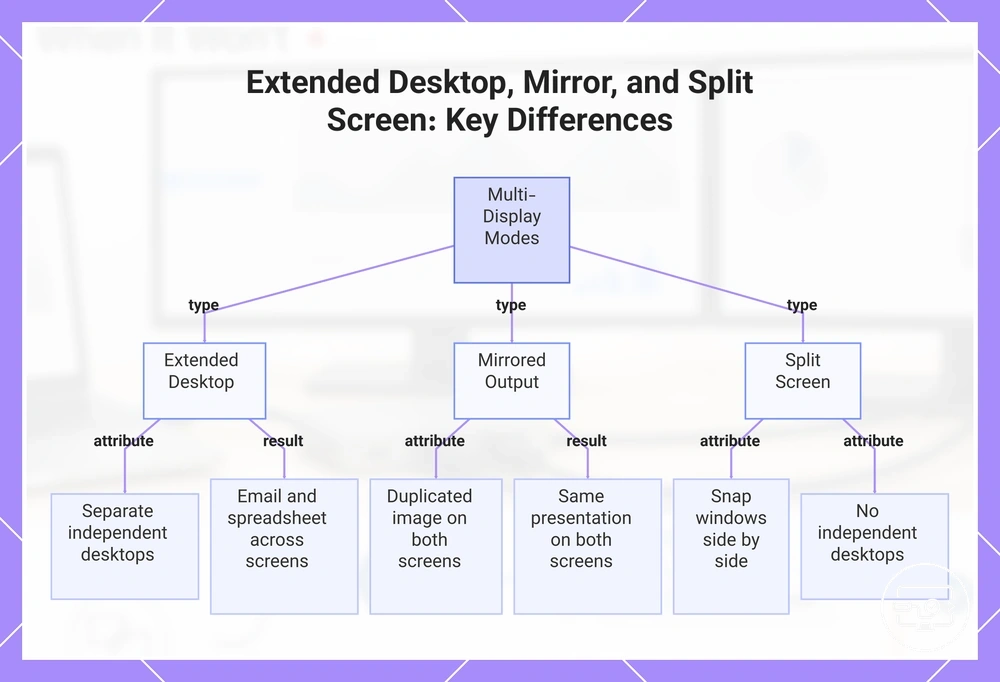
Extend gives you separate desktops that work independently. Mirror duplicates the same image on both screens, and split screen arranges windows side by side without giving each screen its own desktop.
- Extend: Drag windows across both screens, giving you separate display areas that work independently.
- Mirror: View the same image on both screens, duplicating the content and preventing independent use.
- Split screen: Snap windows side by side to create a custom layout, organizing content within the shared workspace without giving each screen its own desktop.
For example, with mirror you see the same presentation on both screens, while with extend you can have your email on one screen and a spreadsheet on the other.
This chart compares the three main multi-display outcomes—Extended Desktop, Mirrored Output, and Split Screen—showing their key behaviors and examples.
Why your USB-C port determines whether two HDMI monitors can extend
Whether you can extend two HDMI monitors from a single USB-C port depends on the USB-C port's video output capability and the number of independent display streams it can provide. While the physical connector looks identical across devices, the underlying video support varies widely. A port may deliver full video output, limited output, or none at all — connector shape does not equal capability.
This diagram shows why your USB-C port determines whether two HDMI monitors can extend: it illustrates the video path from the host through the port's internal pipeline, branching into display streams that feed two separate monitors.
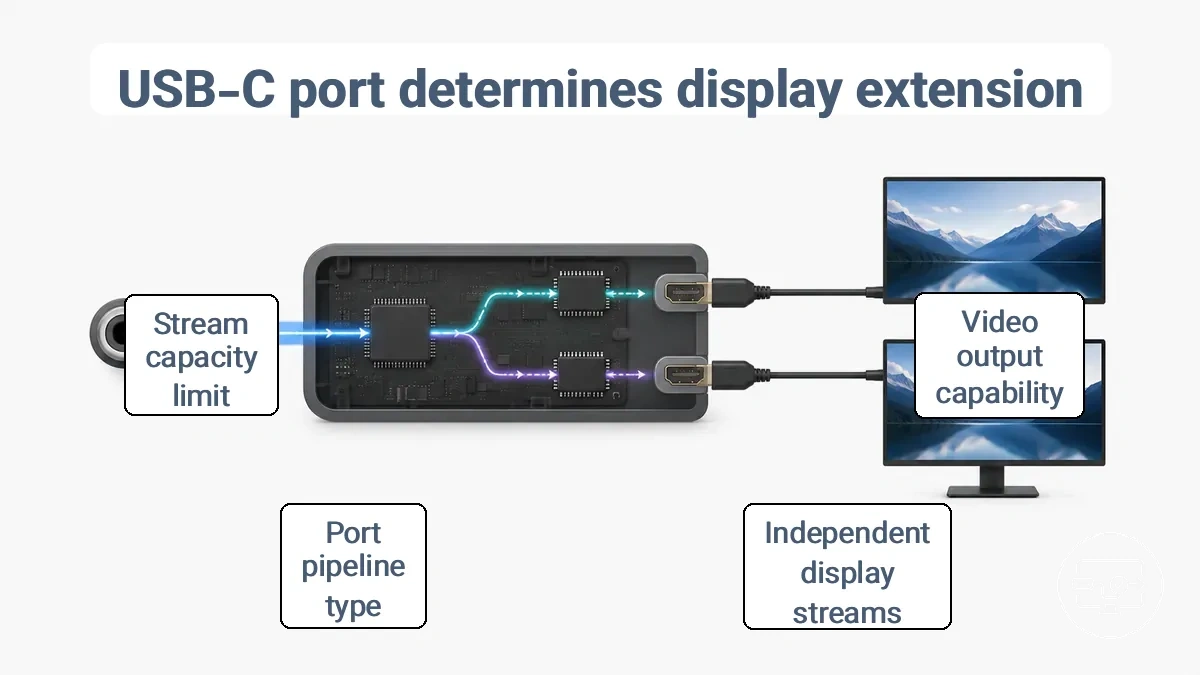
USB-C ports differ in their internal pipelines. Some use DisplayPort Alt Mode, others rely on Thunderbolt, and a few depend on USB graphics (DisplayLink) technology. Each pipeline handles video differently, and each has a maximum number of independent display streams it can provide. When you connect a dock or adapter that splits the signal into two HDMI outputs, the actual feasibility of extending — rather than mirroring — depends on whether the pipeline can deliver two separate streams. The three key variables are the port's supported pipeline, its stream capacity, and whether the dock method changes the outcome (as some docks can combine streams from the same port).
A common misconception is that any USB-C port can output video. In reality, charging-only ports cannot output HDMI video through passive adapters because they lack video circuitry and only provide power. The reason why your USB-C port determines whether two HDMI monitors can extend comes down to these conditions.
- Condition: The USB-C port must support video output via DisplayPort Alt Mode or Thunderbolt. Implication: Without this support, no adapter can produce a usable video signal for external displays.
- Condition: The port must provide at least two independent display streams. Implication: A single stream can duplicate the laptop screen but cannot drive two extended monitors.
- Condition: The dock or adapter must split the stream correctly (MST for DisplayPort or appropriate hub for Thunderbolt). Implication: Even if the port has two streams, a misconfigured adapter may still mirror instead of extend.
- Condition: The port's pipeline must support the required resolution and refresh rate for both monitors. Implication: Higher resolutions may reduce the number of displays the port can drive simultaneously.
- Condition: Identical-looking USB-C ports on the same device may differ in video support. Implication: Always check the specific port's specifications rather than assuming all ports behave the same.
DisplayPort Alt Mode, Thunderbolt, and USB graphics as separate display pipelines
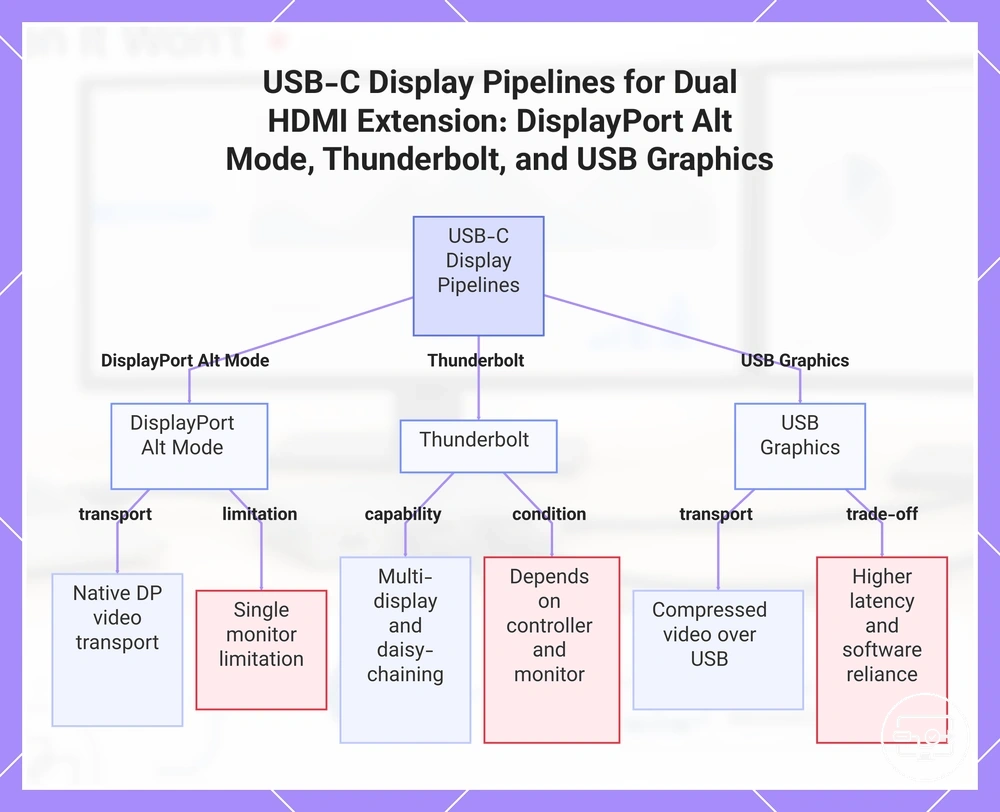
The three main pipelines from USB-C to external displays are DisplayPort Alt Mode, Thunderbolt, and USB graphics, each using a different transport with distinct limitations for dual HDMI extension.
DisplayPort Alt Mode sends native DisplayPort video streams over a USB-C connection. It typically extends the desktop to a single external monitor, but bandwidth sharing between video and data and varying support can limit dual HDMI extension.
Thunderbolt combines video output, data transfer, and power delivery over a USB-C connector. It supports multi-display setups and daisy-chaining, but whether it can drive dual HDMI monitors depends on the laptop’s Thunderbolt controller and monitor compatibility.
USB graphics transmits video over standard USB ports using compression and dedicated drivers. It can enable multiple external displays on systems without native video output, but trade-offs include higher latency, reliance on software support (which varies by platform), and output that may differ from native GPU output.
This chart shows the three main USB-C display pipelines and their distinct limitations for dual HDMI extension.
How many independent display streams the system can output and why it matters
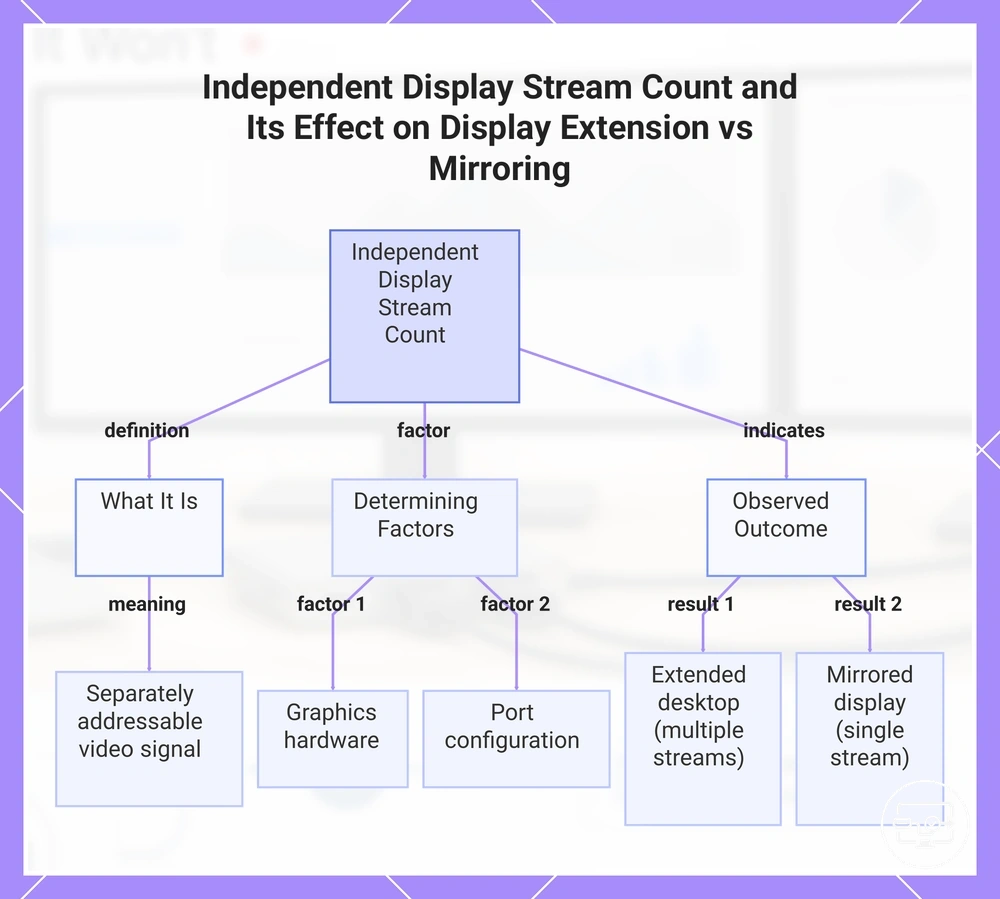
An independent display stream is a separately addressable video signal that can show unique content on its connected monitor. Whether two monitors can display different desktops side by side depends on the system having at least two independent display streams.
The stream count is determined by the graphics hardware and the port configuration, not simply by the number of physical ports present. A splitter or signal-duplicating cable sends a single independent stream to two monitors, so both displays show the same image even though two screens are connected. The observed outcome—extension or mirroring—indicates whether the system is outputting multiple independent streams or only one.
These conditions connect the independent display stream count to whether the result is extended or mirrored displays:
- One native GPU port driving one monitor: one stream available → a second monitor cannot extend unless a separate stream exists.
- Two separate native video ports (e.g., HDMI and DisplayPort): typically each port supplies its own independent stream → two monitors can extend independently.
- A laptop’s built‑in screen plus one external monitor: when the external monitor uses a native GPU output, both screens often receive independent streams → extended desktop works.
- A dock using DisplayLink or a similar USB‑based method: software can create additional independent streams beyond the GPU’s native limit → extension beyond the number of native ports is possible.
This chart shows how the number of independent display streams is defined, what factors determine it, and how the observed outcome (extension or mirroring) reveals the actual stream count.
When a USB-C hub or dock can deliver two HDMI monitors as extended displays
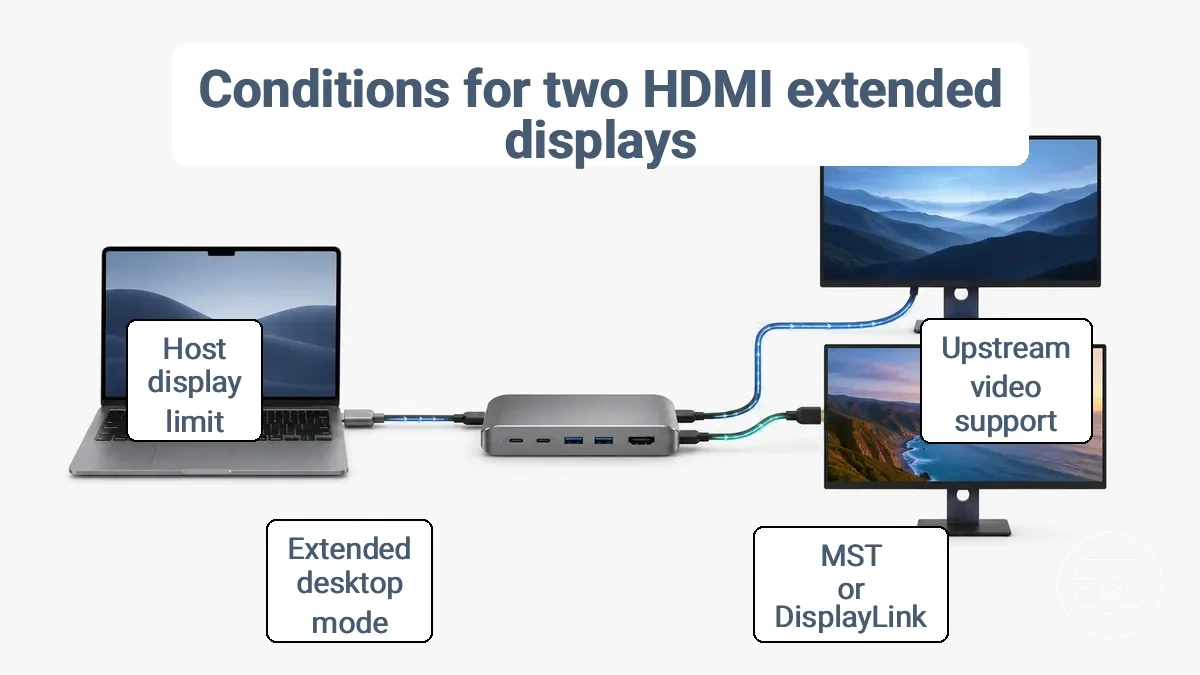
Whether a USB-C hub or dock can deliver two HDMI monitors as extended displays depends on two conditions: the upstream device must support two independent video streams, and the hub or dock must use a method capable of forwarding or generating two separate outputs. Without both conditions, the result is often a mirrored or single display.
The dock method determines whether two independent outputs are possible. Some docks and hubs for multi-display setups rely on the host's built-in video streams, others use Multi-Stream Transport (MST) to split one stream into two, and USB video (DisplayLink) can work even when the host supplies only one stream. Knowing which method your dock uses is important.
A common myth is that two HDMI ports equal two desktops. In reality, many adapters mirror the same signal to both ports unless the upstream device can supply two independent streams. Without proper upstream support, a hub with dual HDMI may only replicate the primary display.
When a USB-C hub or dock can deliver two HDMI monitors as extended displays, the following conditions must be satisfied:
- The upstream USB-C port supports DisplayPort Alt Mode or Thunderbolt for video output.
- The hub or dock supports multi-stream transport (MST) or USB video (DisplayLink) to create two independent outputs.
- The operating system (Windows, macOS, Linux) is set to extended desktop mode rather than duplicate.
- The host device can handle at least two external displays; some laptops limit to one by design.
- Cables and hub bandwidth may limit resolution and refresh rate; high-bandwidth cables reduce issues.
- An HDMI splitter only mirrors the image and cannot produce an extended desktop.
Dual-display paths using MST-capable output versus docks with multiple display controllers
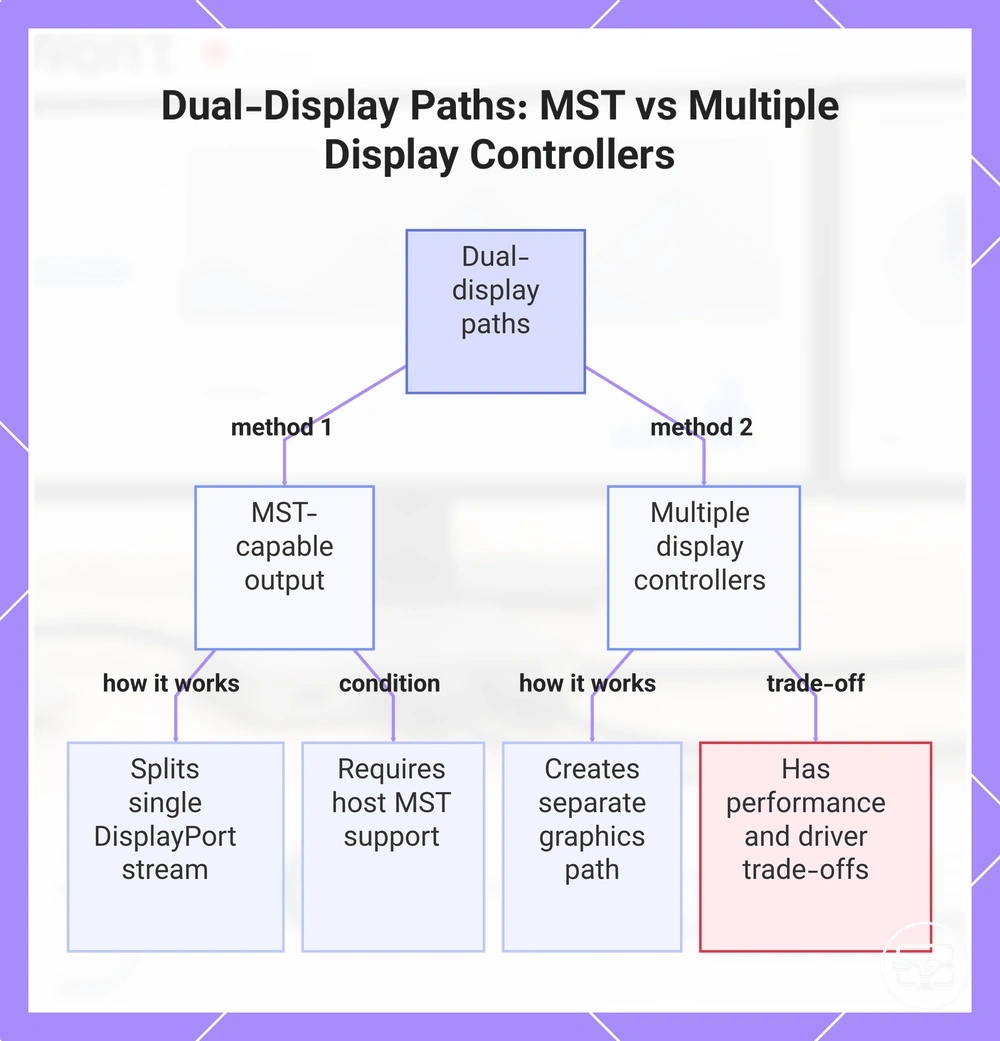
MST-capable output and docks with multiple display controllers use different enabling conditions to deliver two extended displays. MST splits a single DisplayPort stream into multiple signals. This requires upstream support from the host’s USB-C or Thunderbolt port and a GPU capable of handling multiple displays. Without that support, extended displays may not be possible.
Docks with multiple display controllers create extended displays through a separate graphics processing path, often over USB, and do not rely on the host’s MST capability. This method enables extended displays when MST is unavailable, but comes with trade-offs such as performance overhead, driver installation, and variability depending on the host’s processing power and connection type.
The same dock can yield different results across hosts because the upstream pipeline—MST or multiple display controllers—determines display behavior, not the dock alone.
This chart compares the two main methods for creating dual extended displays from a single USB-C or Thunderbolt port: MST-capable output and docks with multiple display controllers.
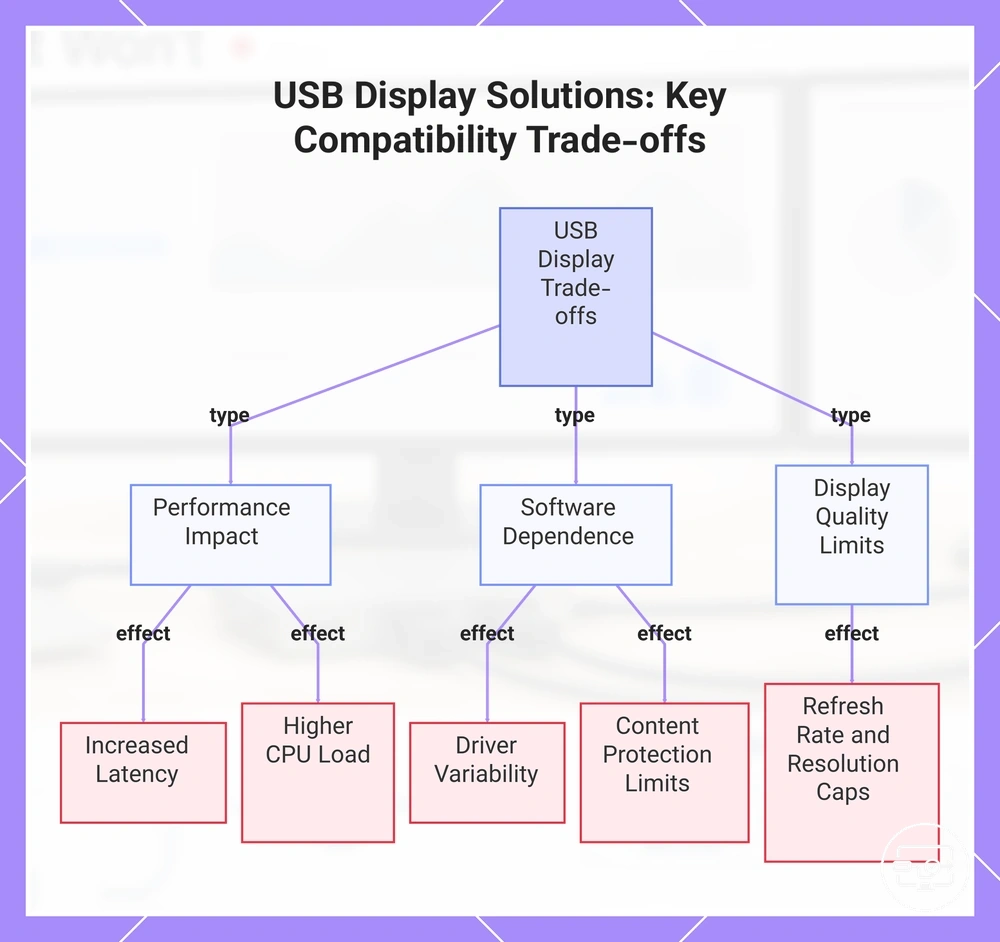
USB-based display solutions and the compatibility trade-offs they introduce
USB-based display solutions can add extra displays when native video outputs are limited, but this convenience introduces trade-offs that affect performance, reliability, and user experience depending on the system and workload.
- Latency can increase during motion-heavy workloads because the USB graphics pipeline adds processing overhead.
- CPU load can rise when the system must compress or translate video data through software rather than dedicated hardware.
- Driver dependence can introduce variability across operating systems and update cycles, which can break or degrade functionality.
- Content protection limits can prevent playback of protected media on USB-attached displays depending on the software stack.
- Refresh rate and resolution constraints can cap output below native display capabilities.
This chart shows the main trade-offs introduced by USB-based display solutions, including performance impact, software dependence, and display quality limits.
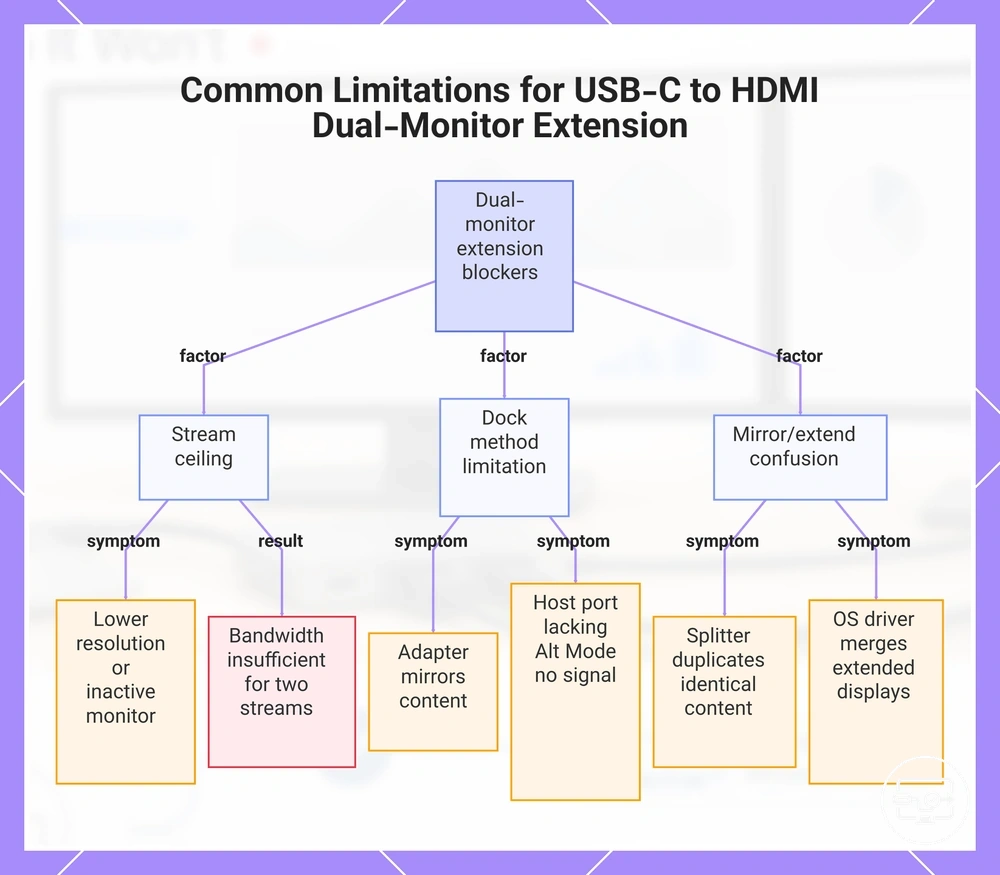
Common limitations that block true dual-monitor extension over USB-C to HDMI
Most failures in true dual-monitor extension over a single USB-C to HDMI connection come from three common sources: stream ceilings that cap available bandwidth, dock methods that may not split a single video signal into two independent outputs, and confusion between mirror and extend modes—constraints that prevent separate desktops even when the adapter offers two physical ports. The following common limitations that block true dual-monitor extension map each factor to its symptom and what it may imply for compatibility.
- Stream ceiling limitation: when bandwidth is insufficient, monitors may default to lower resolution or one display remains inactive, implying the connection cannot carry two full independent video streams at desired quality.
- Dock method using a non-Thunderbolt adapter: on many systems, a dual-HDMI adapter exposes only one DisplayPort signal, causing both monitors to mirror the same content even when extended mode is selected, implying the adapter is not designed for independent outputs.
- Host USB-C port lacking DisplayPort Alt Mode: if the port supports only data or power, no video signal reaches the adapter, resulting in no external display detected or a blank monitor, implying the port cannot act as a video source regardless of adapter capability.
- Operating system or driver variability: different OS versions or graphics drivers may handle multi-stream transport differently, so extended mode may appear but both monitors behave as one or only one is recognized, implying compatibility depends on the host environment.
- Splitter duplication (contrast): a splitter-style adapter duplicates the same signal to both outputs, so both monitors show identical content and the system detects only one display, implying the adapter is meant for mirroring, not true extension.
- Physical cable or adapter quality: low-grade or damaged cables may not sustain bandwidth for two streams, causing flickering, blackouts, or resolution caps below native resolution, implying the physical link can become a bottleneck.
A dual-HDMI adapter with two physical ports does not guarantee independent extended outputs—many such adapters simply split a single video signal.
This chart maps the three common sources of failure for true dual-monitor extension over a single USB-C to HDMI connection, showing their symptoms and implications.
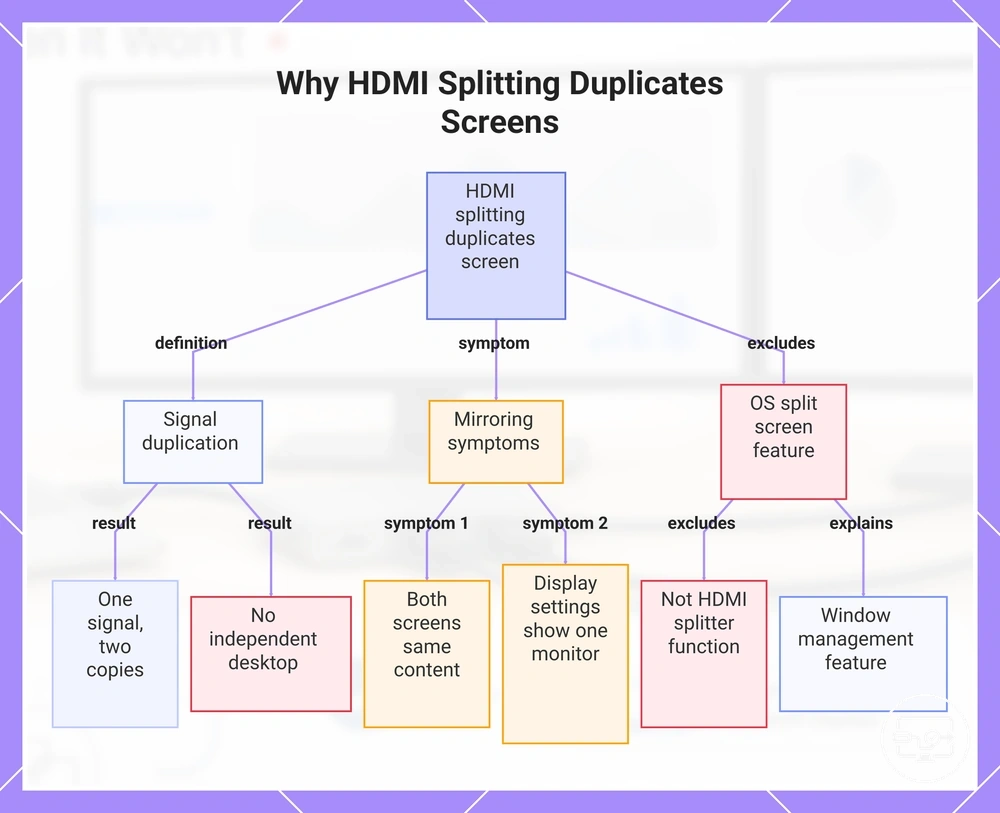
Why HDMI splitting usually duplicates a screen instead of creating two desktops
An HDMI splitter duplicates a single signal. It does not create an independent desktop; the result is one signal, two copies.
When both monitors show the same image and Windows sees them as a single display, the splitter is mirroring, not extending. Look for these patterns:
- Both screens show the same content → no independent desktop created.
- Display settings show only one monitor → splitter hides the second output.
- Resolution changes affect both screens equally → they share a single source.
'Split screen' is an OS and window management feature, not something an HDMI splitter does.
This chart explains why an HDMI splitter duplicates a single signal and how to identify mirroring instead of an extended desktop.
Bandwidth and conversion limits that reduce resolution, refresh rate, or stability
Bandwidth and conversion limits can reduce resolution, refresh rate, or stability when you connect two displays through a USB-C to HDMI adapter or dock. The shared data path forces the system to allocate bandwidth between the two screens, often causing a downshift in resolution or a lower refresh rate on one or both displays. Conversion overhead from the adapter can also introduce flicker or intermittent dropouts.
These limits occur because the USB-C port carries video data alongside other signals. When two displays share that single connection, the available bandwidth is split, and the adapter adds processing delay that can affect smoothness.
This table maps the most common bandwidth and conversion limits to their typical effects on dual-display performance.
| Constraint | Condition that triggers it | What you notice | What it implies |
|---|---|---|---|
| Shared bandwidth | Two displays active simultaneously on a single USB-C link | Resolution downshift or lower refresh rate on one or both screens | The system may prioritize stability over maximum quality |
| Conversion overhead | Adapter or dock converts USB-C video signal to HDMI | Increased latency, occasional flicker, or brief dropouts | The conversion process adds processing delay that can affect smoothness |
| Cable or handshake sensitivity | Cable quality or length introduces signal degradation | Intermittent black screens, flickering, or failure to detect a display | The connection may require a certified cable to maintain a stable link |
| Power or thermal instability | Dock or adapter overheats or power delivery is insufficient | Random display dropouts or reduced refresh rate under load | Thermal or power limits can cause the adapter to throttle video output |
How to Confirm Dual-Monitor Compatibility Before Buying a Dual-HDMI Hub or Dock
Confirming dual-monitor compatibility before buying a dual-HDMI hub or dock depends on matching the upstream device’s port capability and the dock’s video method to your intended display mode. This verification should check the laptop’s port type, the operating system’s display behavior, the dock’s video architecture, and the monitors’ resolution and refresh rate requirements.
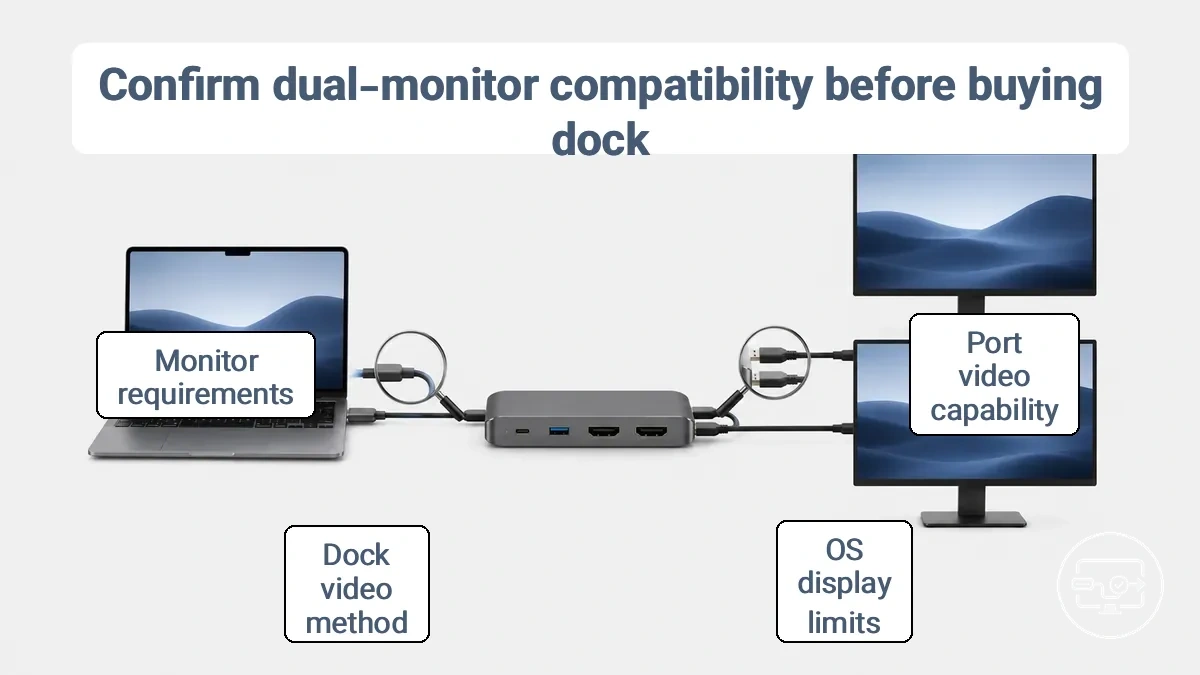
A USB-C port capable of charging does not always support video output. Many USB-C ports provide power delivery only and lack DisplayPort Alt Mode support, so video output depends on the specific port capabilities.
After verifying compatibility, you can find detailed setup steps in our guide on setup steps for extended displays. Before buying, run through this pre-purchase verification checklist.
- Device port check
- Check the video output capability of your laptop’s upstream port. — USB-C ports with DisplayPort Alt Mode or Thunderbolt 3/4 can carry video; plain USB-C without Alt Mode typically does not carry video.
- Confirm the port supports the required number of external displays. — Some USB-C ports support only one display, while others support two or more.
- Verify the port’s maximum resolution and refresh rate. — The port should match or exceed your monitor’s native resolution for stable dual-monitor output.
- OS behavior check
- Determine how your operating system handles multiple displays. — macOS may limit external displays on certain models, while Windows typically supports more monitors natively.
- Check if DisplayLink drivers are needed for extended desktop. — If your OS or laptop does not natively support dual displays, a dock with DisplayLink can enable extended desktops.
- Confirm that the dock method is compatible with your OS version. — Some docks require specific driver versions; verify support for your OS before purchase.
- Dock method check
- Identify whether the dock uses native Alt Mode or DisplayLink. — Native Alt Mode depends on the laptop’s GPU supporting dual displays; DisplayLink can add display outputs via drivers when native support is limited.
- Verify that the dock’s video ports match your monitor cables. — Dual HDMI docks often have two HDMI ports; check if they support simultaneous output in extend mode.
- Confirm the dock delivers sufficient power delivery for your laptop. — Power delivery is separate from video; a dock may charge but not drive dual displays if its video chipset is limited.
- Monitor requirements check
- Check your monitors’ native resolution and refresh rate. — Both monitors should have resolution and refresh rate that the dock can handle simultaneously.
- Confirm cable quality and version (HDMI 2.0 vs 2.1). — Older cables may bottleneck high-resolution or high-refresh-rate output.
- Verify that the monitors support the same input type (HDMI, DisplayPort). — Mismatched inputs may require adapters, which can affect stability in dual-monitor setups.
If product labels or online documentation are unclear, contact the manufacturer or check community forums for real-world usage reports.
Port and Spec Checks That Confirm Video Output Capability Without Trial-and-Error
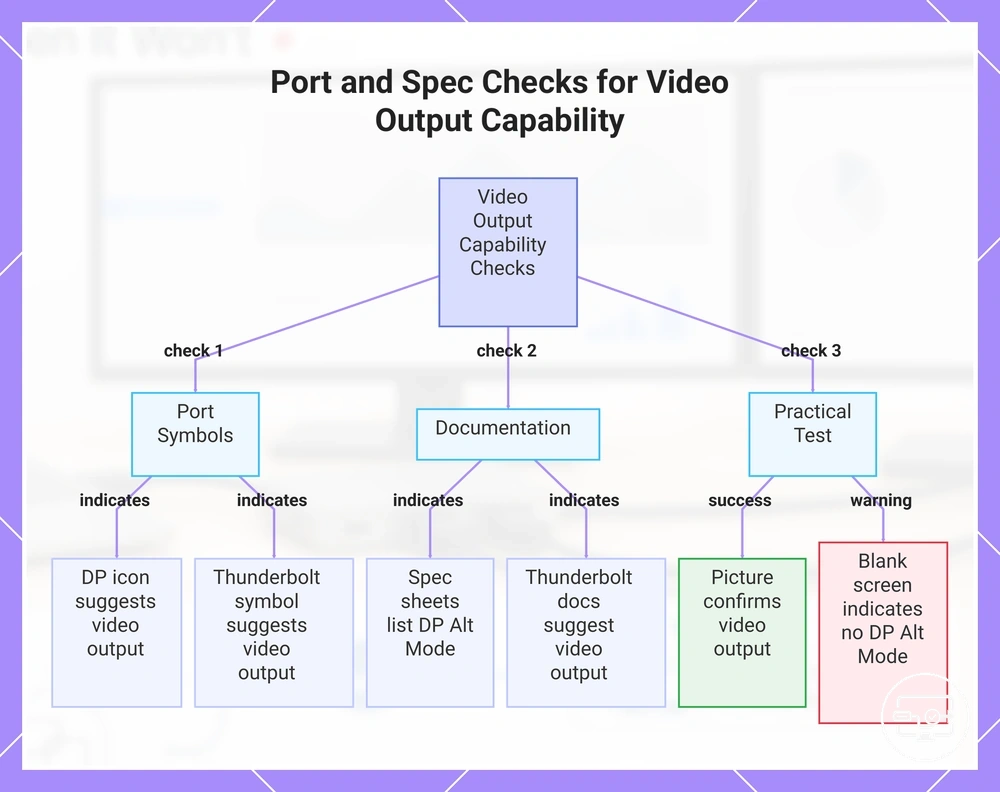
Confirming video-capable USB-C output and dual-display support before purchase or deeper troubleshooting means checking for reliable signals from port labels, technical documentation, and operating-system display settings instead of testing every configuration. Physical symbols next to the USB-C port, such as a DisplayPort icon or Thunderbolt symbol, give initial clues but may vary by manufacturer, while documentation and display settings provide more reliable indications. The following checklist maps common inspection signals to their implications for dual-monitor output.
- A DisplayPort (DP) label or icon next to the USB-C port suggests the port supports video output via DisplayPort Alt Mode, but dual-display capability may vary by device and GPU.
- A Thunderbolt lightning-bolt symbol suggests the port supports video output with higher bandwidth; multiple displays are often possible but depend on Thunderbolt generation and system configuration.
- The absence of any video-related symbol near the USB-C port suggests the port may be limited to data and charging; check the device documentation for confirmation.
- Spec sheets that list DisplayPort Alt Mode or DP Alt Mode suggest video output; dual-display support may require additional GPU or dock resources.
- Documentation that states Thunderbolt 3, 4, or 5 suggests video output and typically supports multiple displays, but the exact number of external screens depends on the platform.
- The operating system's display settings may list a second display even when nothing is connected; this can suggest hardware support but does not guarantee external video output.
- A practical test with a known video-rated USB-C cable and monitor that shows a picture suggests the port is video-capable; a blank screen may indicate the port lacks DisplayPort Alt Mode or the cable is not rated for video.
This chart shows the main checks—port symbols, documentation, and practical test—to confirm video output capability from a USB-C port without trial-and-error.
Operating system and platform patterns that change expected dual-display modes
Whether a dock method produces extended, mirrored, or limited display modes depends on the operating system and platform support of the host device. OS behavior can alter how the dock signal is interpreted, and platform support varies across families such as Windows, macOS, and Chrome OS.
A common assumption is that display limitations come from the monitors or dock hardware alone. In practice, many constraints originate from OS behavior or the upstream pipeline rather than the connected displays. The following patterns illustrate how platform families differ.
| Platform family | Typical dual-display behavior | Common caveat |
|---|---|---|
| Windows | Extend and mirror modes are commonly supported with many USB-C docks. | Some docks may require additional drivers for multi-monitor setups beyond two displays. |
| macOS | Extend mode is typical; mirror mode is available but may be limited to identical resolutions. | Certain Mac models restrict the number of external displays due to hardware or chipset limitations. |
| Chrome OS | Extend and mirror modes are often supported, though the number of displays and resolution can be limited by the device's chipset. | Not all USB-C docks are fully compatible; partial functionality may occur without vendor-specific support. |
Choosing a USB-C dual-HDMI hub or dock that matches the needed compatibility conditions
Selecting a USB-C dual-HDMI hub or dock depends first on whether you need to extend or mirror displays. That gating decision is governed by your laptop’s display-pipeline constraints—whether its USB-C port supports DisplayPort Alt Mode or Thunderbolt 3/4 for video output.
Knowing your extend-versus-mirror goal turns the compatibility conditions into clear selection criteria. To get two independent HDMI outputs, the dock must have a chipset that can drive two separate displays—often relying on Multi-Stream Transport (MST) on Windows or DisplayLink technology when macOS lacks MST support. The dock method (MST-based, Thunderbolt daisy-chain, or DisplayLink) determines whether the outcome is device-dependent. This decision checklist organizes these selection criteria by your intended outcome and the upstream constraints.
- Confirm your laptop USB-C port supports DisplayPort Alt Mode or Thunderbolt 3/4 – helps avoid buying a dock that cannot deliver any video signal
- Choose a dock that explicitly supports dual independent outputs – helps avoid ending up with mirror-only behaviour when you need extend
- On Windows, verify that the dock uses MST (Multi-Stream Transport) – helps avoid reduced display flexibility when your PC can natively drive separate screens
- On macOS, look for a dock that relies on DisplayLink drivers or Thunderbolt daisy-chaining – helps avoid the common Mac limitation where MST is not supported and only mirror is possible
- Check the dock’s maximum supported resolution per HDMI output – helps avoid buying a dock that drops resolution below your monitor’s native spec when two displays are active
- Assess bandwidth allocation: confirm the dock can maintain necessary data and charging speeds alongside video – helps avoid unexpected performance drops in file transfers or device charging when all ports are in use
- Review the dock’s compatibility list or OS support statements – helps avoid assuming a universal dock works identically on your device and operating system
- If using Thunderbolt, ensure the cable and dock support the required wattage for your laptop – helps avoid failed charging or reduced docking capabilities when the dock cannot deliver enough power
Running two displays simultaneously can reduce available bandwidth, lowering the resolution or refresh rate each monitor receives compared to a single-display configuration. Stability also depends on how the dock allocates its shared bandwidth among video, data, and charging functions. These trade-offs vary with your laptop’s USB-C capabilities and the dock’s internal design. Any claim about output quality should be paired with a condition—verify first whether your laptop and dock can sustain the resolution and refresh rate you need for your use case.
For example, a Windows laptop with a Thunderbolt 4 port can often extend two 4K displays from a single cable using a dock that relies on MST. On a MacBook, the same dock may only mirror the screen or drive one external display unless the dock uses DisplayLink drivers. The same dock yields different outcomes on different devices. Confirm the dock method against your operating system and display pipeline before purchase.
Here are product examples that may make comparison easier. Before buying, always review the compatibility criteria, essential features, and product details.
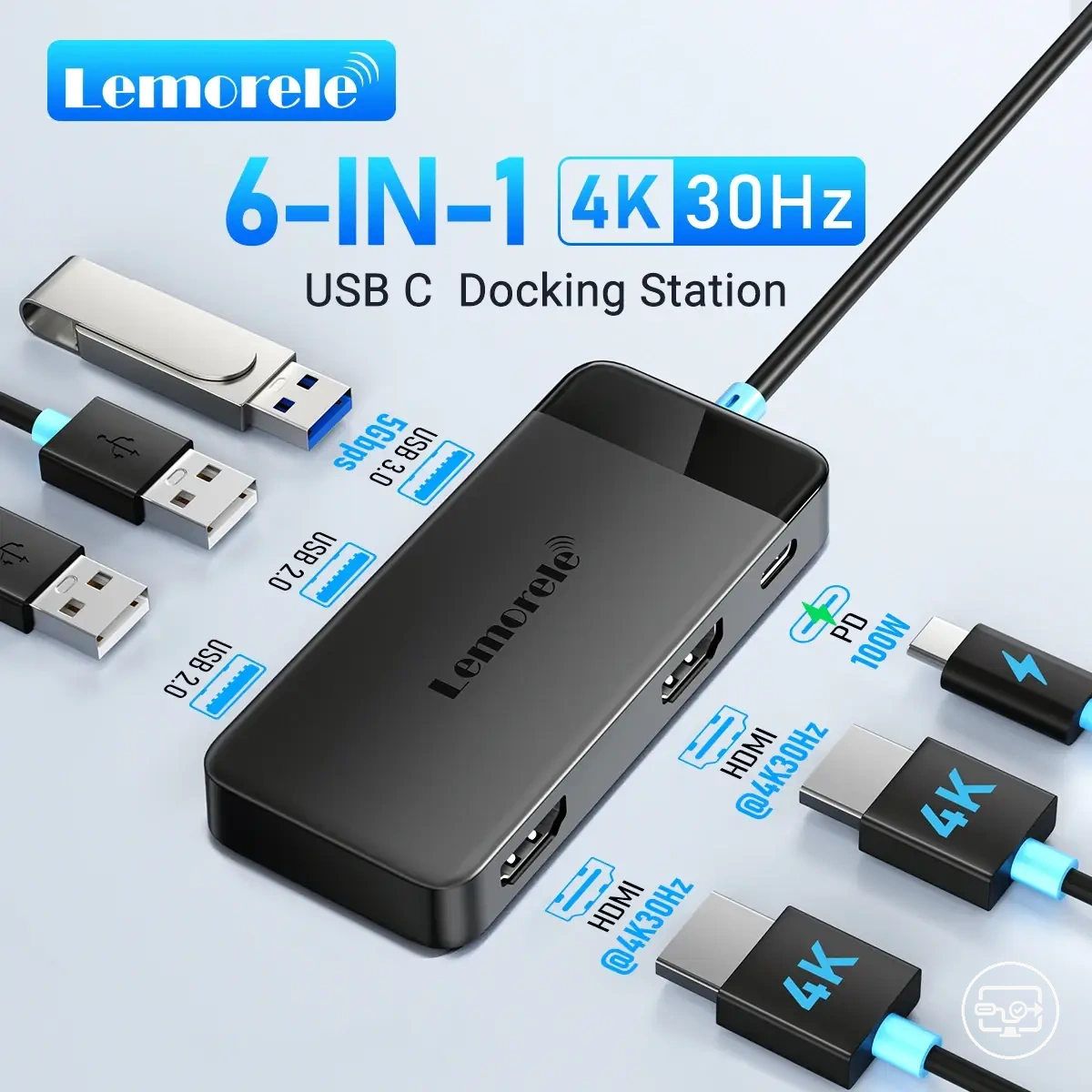
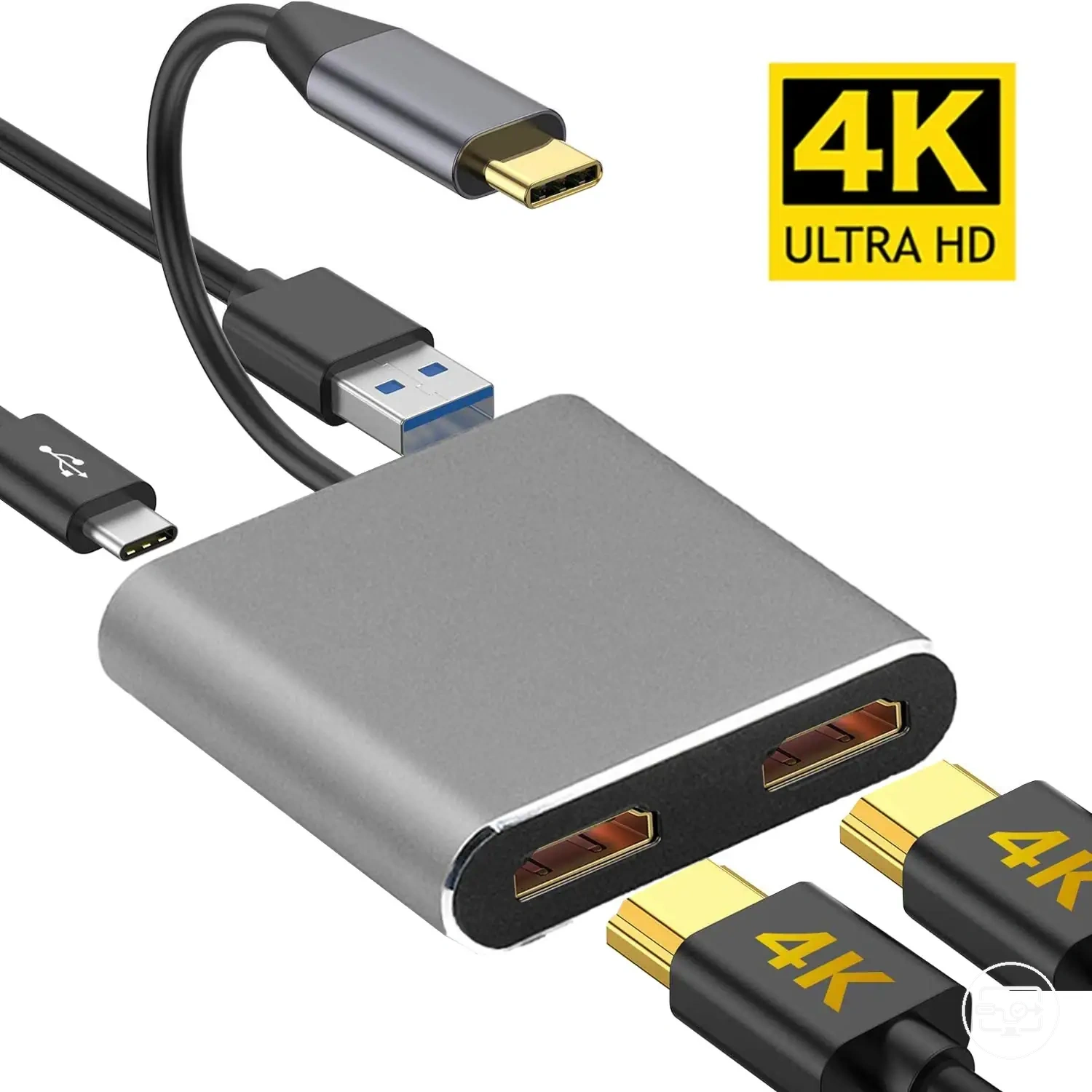
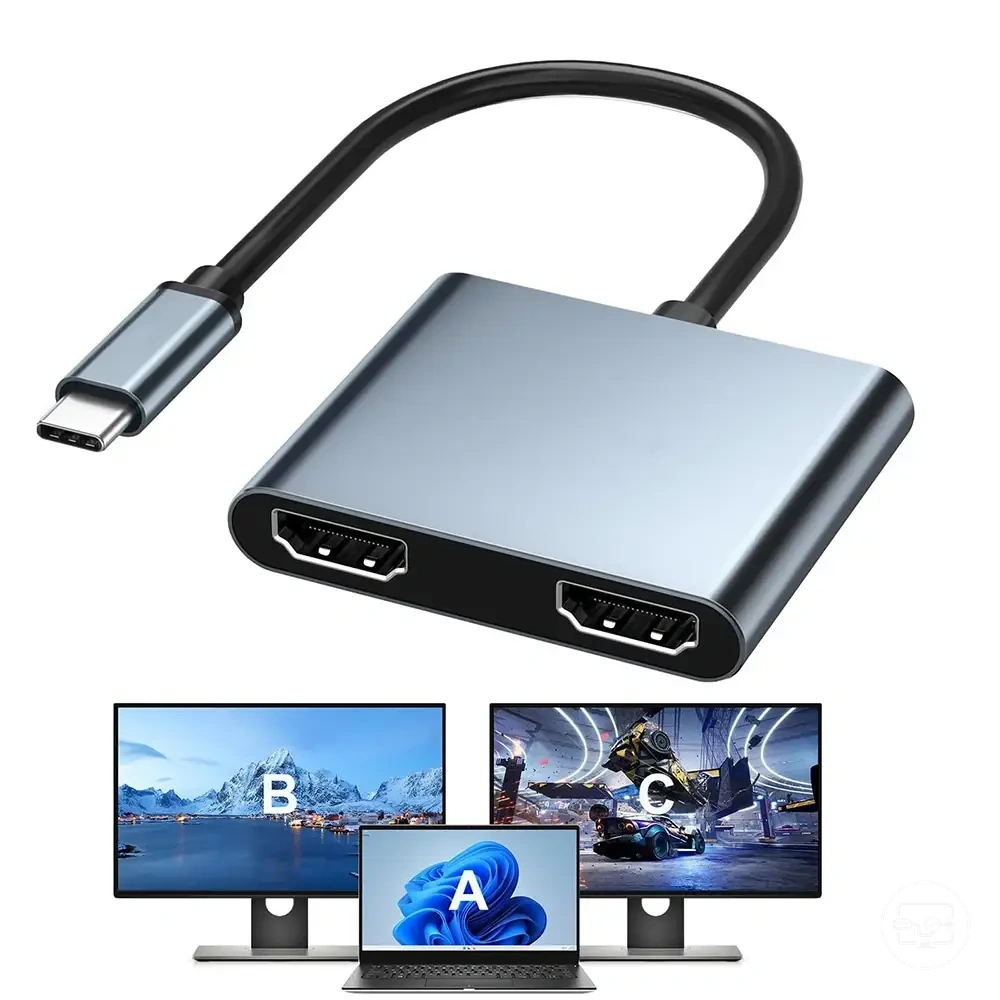
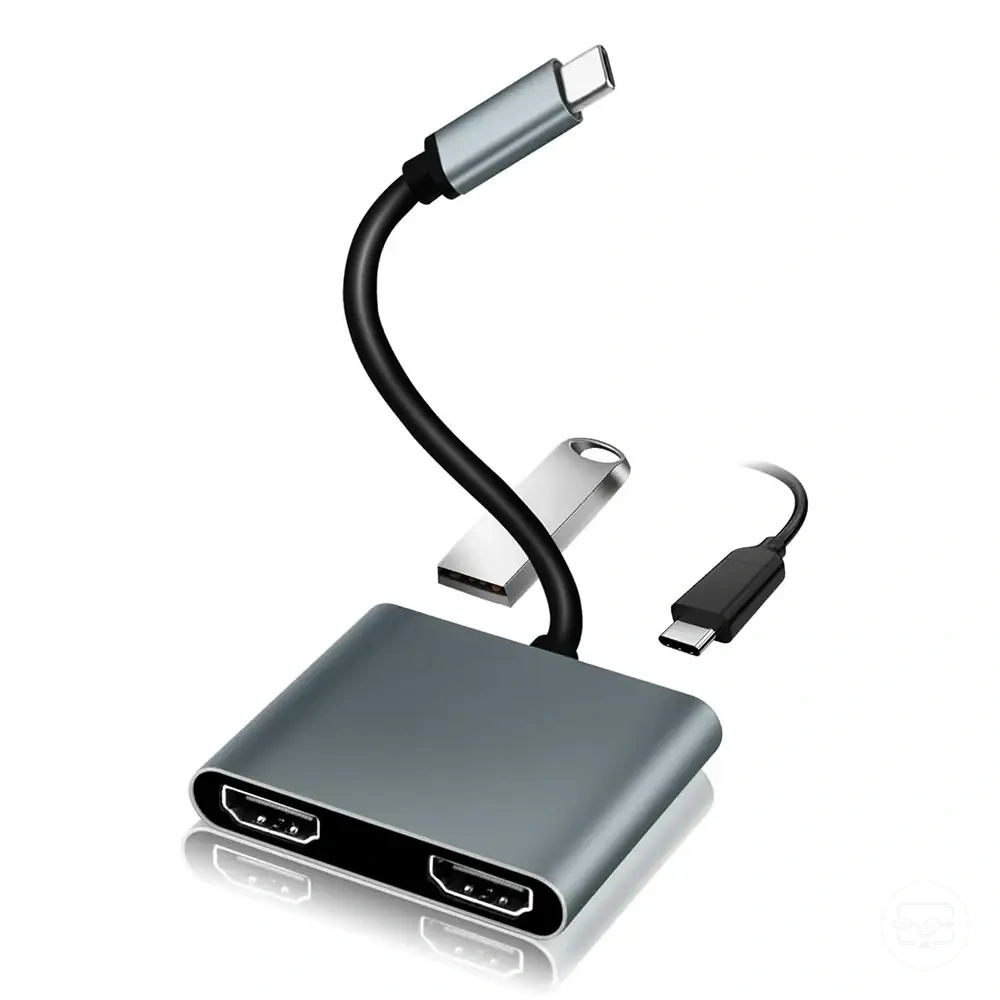
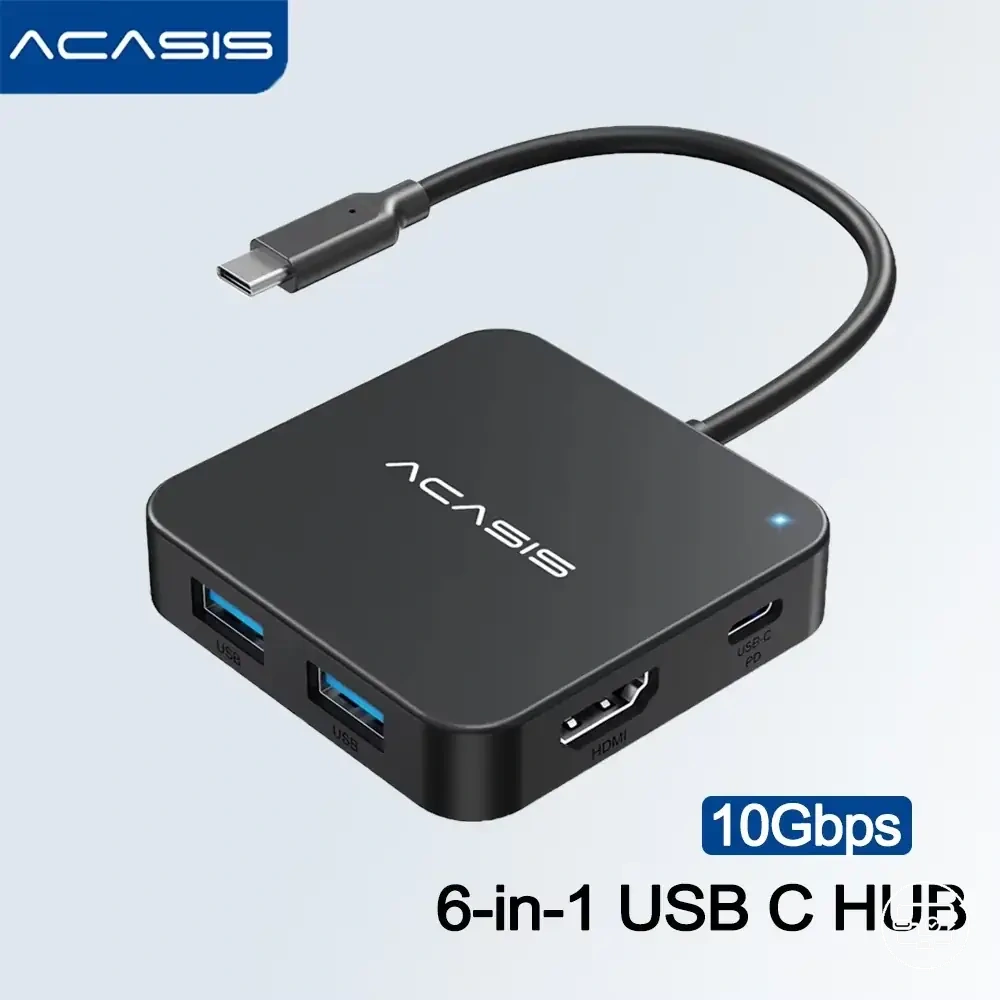
This chart outlines the essential conditions and checks for selecting a USB-C dual-HDMI hub or dock based on your display goals and device constraints.
Choosing for extend versus mirror as the primary selection constraint
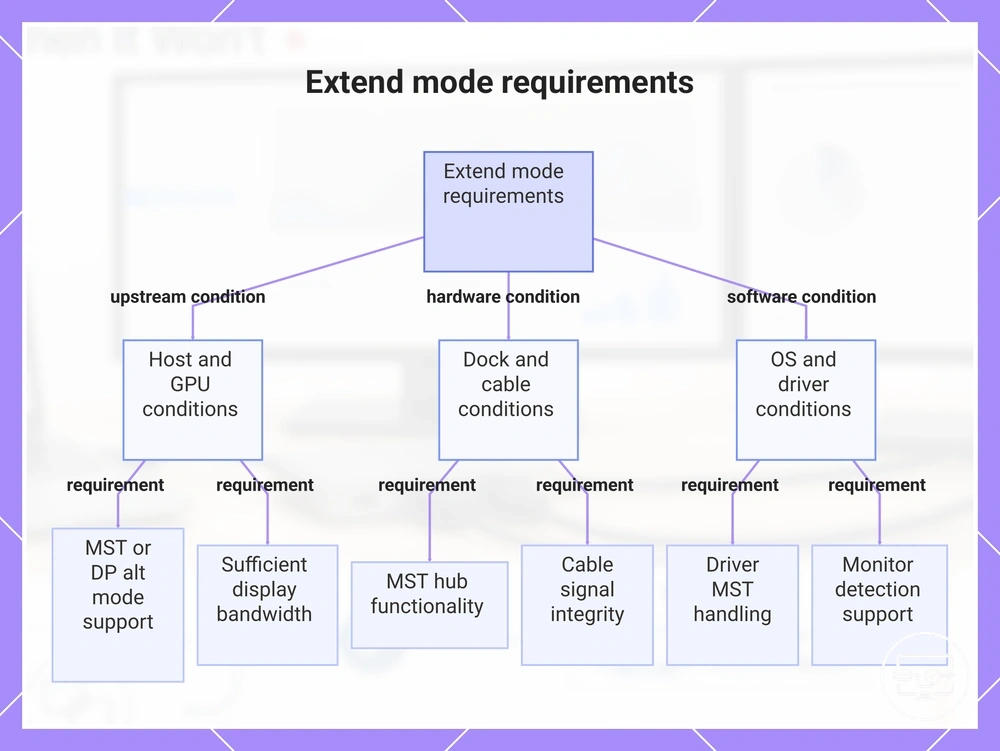
Extend capability is the gating constraint for two independent desktops; if the host hardware or dock does not support extend, the output typically defaults to mirror mode instead. These criteria outline the extend requirement in terms of upstream and dock conditions:
- Intended mode is extend → host and dock must support MST or DP over USB-C alt mode → if missing, likely mirror or single-screen limit.
- Host must provide sufficient display bandwidth → required support depends on GPU and cable generation → if missing, extend may fail, mirror may be forced.
- Dock or adapter must implement MST hub functionality → often specified as 'MST' or 'multiple display' → if missing, dock typically mirrors output.
- Cable or connection path must maintain signal integrity → requires certified cables of adequate length → if missing, extend often becomes unstable and reverts to mirror.
- OS and GPU driver must enable extend when correct hardware detected → requires driver-level MST handling and monitor detection → if missing, may default to mirror or single screen.
This chart shows the key conditions that must be met for extend mode to work, and the default fallback to mirror when any condition fails.
Power delivery, port layout, and connection stability factors that affect multi-display reliability
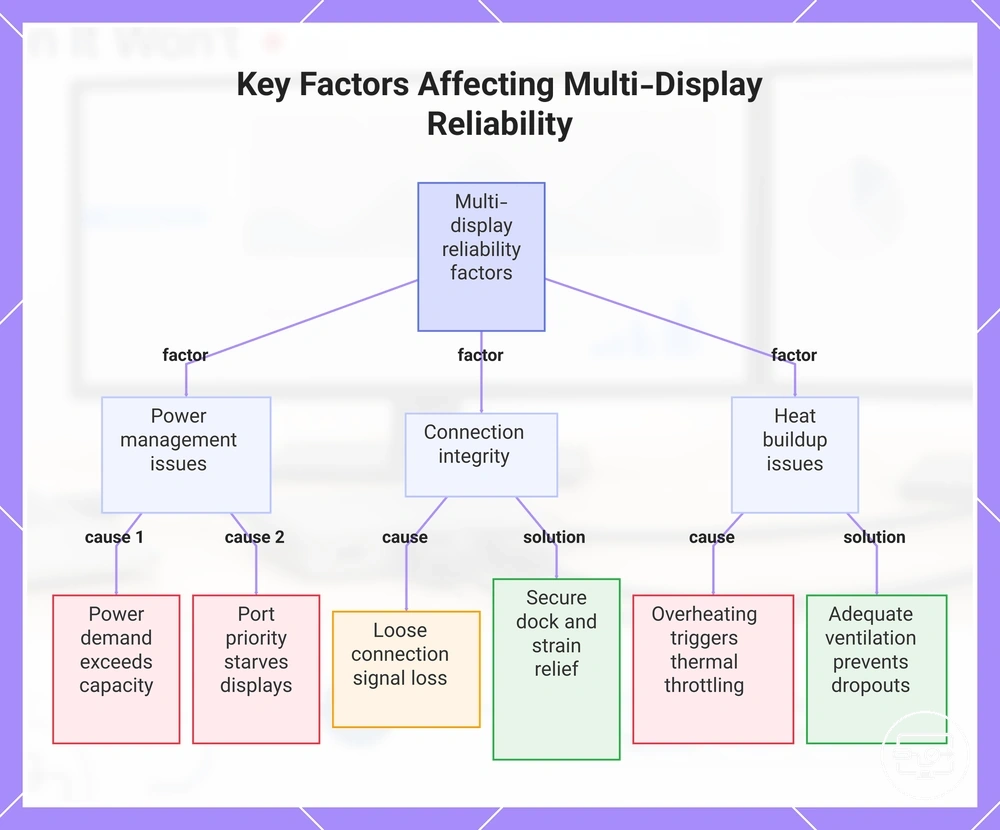
Multi-display reliability can still fail due to power delivery and physical connection design, even when compatibility is otherwise met. These multi-display reliability issues become more likely when power demands shift or port layout creates strain.
- Power delivery headroom: When total power demand exceeds the dock's capacity, displays may flicker or disconnect. Matching the dock's power supply to the combined load may reduce dropouts.
- Cable and port strain: A loose or angled connection can cause intermittent signal loss. Using cables with proper strain relief and securing the dock may improve stability.
- Heat buildup: Overheating in a hub or dock can trigger thermal throttling, leading to display dropouts. Adequate ventilation and avoiding stacked devices may reduce heat-related issues.
- Intermittent disconnects: Sudden disconnects often occur when a device is plugged or unplugged, redistributing power. A dock with dynamic power allocation can help maintain stability during changes.
- Port priority: Some docks prioritize certain ports for power delivery, which can starve displays of bandwidth. Understanding the port layout and connecting displays to high-priority ports may prevent symptoms.
This chart shows the key factors that affect multi-display reliability when using a dock, including power delivery issues, connection integrity, and heat buildup.
If dual HDMI monitors are not working, map the symptom to the underlying constraint
When dual HDMI monitors are not working, the fast diagnostic method is to match the visible symptom to the most likely constraint class. Identifying the symptom first narrows the cause and can help avoid unnecessary hardware swaps.
Many dual-monitor issues fall into a few recurring constraint categories: stream ceiling or mode exposure, connection handshake or driver detection, bandwidth or conversion limits, and power delivery or driver handshake. For detection and mode issues specifically, see the dedicated troubleshooting page.
If dual HDMI monitors are not working, the table below maps each symptom to its likely constraint and the safest next check. Use it to identify the underlying limitation before attempting fixes.
Here are product examples that may make comparison easier. Before buying, always review the compatibility criteria, essential features, and product details.
| Symptom | When it happens | Likely constraint | Safe next check | What it implies |
|---|---|---|---|---|
| Mirror-only (clone mode) | Second monitor shows the same image; extend mode is not available | Mode exposure or stream ceiling | Press Win+P and select Extend; check display settings for detected monitors | OS or GPU may be limiting to one active output; a driver or GPU capability check is needed |
| Second monitor not detected | Monitor appears in settings as "not detected" or absent | Connection handshake or driver detection | Reseat cable, try a different port, update or reinstall graphics driver | Hardware or driver is failing to establish communication; a cable or port test often resolves |
| Low refresh rate forced | Second monitor runs at a lower refresh rate than expected | Bandwidth limit or cable rating | Check cable version (HDMI 2.0 or higher), reduce resolution if needed | The connection may not support the full bandwidth; upgrading the cable or lowering settings may help |
| Flicker or dropouts | Screen flickers briefly or loses signal intermittently | Bandwidth instability or conversion adapter | Replace cable, connect directly without adapters if possible | Signal integrity is compromised; a higher-quality cable or direct connection usually stabilizes it |
| Random disconnects | Monitor disconnects and reconnects without warning | Power delivery or driver handshake | Check power cable, update chipset and graphics drivers | Intermittent power or driver instability is likely; driver updates or a stable power source may resolve |
Symptoms that suggest a missing display stream versus a driver or OS limitation
The following symptoms help distinguish between a missing display stream and a driver or OS limitation. The two lists below classify the signals for each category.
Stream-ceiling signals
- Monitor detected in the OS but only mirror mode available — occurs when connecting a secondary display — suggests the GPU has reached its stream ceiling.
- Display works sporadically across reboots but fails after a cable reseat — appears on a specific port — can suggest a bandwidth ceiling in the video path.
- Third or fourth display shows no signal while the first two function normally — appears only when the limit has been crossed — can indicate a missing stream due to hardware policy (e.g., integrated graphics cap).
- External monitor stays blank after docking, but internal display works — appears only on the external port — can point to a stream ceiling in the docking chain.
Driver/OS exposure signals
- Monitor not detected in display settings at all, or shows as unknown device — appears after a driver update or OS upgrade — suggests a mode missing or driver/OS limitation.
- All displays go black temporarily and fans ramp up under load — occurs during gaming or rendering — can indicate a driver crash or thermal-software response.
- Display works in safe mode but not normal mode — appears only with full driver stack — can suggest a driver conflict or OS exposure issue.
- Monitor flickers or loses signal randomly, with no consistent port pattern — appears across multiple connections — can point to a driver/OS limitation or configuration problem.
Symptoms that suggest bandwidth limits, conversion limits, or power-related instability
When flicker, dropouts, forced low refresh, or random disconnects appear, these symptoms often point to bandwidth constraints, conversion limits, or power stability issues. These problems often surface when the system is under load—during high-resolution streaming, multi-display use, or sustained operation—where available bandwidth, conversion capacity, or power delivery is stressed beyond its stable range. Each symptom maps to a likely constraint class—bandwidth limits, conversion limits, or power-related instability—and a safe confirmation check.
- Flicker and dropouts: often stem from bandwidth constraints when multiple high-data tasks share the same connection; safe check: temporarily reduce active streams or lower resolution to see if symptoms subside.
- Low refresh or forced resolution downshift: often results from conversion limits when the system cannot maintain the output format under load; safe check: switch to a lower resolution or refresh rate setting to see if stability improves.
- Random disconnects: often relate to power delivery instability or heat buildup when the power adapter or port is overloaded; safe check: ensure adequate ventilation and verify the power source is not shared with other high-draw devices.
- Dropouts during sustained operation: often indicate bandwidth saturation; safe check: reduce active displays or lower resolution to see if symptoms subside.