
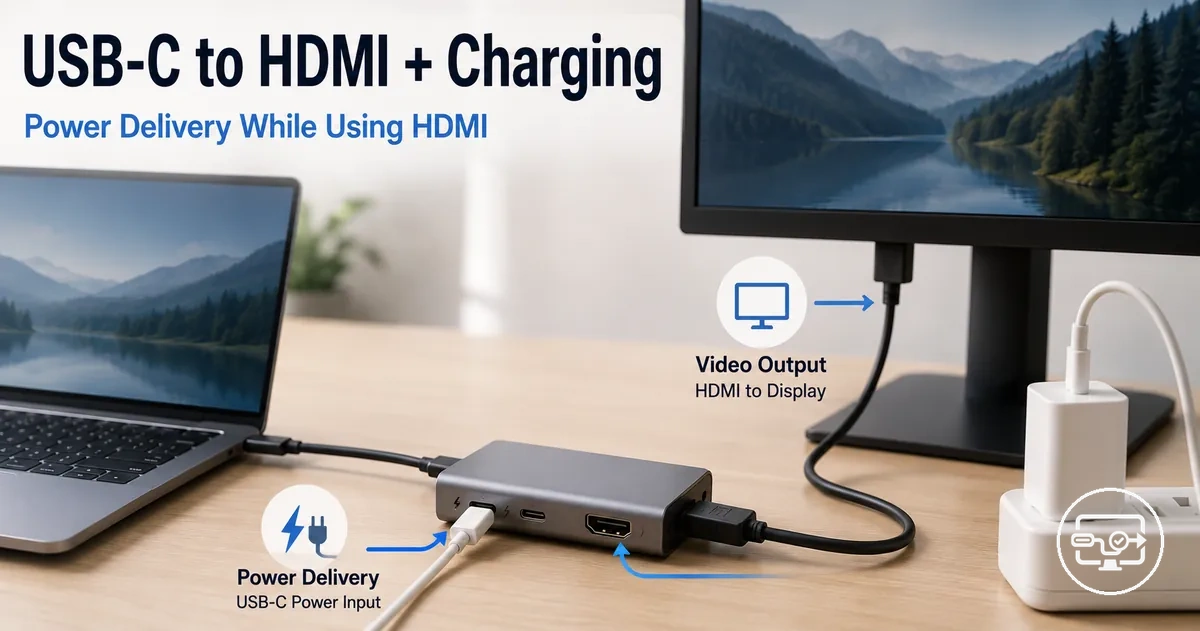
USB-C to HDMI with Charging: Power Delivery Passthrough Compatibility
USB-C to HDMI with Power Delivery (PD) charging can work simultaneously, but compatibility depends on the host device, the hub or adapter, and the charger's wattage. A working HDMI connection with a charging port does not automatically mean the device charges at full speed while the display is active.
This compatibility applies to devices with DisplayPort Alt Mode over USB-C, hubs and adapters that support PD passthrough, and chargers with sufficient wattage.
The key variables are:
- host capability
- PD negotiation between devices
- the passthrough limit of the hub
- the headroom of the charger
- the resulting charging behavior during HDMI use
Even with a charging port on a USB-C to HDMI Compatibility hub, the passthrough limit and charger headroom determine the actual power delivered during HDMI use.
What “Charging While Using HDMI” Means on USB-C Adapters and Hubs
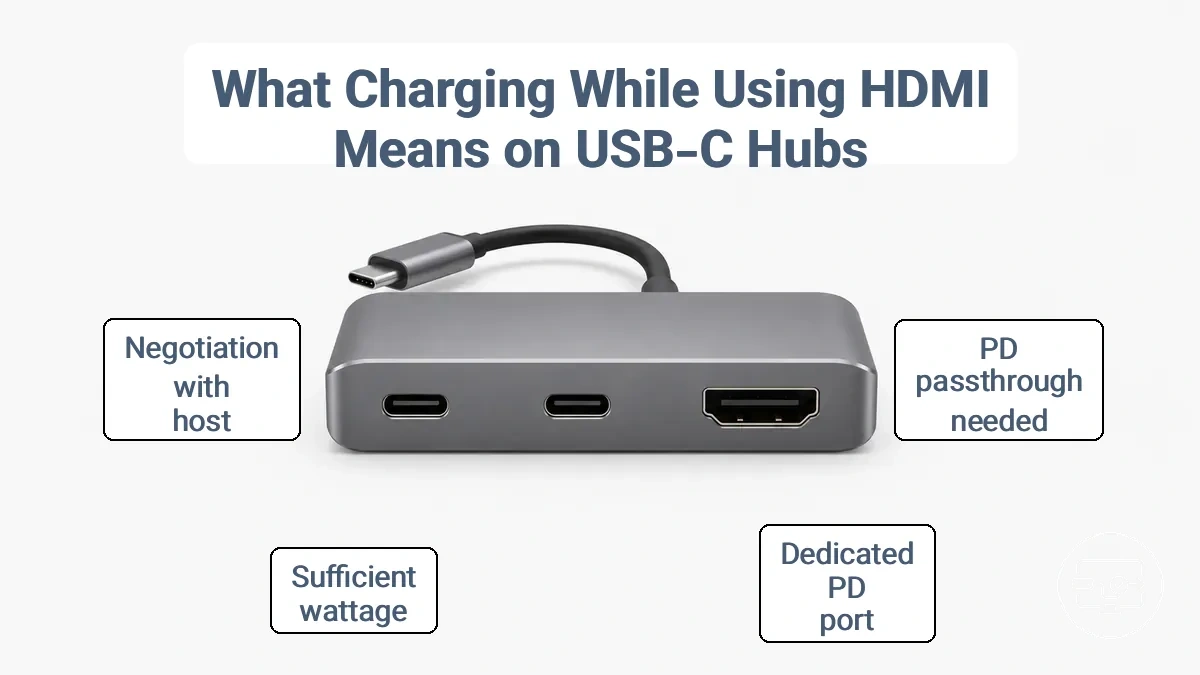
Charging while using HDMI means a USB-C adapter or hub delivers power to the host via Power Delivery passthrough while simultaneously transmitting a video signal over HDMI. The hub needs a dedicated USB‑C input port labeled for PD charging, which receives power from a wall charger and passes it to the laptop or tablet. The charging behavior depends on how the hub negotiates power between the video output and the host.
A user connects the hub to the host’s USB‑C port, plugs an HDMI cable from the hub to an external monitor, and attaches a USB‑C charger to the hub’s PD‑in port. When the hub lacks proper PD passthrough or shares power lanes, charging may underperform. The host may drain battery even while connected, or charging speed may drop because the hub allocates wattage to other ports first.
To confirm what charging while using HDMI means in hardware terms, verify these conditions on the hub:
- The hub has a separate USB‑C port marked as PD In or Charging Input.
- The wall charger plugged into that port needs to deliver sufficient wattage for both the host and any peripherals.
- The hub can negotiate power delivery with the host while the HDMI output remains active.
Video output can work correctly even when charging is slow or not happening at all. A hub may show a stable 4K display while the host battery continues to drain because the hub may not pass through enough negotiated power.
The image below labels the HDMI output and the USB‑C PD‑in connector – the two ports that make charging while using HDMI possible.
HDMI Output Path vs Power Delivery Input Path in the Same Adapter
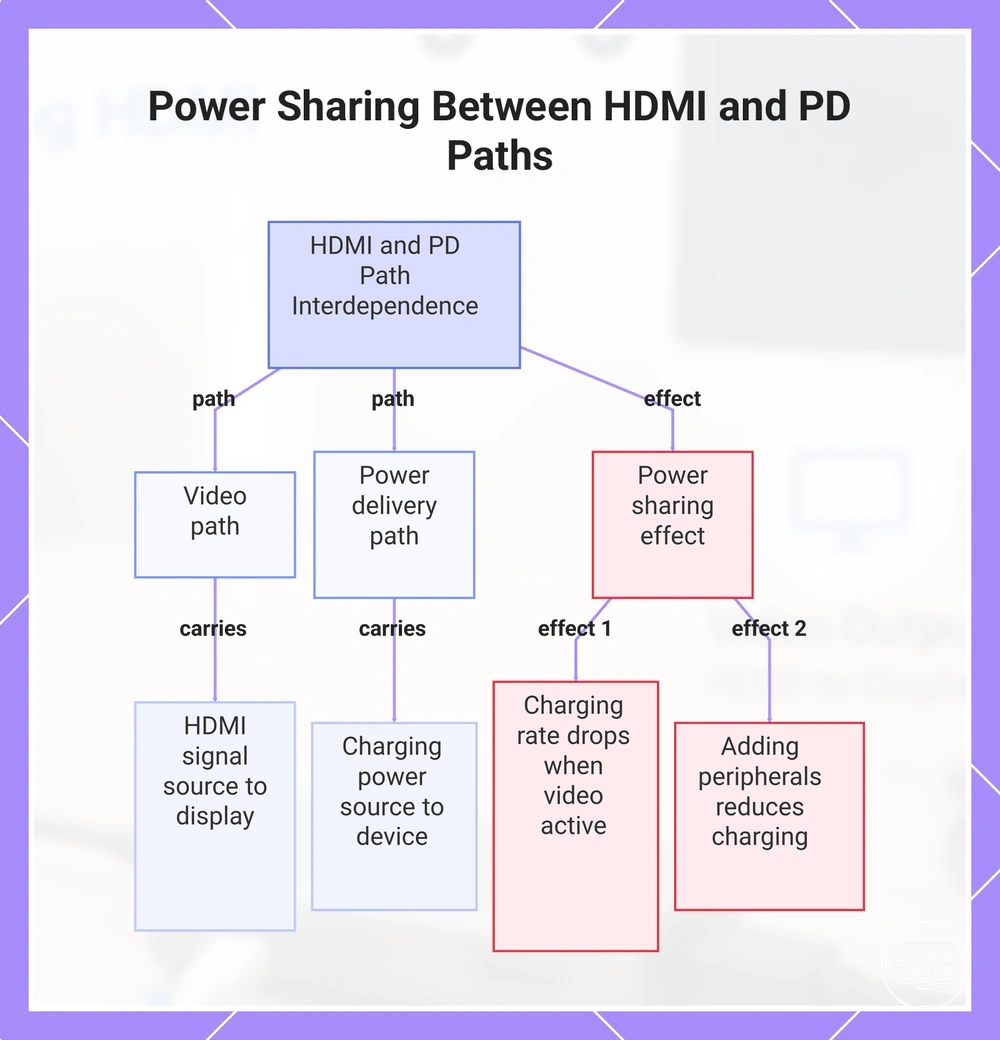
An adapter with HDMI video output and Power Delivery input contains a video path and a power path. However, the routing of these two paths is not fully independent in all designs. Because the adapter shares power between video and charging, the charging rate via passthrough can drop when the video output is active. Adding other peripherals to the adapter can further affect power sharing. The two paths are:
- Video path: carries the HDMI signal from the source to the display.
- Power delivery path: carries charging power from the power source to the device.
This chart shows the video and power delivery paths in an adapter with HDMI output and PD input, and explains how power sharing affects charging when video is active.
Common misconceptions about “charging ports” and “power passthrough”
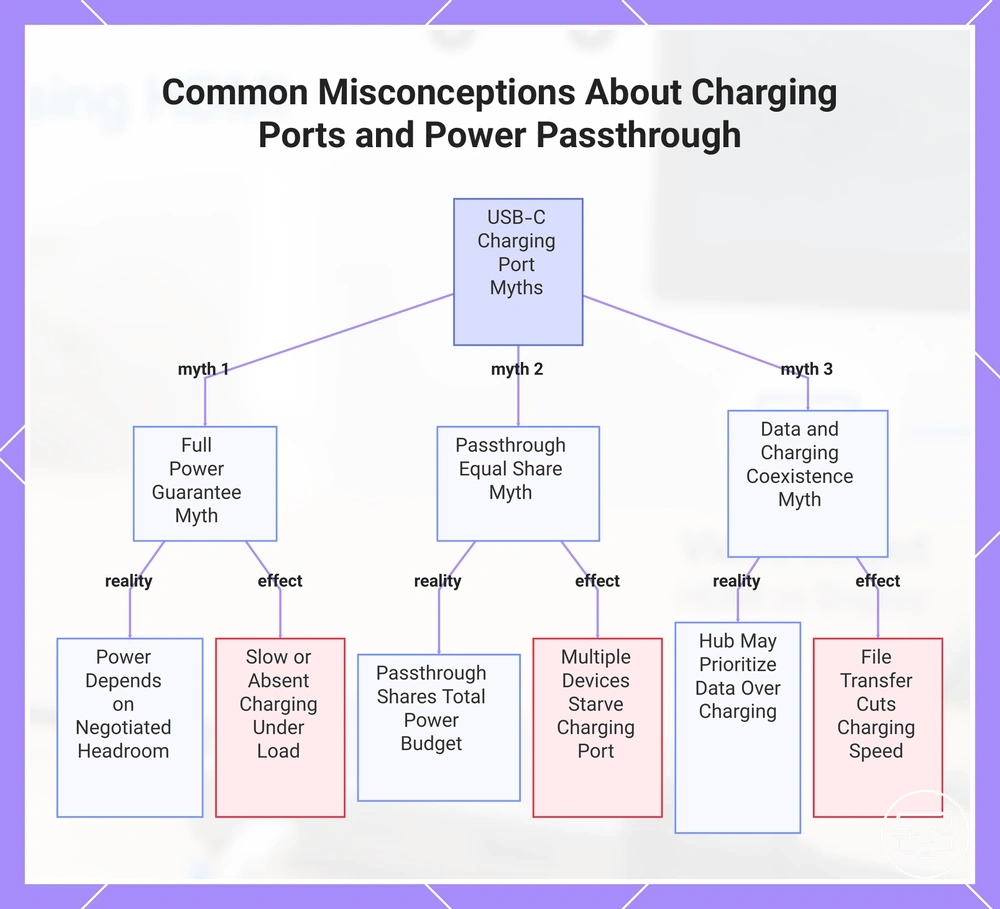
Common misconceptions about charging ports and power passthrough lead users to expect guaranteed fast charging from any labeled charging port. In reality, the presence of a charging port does not guarantee that enough power will be delivered, especially under load.
These entries correct common misconceptions about charging ports and power passthrough. Each contrasts the common assumption with the technical reality and its effect.
- Assumption: A USB-C port marked as a charging port always provides full power. Reality: The available power depends on negotiated power between the hub and the source; if headroom is insufficient, charging may be slow or absent. Effect: Devices may charge slowly or stop charging when the hub is under load.
- Assumption: Power passthrough means the hub can supply the same wattage to all connected devices. Reality: Passthrough shares the total power budget; each port receives only what the hub’s controller allocates after overhead. Effect: Connecting multiple devices often starves the charging port of the wattage needed for fast charging.
- Assumption: A charging port can simultaneously handle data and full charging speed. Reality: Hubs may prioritize data or display functions over charging, reducing the wattage available to the port. Effect: Transferring files or using an external display can cut charging speed to a trickle.
What changes vs what does not: The port exists, but delivered power varies. Charging outcomes depend on negotiated power, headroom, and hub design—not merely the presence of a charging port.
This chart contrasts three common misconceptions about USB-C charging ports and power passthrough with their technical realities and real-world effects.
Compatibility Requirements for HDMI Output and PD Charging Passthrough
Simultaneous HDMI output and PD charging passthrough is possible only when three compatibility requirements are met: host port capability, hub passthrough rating, and charger PD support. Missing any one prevents the setup from working.
Not all USB-C ports support both DisplayPort Alt Mode for video and PD sink capability. A device lacking either cannot output HDMI while charging via the same port, so checking both capabilities on the host side is necessary.
Compatibility requirements form a decision chain that organizes each condition and its outcome.
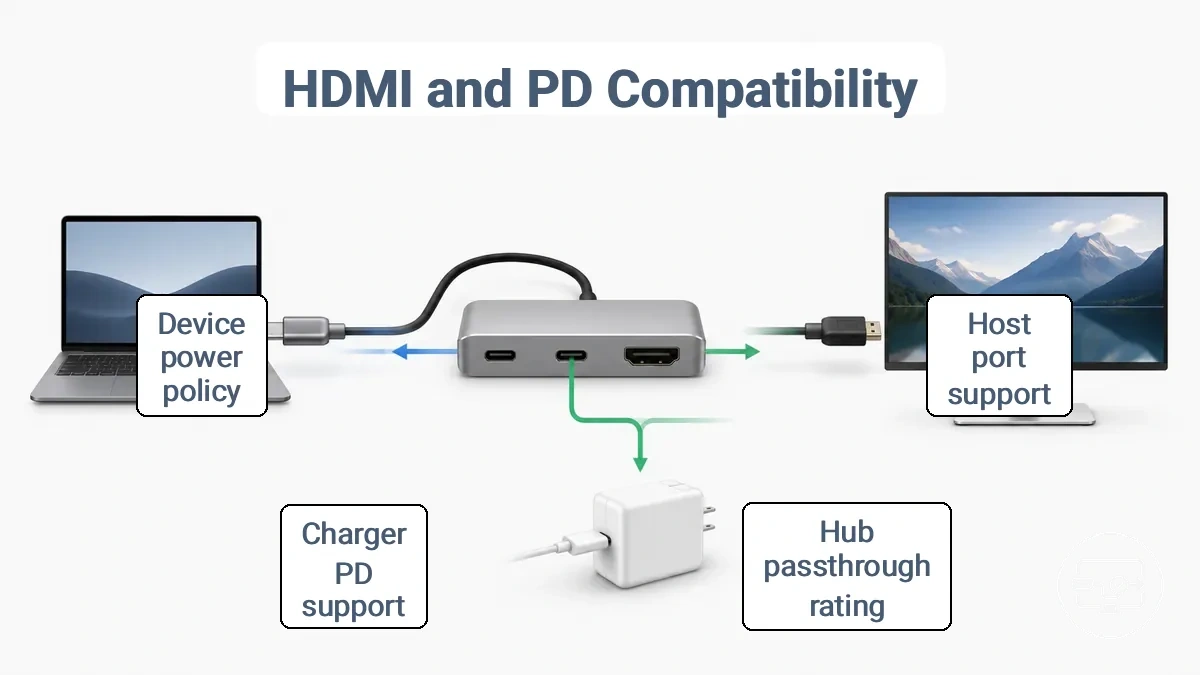
- Host limitations: the USB-C port must support both DisplayPort Alt Mode and PD sink functionality; missing either prevents simultaneous use.
- Hub limitations: the hub must have a PD passthrough rating that covers its own overhead plus the device's charging demand; a low rating limits charge speed.
The hub adds overhead to any passthrough configuration. A portion of the incoming power is consumed by the hub's internal circuits, data handling, and downstream ports. The remaining power is passed to the connected device. This overhead makes the hub's passthrough rating a limiter: even with a high-wattage charger, the device receives only what remains after overhead.
A common assumption is that matching charger wattage and hub passthrough rating guarantees full charging speed. In reality, device power policies can cap intake independently of the supply. Many laptops and tablets negotiate a lower charge rate based on temperature, battery state, or firmware limits. This means the charging behavior during HDMI output may be lower than expected even when all hardware conditions are met.
This checklist of compatibility requirements verifies the minimum conditions for simultaneous HDMI output and PD charging passthrough.
- Does your device’s USB-C port support DisplayPort Alt Mode for video output?
- Does your device accept Power Delivery as a PD sink?
- Does your hub support PD passthrough from an external charger?
- Is the hub’s passthrough rating adequate for your device’s charging needs?
- Is your charger PD-capable and connected to the hub’s power input?
- Does your device’s power policy allow charging at the negotiated power level?
Host device USB-C capabilities that decide whether video + charging can coexist
- Whether video and charging can coexist typically depends on the host device's USB-C port supporting video signaling (DisplayPort Alt Mode or Thunderbolt) and accepting PD while video is active.
- Device policy may still limit PD input even when the port meets these requirements.
- Some host devices only allow PD up to a low wattage threshold during video output, reducing charge speed but not preventing coexistence.
Adapter or hub limits that affect Power Delivery passthrough behavior
Hub-side design factors such as the passthrough rating and internal power sharing determine how reliably Power Delivery passthrough works while HDMI is active. A hub's passthrough rating sets the maximum power it can forward to the laptop, but internal overhead can reduce the actual delivered power. When multiple ports, like HDMI, are active, the hub may allocate power to those interfaces, reducing the charging capacity available to the host.
Overhead — the power used by hub circuitry — means input wattage and delivered power differ. To identify adapter or hub limits that affect Power Delivery passthrough behavior, check these hub specifications:
- Passthrough rating (maximum wattage forwarded to laptop)
- Internal overhead (power used by hub circuitry and port management)
- Power distribution logic (allocation of power among active ports)
- Charging impact with active HDMI (possible reduction in charging speed or stability)
Charger Wattage and Power Budget While HDMI Is Connected
Charger wattage and the total power budget affect how a device charges when HDMI is active. The exact requirements depend on the host device's power draw, the hub's overhead, and any connected peripherals. The power budget equals the charger's supply minus the combined overhead and load.
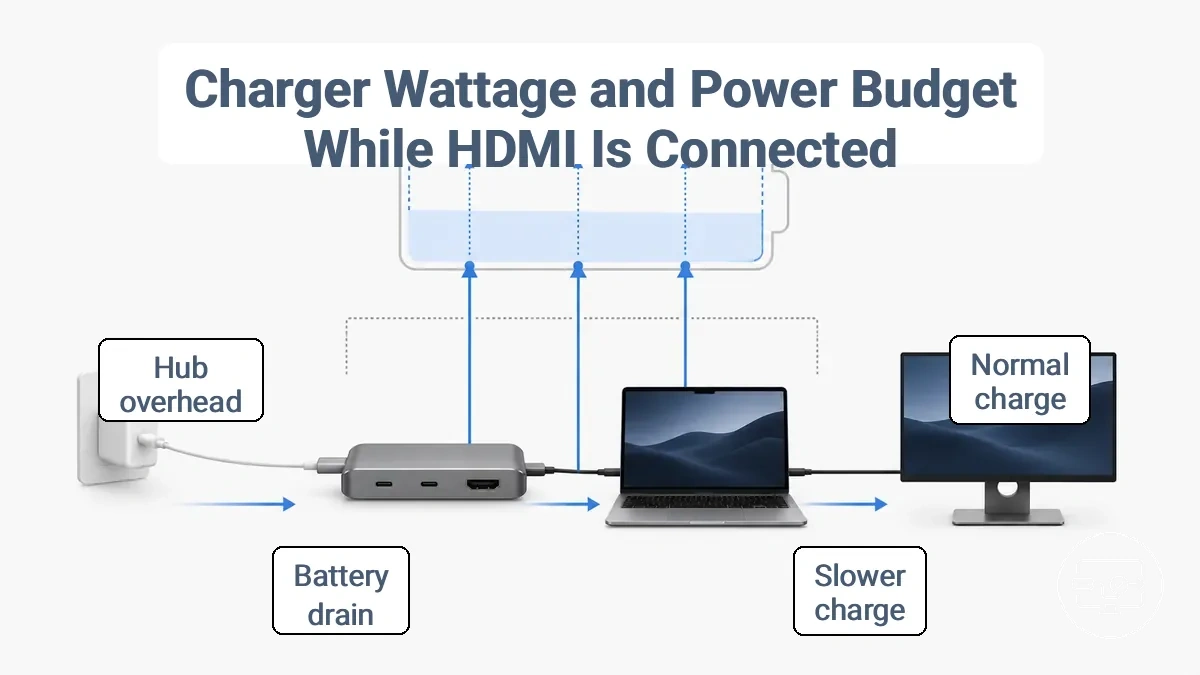
Sufficient headroom typically allows normal charging speed. Low headroom slows charging or may cause battery drain even while plugged in.
Under a light workload—such as displaying a static presentation with no peripherals—the monitor draws relatively little power, leaving more headroom for charging. Under a heavy workload—gaming, video editing, or connecting multiple peripherals—the total draw can increase significantly, shrinking the power budget. Depending on peripherals and workload, the same charger wattage can produce a net charge in one scenario and a net battery drain in another.
The table compares typical outcomes across load levels. These are illustrative guidelines; actual wattage requirements vary by hardware and configuration. No universal wattage threshold applies to every device or hub setup.
| Load Level | Monitor Draw (example) | Peripheral Overhead | Headroom | Charging Outcome |
|---|---|---|---|---|
| Low (idle presentation, no USB devices) | 6–10 W | Negligible | Ample (enough headroom) | Normal or fast charging |
| Moderate (video streaming, one USB accessory) | 10–15 W | 5–10 W | Moderate | Slower charging, may maintain battery |
| High (gaming, multiple peripherals, high brightness) | 15–18 W | 15+ W | Low or insufficient | Slow charging or battery drain |
How to choose a charger wattage that matches the host device and the hub
To choose the right charger wattage, estimate headroom using the expected draw, hub rating, and peripherals load.
- Check the host device's typical power draw (expected draw) from its original charger or specs to find the baseline power the charger needs to supply.
- Check the hub's rated power output (hub rating), often on its label or manual, to see the maximum power it can deliver to connected devices—which may be less than the charger's capability.
- Check the combined power draw of peripherals you will connect through the hub (peripherals load) to cover the additional demand on the hub's total output.
- Add a margin to the sum of expected draw and peripherals load to create headroom. That gives the minimum charger wattage to reduce the risk of insufficient power.
- Select a charger wattage that meets or exceeds that total with headroom. That is the safer choice for your setup.
Even with a higher-watt charger, the host device may cap intake if it does not support that power level. This method helps ensure the charger can supply enough when needed.
Why charging can be slow or the battery can still drain during HDMI use
Slow charging or battery drain during HDMI use occurs because the combined power draw of the display output, active peripherals, and running applications exceeds the power delivered through the adapter, causing the device to consume more energy than it receives. Drain can occur even when all components are functioning correctly.
These causes explain why delivered power often falls short of demand:
- HDMI output activates additional graphics processing and display controller overhead, which increases overall power draw — this can reduce the net charge reaching the battery, leading to slow charging or gradual drain.
- Connected peripherals such as USB hubs or external drives share the same power budget, adding overhead that further reduces the power available for charging — the result is a slower charge rate or net battery loss.
- Certain adapters have internal overhead that can limit charging power when HDMI is active, leading to slower charging or battery drain.
- When the total power supply is less than the total draw (supply < draw), the battery discharges even while plugged in — the symptom is a gradual decrease in charge level during HDMI use.
- When the supply equals or exceeds the draw (supply ≥ draw), charging may still be slow but the battery usually will not drain — this scenario is less common during heavy HDMI use unless the adapter and charger provide sufficient headroom.
- High-workload activities such as streaming 4K video, gaming, or running multiple demanding apps can push power consumption beyond what even a high-wattage adapter can sustain — in this edge case, battery drain continues regardless of the charger’s rating because the workload exceeds available headroom.
Heat and Reliability When Charging Through a USB‑C HDMI Hub
When your USB-C hub gets warm while charging and using HDMI, that warmth is normal because it handles both power delivery and video signals. The more devices connected and the higher the load, the warmer the hub becomes. However, excessive heat can signal a risk.
Under heavy load, such as when the hub is passthrough charging a laptop and streaming 4K video, its chips work harder and produce more heat. This added hub heat can affect stability, sometimes causing temporary display dropouts or throttled data speeds. In most cases, these are signs that the hub is nearing its thermal overhead rather than failing.
A common concern is whether the warmth from the hub is a safety risk. The line between normal warmth and overheating becomes clear when the hub becomes too hot to touch or causes repeated disconnections or flickering. If the hub remains stable and only feels warm, it is likely operating within its intended range. The boundary worth paying attention to is between temporary inconvenience—like slowdowns during heavy use—and actual safety signals such as a burning smell or unexpected shutdowns.
| Normal Warmth | Concerning Heat |
|---|---|
| Hub feels warm to the touch | Hub is too hot to hold comfortably |
| Performance stays stable | Dropouts or throttling occur |
| No unusual smells | Burning odor present |
When hub warmth is normal vs when overheating is a real problem
Normal hub warmth is a natural result of power conversion and data transmission, but overheating is a distinct condition signaled by discomfort when touching the hub, persistent smell, or observable smoke. Observable signals are more reliable than temperature checks because heat alone does not define the problem.
These signals separate normal warmth from overheating, each with its likely cause and safe response:
- Hub feels too hot to keep your hand on comfortably — likely means components may be overloaded — safe response: stop and allow cooling, then inspect for cause.
- Burning smell — likely means component stress or insulation degradation — safe response: stop use and allow cooling; if persists, seek professional inspection.
- Smoke from the hub area — likely means severe overheating or component failure — safe response: stop immediately and do not continue until inspected.
- Shutdowns of connected devices — likely means thermal protection triggered — safe response: reduce load and allow cooling before resuming use.
- Dropouts or intermittent display signal — likely means power instability from overheating — safe response: reduce power draw and check connections.
In one case, reducing the number of connected devices and lowering the power draw caused hub temperatures to drop back to normal, suggesting that overload contributed to the overheating.
Reducing Heat and Instability by Lowering Load and Improving Airflow
Reduce load and improve airflow to reduce heat buildup and hub stress, and restore stability for reliable charging.
To lower hub stress and improve stability, follow these low-risk actions:
- Disconnect peripherals not in active use to reduce load, which can help lower internal temperature and reduce dropouts.
- Place the hub in an open area with good airflow to reduce heat buildup and improve stability during extended use.
- Use shorter or better-shielded cables between the hub and connected devices to reduce resistance and heat and help maintain stable charging.
- When the hub's power adapter has limited headroom, reduce the number of high-draw devices connected to lower draw, reduce hub stress, and help prevent instability.
- When the hub feels hot, disconnect some devices to reduce load.
Prioritize safe operating temperatures over connecting the maximum number of peripherals.
Setup Practices That Prevent No-Charge Scenarios
To prevent a no-charge scenario when HDMI works, follow a deliberate connection order and use compatible hardware. The setup order, cable quality, and charger quality often determine whether USB Power Delivery (PD) negotiation succeeds. Connecting the charger first, then the display, improves the chance of maintaining both video and charging.
The setup practices below prevent no-charge scenarios by focusing on connection order, cable quality, and charger quality to reduce negotiation failures and the risk of charging stopping after HDMI is connected.
- Connect the charger to the adapter before plugging the adapter into the device. Check whether the device indicates charging.
- Once charging is confirmed, connect the HDMI cable from the adapter to the display. Check whether the video output activates without interrupting the charging indicator.
- If charging stops after step 2, disconnect and reconnect the charger while the HDMI cable remains connected. Check whether charging resumes.
- Use a cable rated for power delivery, such as one that supports the wattage your device and adapter require. A data-only cable may block PD negotiation. Check whether the cable's rating matches the charger output.
- Check that the charger provides sufficient wattage for both the device and the adapter. A low‑wattage charger may keep video stable but fail to sustain charging. Check whether the charging rate drops after HDMI is active.
- Reverse connection order: start with HDMI, then add the charger. Some devices prefer this sequence. Check whether charging starts after video is established.
After these steps, retest charging to confirm stable operation. The outcome typically falls into one of two patterns:
- Negotiation succeeds: video and charging remain stable.
- Negotiation fails: video works but charging stops or does not start.
Persistent failure after correct setup can indicate capability limits in the device, adapter, or cable rather than user error. For more context, refer to the related guide on setup steps for stable use.
This chart shows the key setup practices—connection order, cable quality, and charger quality—that prevent no-charge scenarios when HDMI is connected.
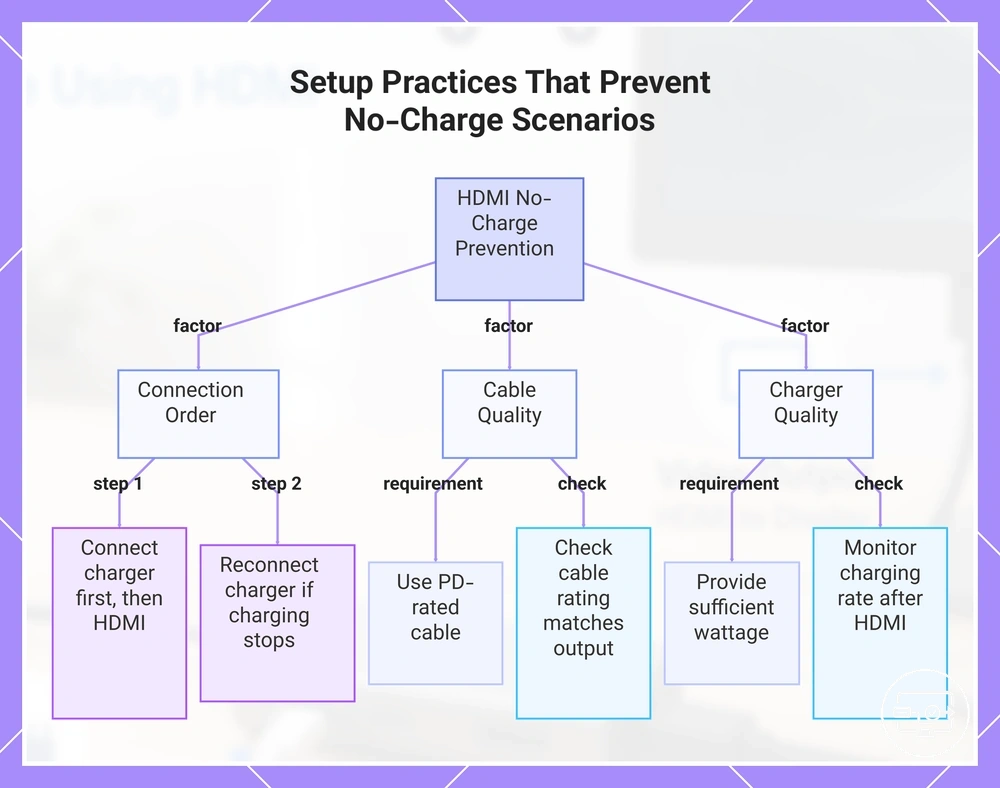
Connection order, cable quality, and charger checks that prevent PD failures
Connection order, cable quality, and charger checks prevent PD failures when using HDMI over USB‑C. Running these checks early reduces the chance of falsely concluding the hub is broken.
These connection order, cable quality, and charger checks are key to preventing PD failures:
- Check cable condition — a PD‑capable USB‑C cable with intact connectors and no visible damage supports required power delivery; a worn or non‑PD cable can disrupt negotiation.
- Check charger PD behavior — a PD charger that advertises the needed power profiles for the hub and connected load is necessary; a charger with low PD capability may fail to start charging.
- Check hub PD‑in response — the hub must accept PD input and signal its power requirements; a hub that does not respond to PD negotiation can leave the system without charge.
- Check negotiation result — confirm that the charger and hub agree on a voltage and current; failed negotiation often shows as intermittent charging or no charge.
For example, a weak USB‑C cable or a charger with lower PD capability than the hub requires can cause a no‑charge situation even when the hub itself is fully functional.
Power-cycling, port selection, and display reconnection to reset negotiation
When simultaneous charging and HDMI output fail, the USB-C connection may have failed to negotiate the correct power and data roles. Power-cycling the devices and controlling the reconnect order can re-trigger this negotiation.
This reset method uses power-cycling, port selection, and display reconnection to restore negotiation.
- Disconnect the USB-C cable from both the source device and the display.
- Power off both devices completely and unplug any power adapters.
- Wait a short time to allow residual charge to dissipate.
- Reconnect the USB-C cable to the display first, then to the source device.
- Power on the source device and observe whether charging and HDMI output are detected.
- Disconnect the USB-C cable from the source device, connect it to a different USB-C port, and observe whether negotiation occurs.
If repeated attempts after a clean reset do not restore functionality, the issue may be due to capability limits of the hardware rather than a negotiation error.
When HDMI Works but the Device Won't Charge Through the Adapter
When HDMI works but the device won't charge, the problem is often a negotiation failure or a power passthrough limit in the hub or adapter. These two categories require different checks.
The symptom “no charge” can mean the adapter is not requesting power via USB‑C Power Delivery, the connected charger cannot deliver enough wattage, or the hub itself restricts current to protect its circuits — each possibility points to a different component.
- Negotiation failure: the device and charger cannot agree on a voltage and current profile through the adapter.
- Insufficient power / limits: the adapter or hub caps delivered power below what the device needs to charge while active.
When HDMI works but the device won’t charge, the following checklist organizes the safest tests from simplest to specific.
- Check the charger’s output rating (look for watts printed on the brick).
- Test with the original charger that came with the device.
- Try a different USB‑C cable that supports Power Delivery.
- Connect the charger directly to the device (bypass the adapter) to confirm the device charges normally.
- Verify the adapter or hub explicitly lists Power Delivery pass‑through support.
- Check the manufacturer’s website for firmware updates for the adapter.
- Test the adapter with a different device to confirm the charging failure is device-specific.
- Inspect the HDMI and USB‑C ports for debris or bent pins.
If the tests point to a hub or adapter limit, consider a different solution type — such as a powered dock — rather than further software tweaks. When the symptom persists, troubleshoot power-related issues with a step‑by‑step guide.
A common myth is that any USB‑C adapter will charge while displaying video; in reality, charging depends on Power Delivery negotiation and the adapter’s passthrough limit. If a powered hub resolves the issue, the original adapter likely lacked sufficient power delivery capacity.
The products below are useful examples for comparing available options. Before buying, check that the compatibility criteria, key features, and product details match your needs.
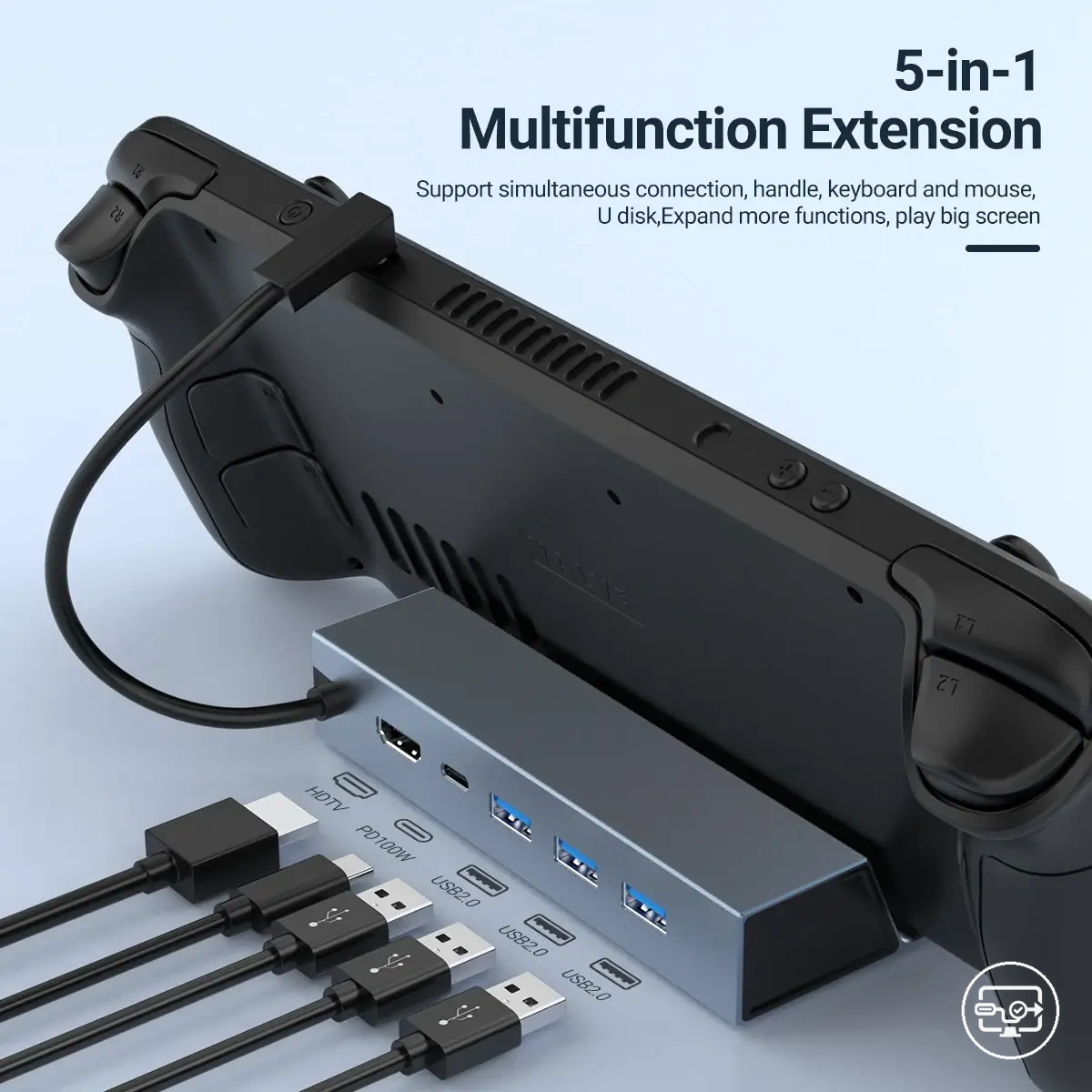
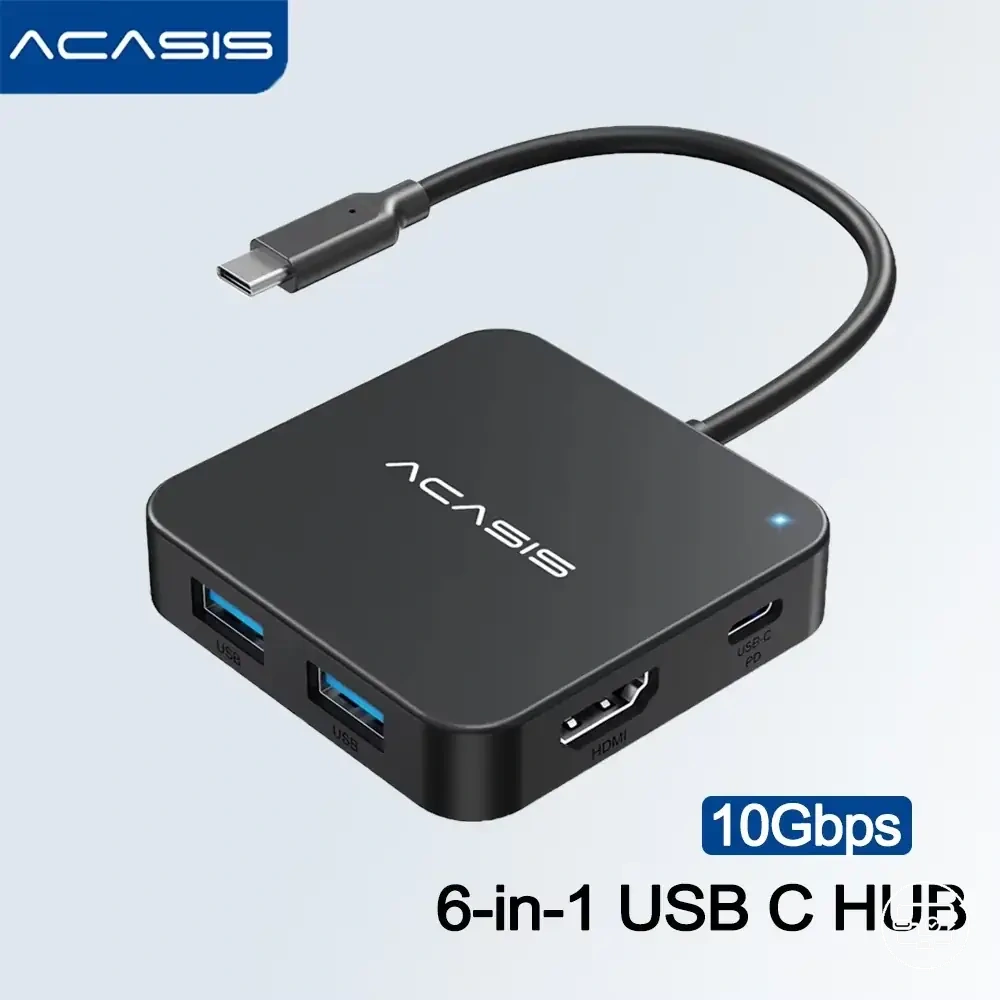
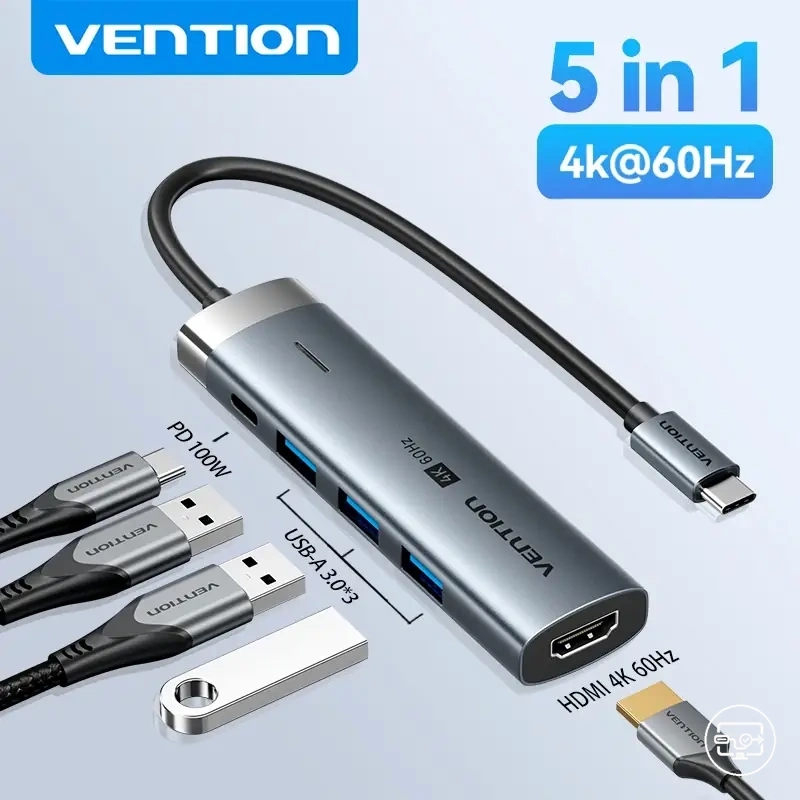
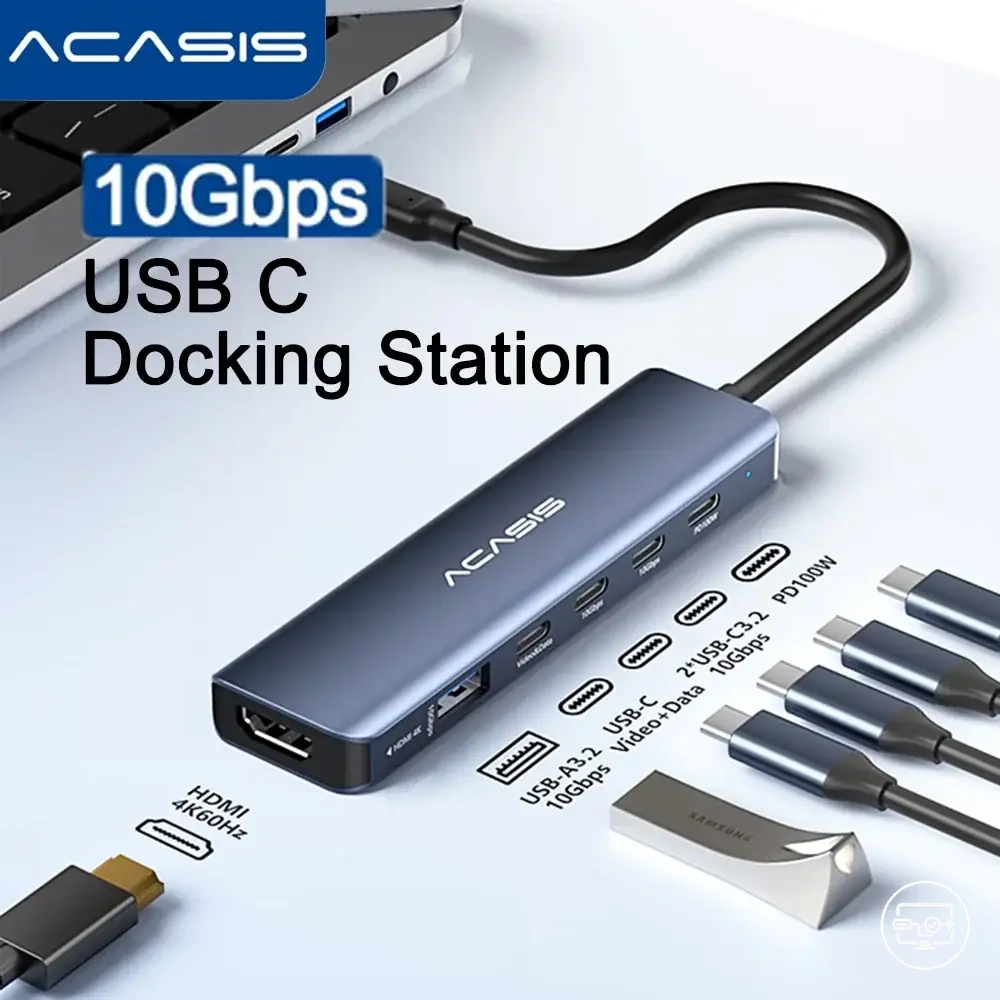
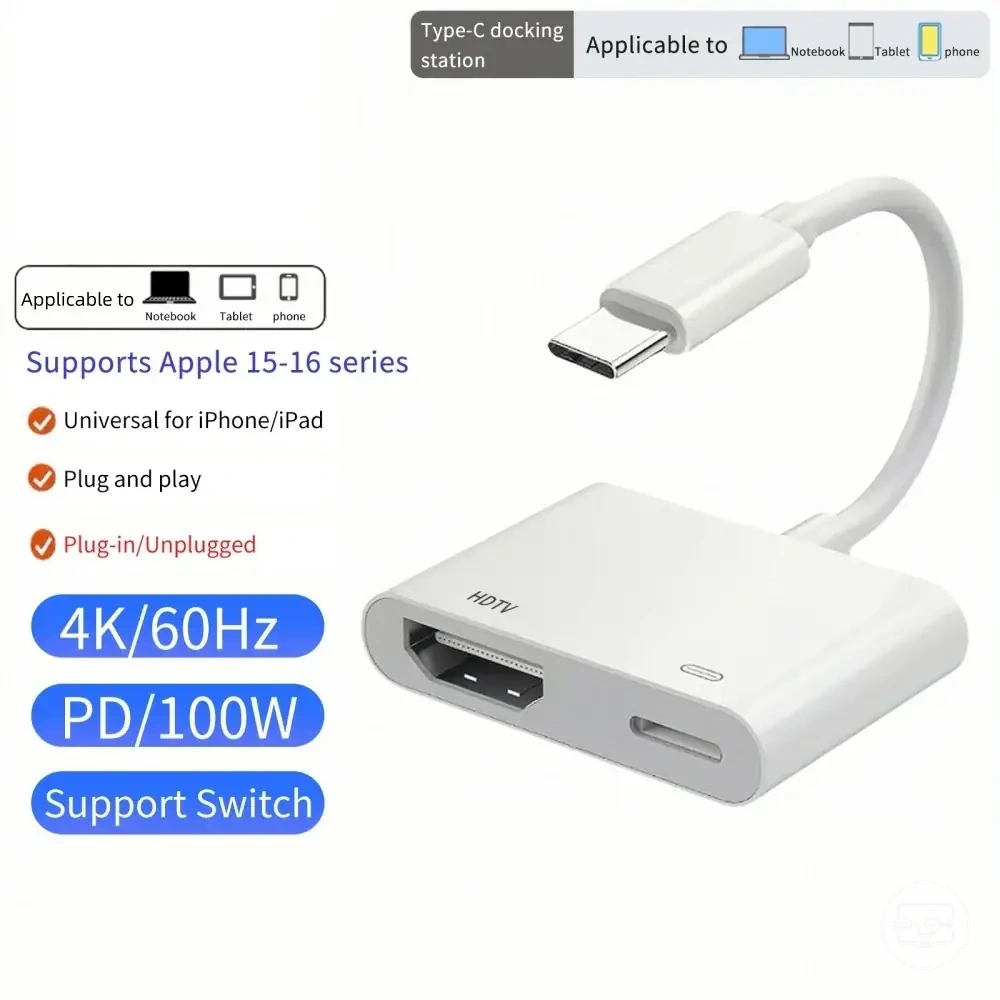
This chart shows the two main causes of the problem—negotiation failure and power passthrough limit—along with key checks to diagnose each cause.
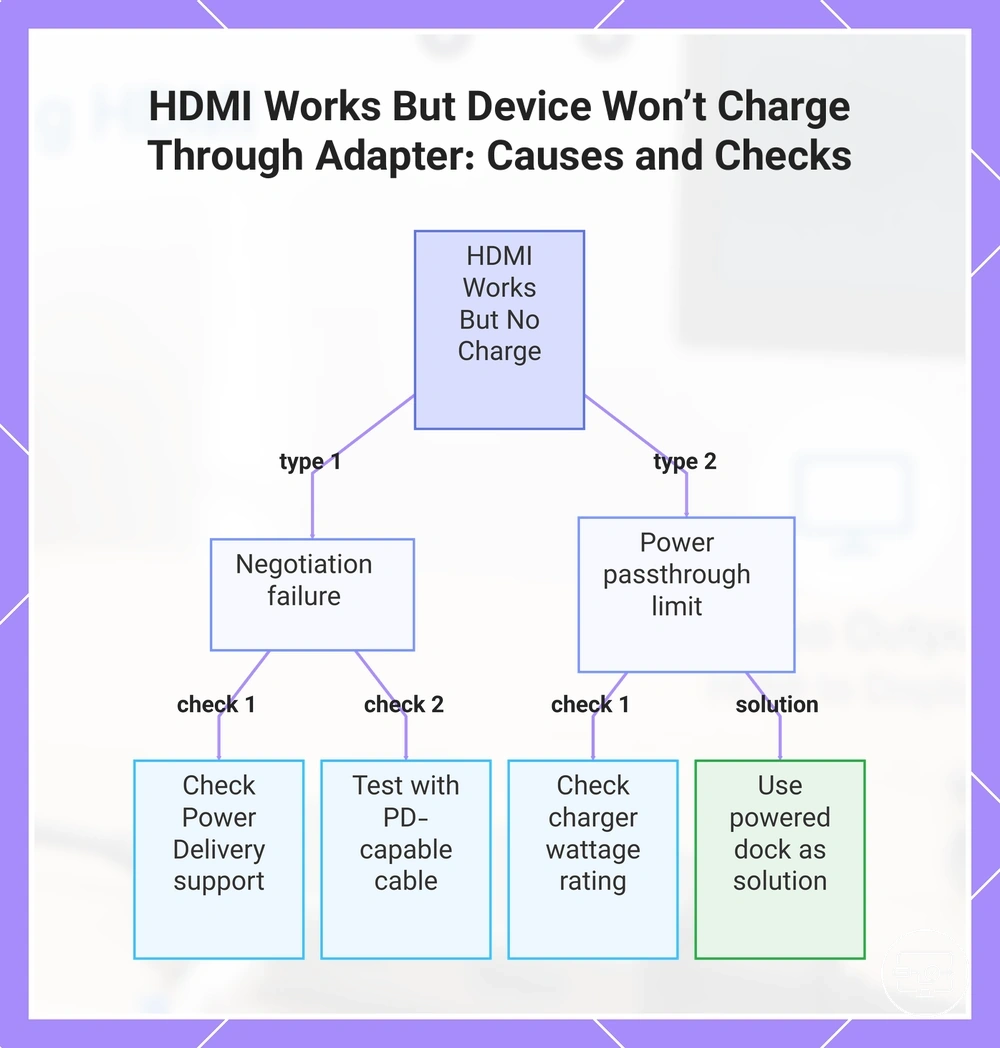
PD negotiation failures caused by charger, cable, or hub incompatibility
A failed PD negotiation between the charger and the device can prevent the battery from charging or cause slow charging. PD negotiation — the handshake that sets voltage and current — can fail independently of video signal transmission.
PD negotiation failures often come down to a few common causes:
- Charger profile mismatch: Quick check: does the charger support the voltage your device expects? If the charger offers a voltage that doesn't match the device's expected profile, negotiation can fail, leading to lower current or no charge.
- USB-C cable limit: Quick check: is the cable rated for the power level you need? A cable that cannot handle the negotiated current can block PD negotiation, causing the source to fall back to 5V only.
- Hub PD-in passthrough issue: Quick check: does the hub pass through the full PD contract from the charger? Some hubs do not forward the negotiated power correctly, so the device sees only a basic 5V supply.
- Policy limits on the device: Quick check: does the device reduce charging speed under load? Some devices implement policy limits that change charging behavior when the system is active, even if the PD contract itself is valid.
Adapter limitations and when a powered dock is the better compatibility path
When a compact USB-C hub cannot sustain the power demands of multiple peripherals, switching to a powered dock is often a more reliable compatibility path because its own power adapter supports sustained load. Many hubs draw bus power from the laptop or reserve part of the charger's output for internal use, which can lead to slower charging or instability when connected devices require more power.
When inconsistent charging or peripheral dropouts occur, the limitation often stems from passthrough limits. Consider these trade-offs:
- Compact hub: draws power from the laptop or shares a single USB-C charger; total power available to peripherals is limited.
- Powered dock: includes its own power supply; can deliver more power to connected devices and charge the laptop simultaneously.
- Compact hub: often supports fewer ports and may rely on DisplayPort Alt Mode for video, limiting display options.
- Powered dock: offers a wider range of ports and can drive multiple high-resolution displays without additional strain.
The following criteria help decide when a powered dock is the better choice:
- Many USB peripherals connected: A powered dock supplies sufficient power to each port, helping prevent performance drops.
- Use of high-resolution or multiple displays: Powered docks can provide stable video output through dedicated controllers.
- Need to charge the laptop while using all ports: Powered docks include USB Power Delivery that can deliver higher wattage to the host, while hubs may deliver less.
- Frequent disconnections or flickering displays: These are often signs of power starvation that a powered dock can resolve.
- When considering solution types and charging passthrough, a powered dock provides more consistent performance under heavy use.
A user connects a MacBook to a compact multiport hub with a 4K monitor, an external SSD, and a wired keyboard. Under sustained load—such as video editing—the monitor flickers, and the laptop charges slowly. After switching to a powered dock with its own power adapter, all peripherals operate reliably, the display remains steady, and the laptop charges more reliably. This example shows how a powered dock restores compatibility under sustained load.
Charging While Using HDMI FAQ
This FAQ addresses charging while using HDMI, covering heat, wattage, and charging behavior that depends on the hardware setup. These answers are conditional and do not repeat earlier explanations.
Question: Does charging while using HDMI generate extra heat?
Answer: Normal warmth is common when a device charges and outputs video at the same time. The hub or adapter may feel warm during passthrough charging, especially under load.
Question: Why is charging slow when using HDMI?
Answer: Slow charging can happen when the power source shares its wattage between charging the device and powering the HDMI output. The headroom for charging depends on the total wattage the charger and hub can deliver.
Question: Is a charging port the same as a data port for HDMI output?
Answer: A dedicated charging port on a hub or dock is designed for power delivery, while a data port may not support passthrough charging. The correct port matters because the hub splits power and data differently depending on its design.
Question: Can I use any USB-C hub for charging and HDMI at the same time?
Answer: It depends on whether the hub supports passthrough charging and has enough power headroom for both tasks. Hubs that list power delivery support are more likely to handle simultaneous charging and HDMI output.
This chart explains the main concerns when charging a device while using HDMI output, including heat effects, charging speed causes, and hardware requirements.
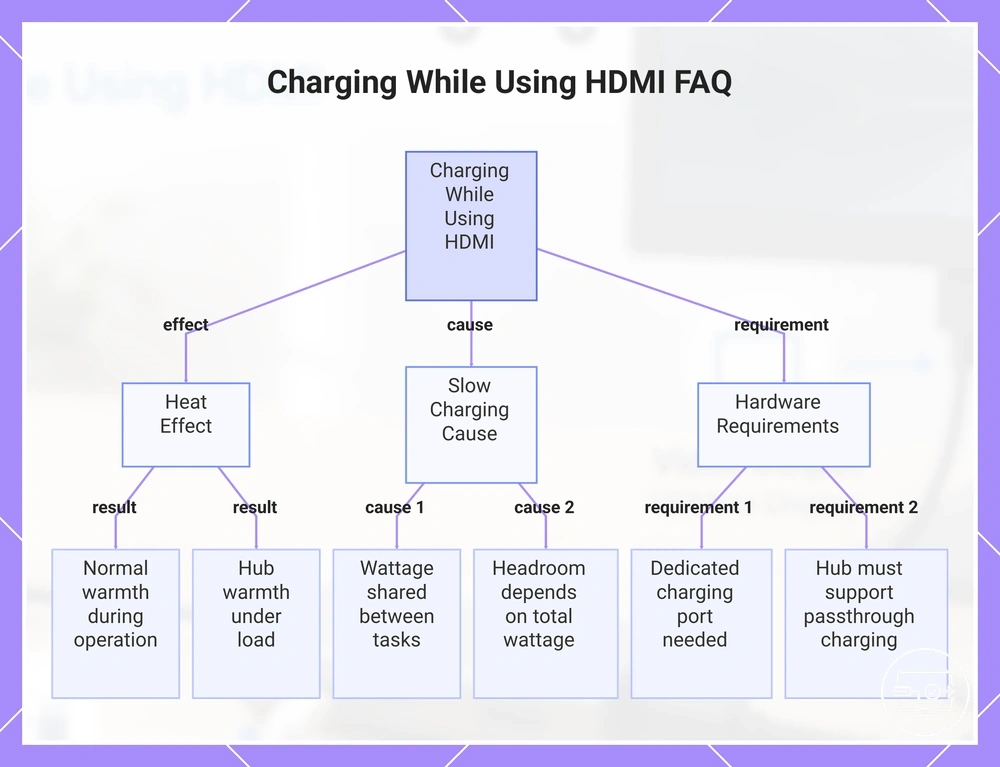
Is it normal for a USB-C HDMI hub to get hot while charging?
Yes, normal warmth is typical when a USB-C HDMI hub is charging. Overheating signals, such as the hub becoming too hot to touch or causing random dropouts, indicate the load may be too high. To reduce load and improve airflow, disconnect any unused peripherals and place the hub on a flat, open surface away from heat sources.
What charger wattage is usually required for HDMI + charging passthrough?
The wattage needed for HDMI passthrough depends on the device's power draw, the hub's overhead, and any peripherals connected. Even with a higher-watt charger, the device may cap intake according to its own limits. Headroom matters more than a single number, and charging outcomes depend on these conditions:
- If the device draw is high, the hub overhead is significant, or peripherals draw power, less power reaches the battery.
- If the charger provides ample headroom, the device can maintain charge during use.
Why does the device stop charging when I connect HDMI or peripherals?
When you connect an HDMI display or peripheral, the added load and routing change can reduce delivered power below the charging threshold if the adapter's negotiation limits do not support the combined demand. This can cause charging to slow or stop.
To check whether added load is a likely factor, try this three-step check:
- disconnect the HDMI or peripheral and see if charging resumes
- reconnect the peripheral while the device is already charging and observe any change
- test with a different peripheral or display to see if the same drop occurs
Changing the load—for example, disconnecting the peripheral or using a lower-power display—can change the outcome without changing the adapter.
Does an adapter with a charging port guarantee fast charging during HDMI use?
No, not always. The charging port does not guarantee fast charging because the adapter's passthrough rating, negotiation capability, and power overhead all affect delivered power. These factors affect charging speed in these ways:
- A low passthrough rating can limit power flow below the charger's maximum output, reducing charging wattage.
- Without Power Delivery (PD) negotiation, the system typically falls back to a standard 5V profile, reducing headroom.
- The device's power management often prioritizes video output and adapter overhead, leaving less energy for battery charging.
- Combined headroom of charger, cable, and adapter determines whether enough power reaches the battery during active HDMI use.
Before drawing conclusions, check the adapter's passthrough rating and ensure your charger provides sufficient headroom above the device's running draw.