
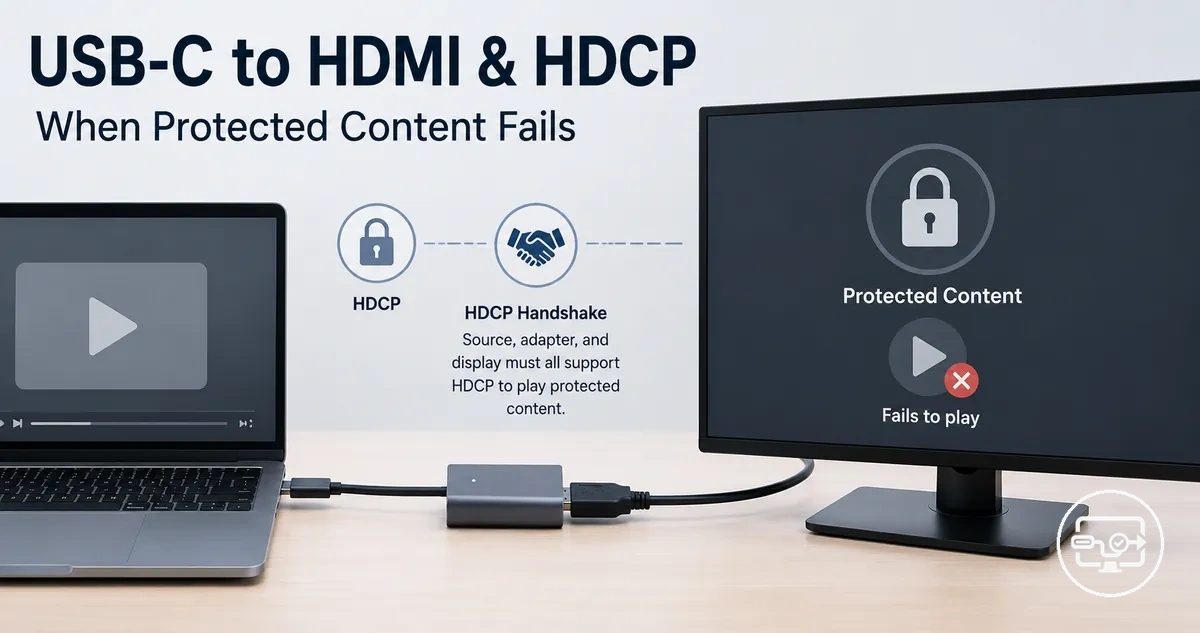
USB-C to HDMI HDCP Compatibility for Protected Content Playback
Protected content playback over a USB-C to HDMI connection requires each device in the signal chain to support HDCP (High-bandwidth Digital Content Protection). HDCP is a DRM system that encrypts the video signal to prevent copying. If any part fails the handshake, the content may not play — often showing a black screen or an HDCP error.
Each device must complete a cryptographic handshake to confirm HDCP compliance. Many streaming services and 4K sources require a specific HDCP version; if one device does not support it, playback may be blocked or downgraded. A common misconception is that a standard adapter that works for desktop mirroring will also play protected content, but a black screen or error often appears because the adapter, cable, or display may not support the required HDCP version or may lack HDCP entirely.
The chain includes: source → USB-C to HDMI adapter or hub/dock → HDMI cable → display. USB-C to HDMI Compatibility hub
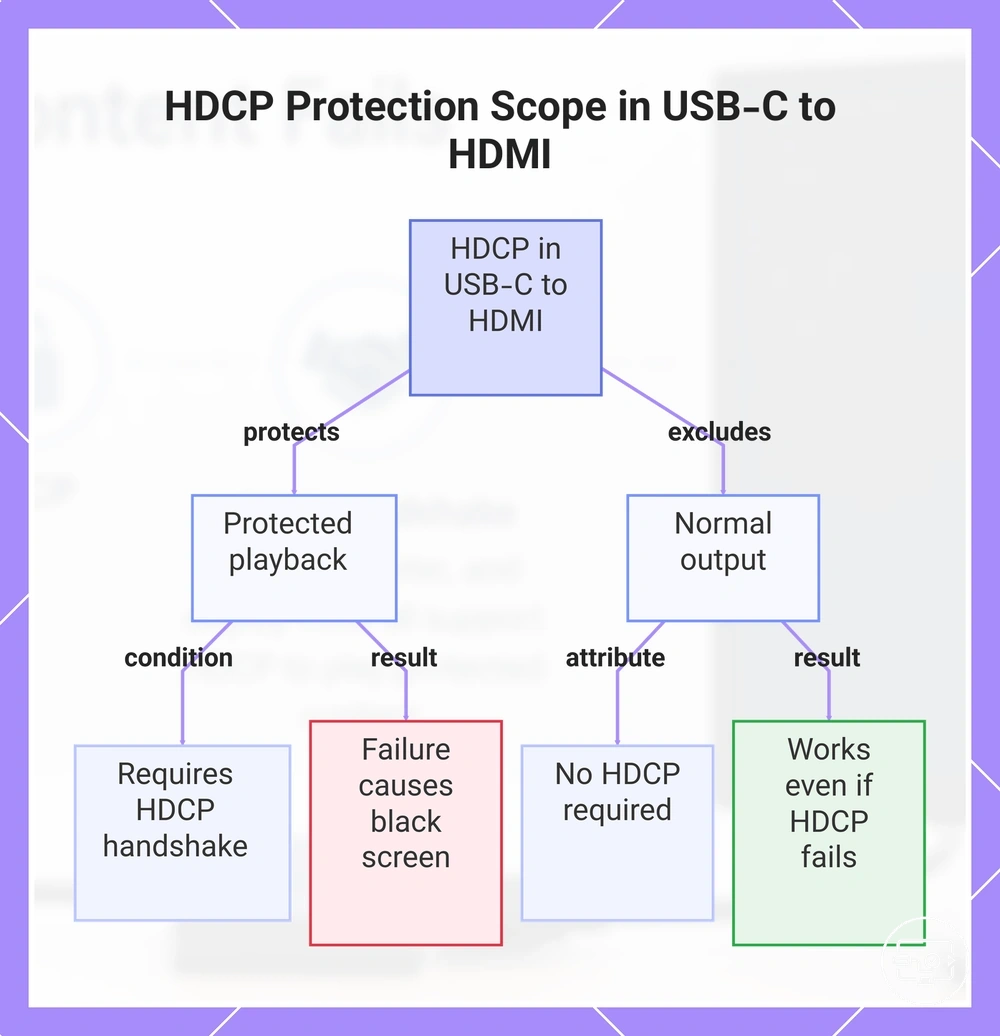
HDCP in USB-C to HDMI setups: what it protects and what it does not
HDCP (High-bandwidth Digital Content Protection) is a copy-protection handshake that can allow or block protected playback over HDMI paths in a USB-C to HDMI setup. It authenticates devices along the display chain to help prevent unauthorized copying of digital video and audio.
Contrary to what many assume, HDCP does not affect all video output; it typically only protects high-value content like movies and streaming services and does not affect normal desktop use. HDCP is about content protection authorization, not about bandwidth or resolution.
When a protected stream requires HDCP, the handshake must succeed for playback to proceed. If the USB-C to HDMI connection, adapter, or display fails the handshake, the source device typically downgrades resolution or blocks content entirely, resulting in a black screen or error message.
Protected playback
- Requires HDCP handshake to pass
- Failure often leads to black screen or resolution downgrade
- Applies to DRM-protected video content
Normal output
- Typically does not require HDCP authentication
- Desktop, web browsing, and local files typically play without HDCP interference
- Typically works even if the HDCP handshake fails completely
This chart shows the two main scenarios for HDCP in a USB-C to HDMI setup: protected playback and normal output, and their key characteristics.
Why HDCP Issues Show Up Mostly in Streaming and DRM-Protected Apps
Streaming apps that deliver protected content enforce HDCP compliance along the entire external display path only when DRM is active. Basic desktop video or non-DRM output typically does not perform this check.
You can watch a local video file on an external display without issue in most cases, but opening the same streaming app may produce an HDCP error or black screen.
When you start a streaming app on an external display, the app typically checks the HDCP level supported by the full transmission link—including cables, adapters, and the display itself. If the link does not meet the required HDCP version—typically HDCP 2.2 or higher for UHD content—the app may enforce a restriction.
The exact behavior varies by app, device, and content tier:
- Playback may be blocked entirely, showing an error message or a black screen.
- Video quality may be downgraded from HD to standard definition.
- Output to the external display may be disabled, forcing playback on the built-in screen.
- An HDCP compliance warning may appear.
- Screen mirroring or wireless projection may be refused while the same app works when played directly on the device.
When the Same Adapter Works for Desktop Video but Fails for Protected Playback
When the same adapter works for desktop video but fails for protected playback, it usually means the video signal is present but the HDCP handshake is failing. Desktop applications render without the protection check, while streaming services and other DRM-protected content require a successful handshake.
Common cause classes include:
- a non-compliant intermediary in the conversion chain,
- an HDCP version mismatch between the source and display,
- or a broken pass-through that may not be able to negotiate the required protection level.
How the HDCP handshake travels through a USB‑C to HDMI connection chain
The HDCP handshake travels through each link in a USB‑C to HDMI connection chain, and every link must be compliant for it to succeed. If one link fails, the entire path may fail.
Consider a laptop sending a 4K stream from a streaming app through a USB‑C adapter to a TV. The diagram labels each link that must remain compliant for the handshake to succeed.
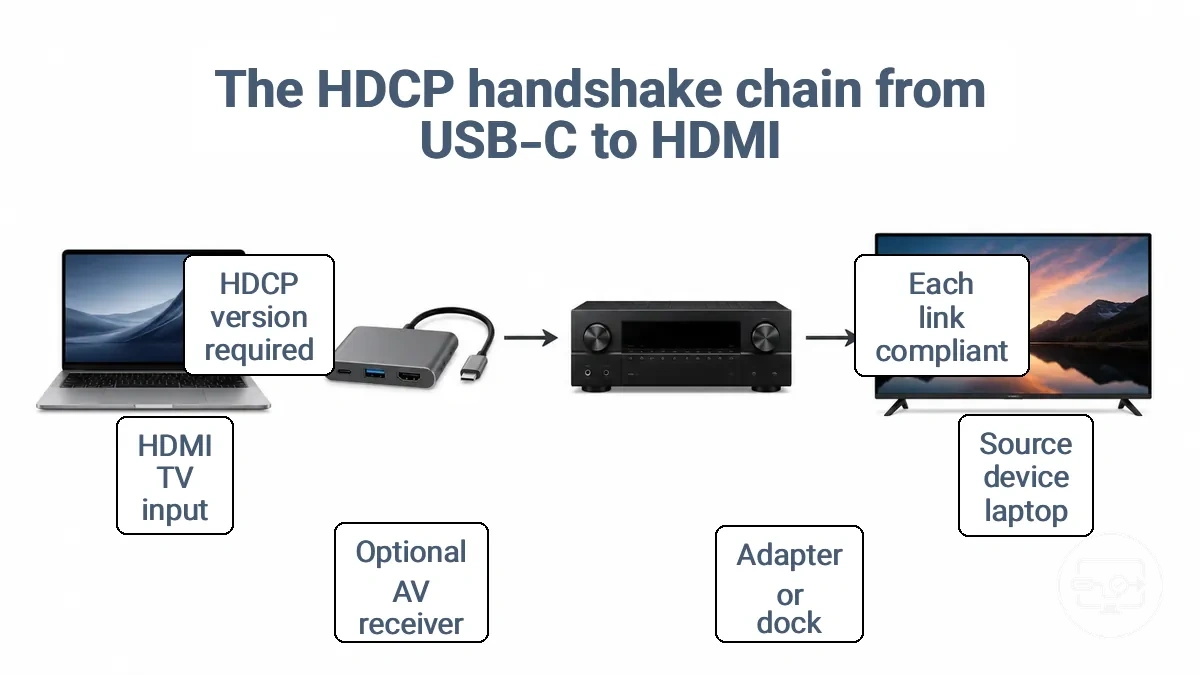
The chain starts with the source device (laptop), which outputs the signal over USB‑C; the operating system and GPU enforce HDCP at the video output stage. The signal then enters the adapter, hub, or dock, which converts from USB‑C to HDMI; the adapter’s HDCP support is critical—if it cannot negotiate the handshake, the signal may stop. Some setups include an intermediary such as an AV receiver or switch, which must be HDCP‑compliant.
Finally, the HDMI input on the TV or monitor receives the signal and completes the handshake. The handshake result depends on every device in this compliance chain; if any link fails to respond correctly, the source may send a blank screen or drop the resolution.
The required HDCP level depends on the content and app policy rather than the cable or connector type. For example, 4K and HDR content often demands HDCP 2.2 or higher. Each device in the path must support at least that version, otherwise the handshake may fail. Components with matching HDCP support keep the path intact.
Source device, USB-C output path, adapter conversion, and display as one compliance chain
Every component in the signal chain must support the required HDCP level for protected playback to succeed. Each component's role defines the risk:
- Source: initiates the protected stream; if HDCP support is missing, no output can be sent.
- USB-C output: carries the encrypted signal; insufficient HDCP handling can break the chain before it reaches the display.
- Adapter, dock, or hub: converts the signal; conversion without proper HDCP compliance can interrupt the protection handshake.
- HDMI cable: must be HDCP-compliant; an incompatible cable can cause a handshake failure that stops playback.
- Display input: receives and decrypts the content; if this link lacks support, playback can be blocked entirely.
The weakest link in the chain can downgrade or block protected playback.
Where conversion and signal re-timing can change HDCP outcomes
Active conversion and signal re-timing create intermediary stages that can alter HDCP negotiation. When a digital video signal passes through an adapter, dock, or receiver that actively converts the signal format or regenerates timing, the HDCP handshake may need to be re-established across that component. The controller inside each conversion stage can determine whether HDCP authentication is preserved, downgraded, or blocked entirely.
It is often assumed that an HDMI connection guarantees HDCP compliance across the entire signal path. Each conversion or re-timing point can introduce limitations that affect HDCP negotiation, and the outcome—whether protected playback works or fails—depends on the intermediary hardware's capabilities and HDCP implementation.
- Adapter chipset conversion → may alter HDCP version negotiation, causing protected content to be blocked or downgraded.
- Dock HDMI controller → may fail to pass HDCP authentication if the controller does not support the required HDCP version or handles re-timing incorrectly.
- Receiver processing → may introduce additional latency or timing changes that disrupt the HDCP handshake, which may lead to intermittent black screens.
- Pass-through device → may only forward HDCP without re-authentication, which can work but risks failure if the source expects active re-encryption.
- Multiple conversion stages in series → increase the probability of HDCP negotiation failure due to compounded timing and authentication issues.
HDCP version requirements that affect 4K playback over USB-C to HDMI
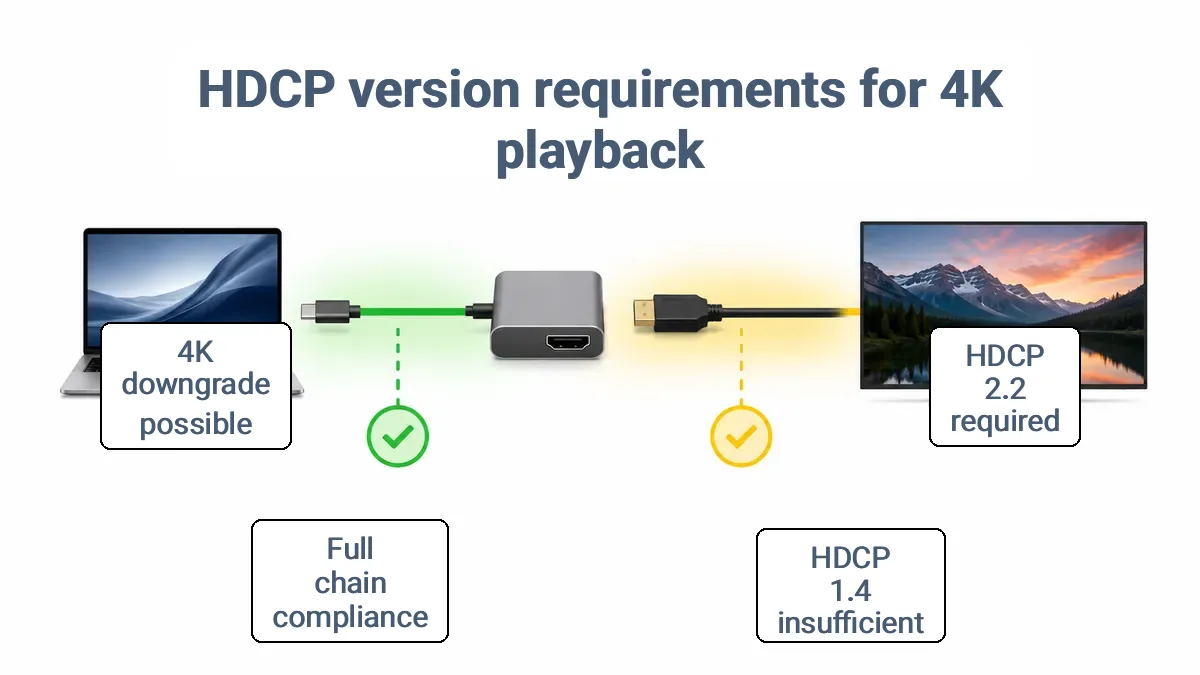
Protected 4K (UHD) playback over USB-C to HDMI often requires a higher HDCP version (HDCP 2.2) than 1080p content, which typically works with HDCP 1.4. The specific requirement depends on the service and device.
Consider a scenario where a streaming service delivers 4K. The table below organizes how each HDCP version affects protected playback.
| Version | Typical protected playback implication | What to verify in the chain |
|---|---|---|
| HDCP 2.2 | Often required for 4K/UHD protected streams. Without it, playback may downgrade to 1080p or show a block message. | All devices in the chain (source, adapter, cable, display) should support HDCP 2.2. |
| HDCP 1.4 | Supports HD (1080p) protected content. 4K playback may be blocked or downgraded. | Cables and adapters should be HDCP 1.4 compliant; upgrade to HDCP 2.2 for UHD. |
| Unknown / unspecified | Playback of protected 4K content may fail or display errors. | Check device specifications for HDCP version listed under HDMI or USB-C video output. |
A fully HDCP 2.2 compliant chain from source to display is required for 4K; any HDCP 1.4 link results in a downgrade to HD or a block.
HDCP version is not the only factor for 4K quality. Other performance boundaries also matter. 4K and HDR performance boundaries are covered in the 4K and HDR performance boundaries.
HDCP 2.2 vs HDCP 1.4 and what changes at common streaming resolutions
HDCP 2.2 is typically used for UHD/4K protected streams, and HDCP 1.4 for older HD/1080p scenarios.
- UHD/4K protected content – HDCP 2.2 is the common expectation.
- HD/1080p content – HDCP 1.4 is usually sufficient.
- Mixed-resolution playback – the playback tier depends on the lowest HDCP version in the chain, with HDCP 2.2 devices typically falling back to HDCP 1.4 for HD content.
Why one non-compliant link can force a downgrade or a complete block
DRM systems apply a weakest-link rule: the security of the chain depends on its least-compliant component. A non-compliant link can break the HDCP handshake and trigger enforcement.
A handshake failure may result in either a downgrade in content quality or a complete block, depending on the device and app behavior.
- Downgrade: When a non-compliant link causes the HDCP handshake to fail, some apps may downgrade to lower resolution instead of blocking entirely.
- Block: A non-compliant HDMI cable that fails the HDCP handshake can cause the display to show a black screen or error message.
- Block: When the source detects that an intermediary lacks the required HDCP version, the handshake fails and the app may block all content with no fallback.
- Block: When the handshake fails because of an outdated HDCP version on a receiver, the result can be a strict block, possibly requiring the user to replace the non-compliant device.
How HDCP Failures Typically Appear: Black Screen, Error Prompts, and Playback Blocks
A black screen on protected content while audio plays commonly indicates an HDCP enforcement block, not a general USB-C to HDMI signal failure. The key difference between an HDCP block and a true 'no signal' case is whether the desktop or non-protected content displays correctly.
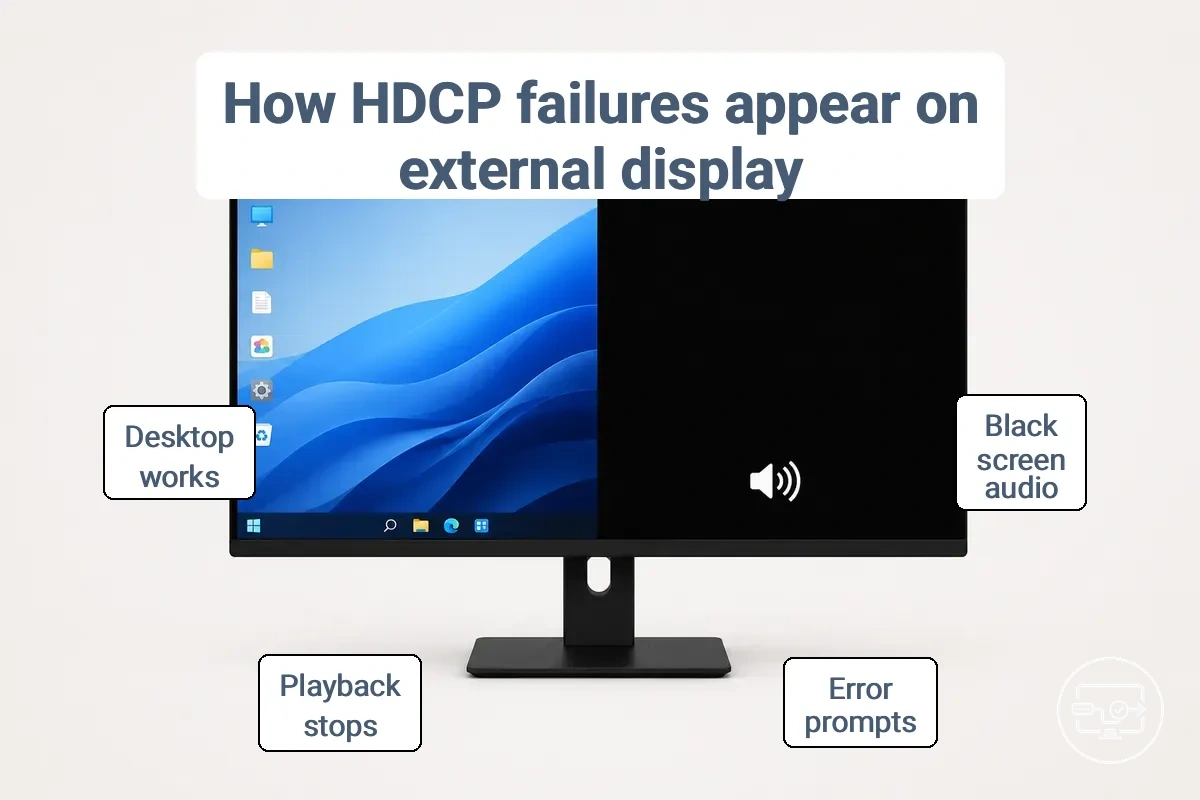
Error prompts, sudden playback stops, or reduced video quality often point to HDCP failures. The table shows each symptom, its likely HDCP meaning, and the first check to perform.
| Symptom | Likely HDCP meaning | First isolation check |
|---|---|---|
| Black screen with audio on a streaming app | The video path is blocked by HDCP while audio passes | Confirm whether the desktop or non-streaming content appears normally |
| App error prompt (e.g., 'HDCP Unauthorized') | A device in the chain does not meet HDCP requirements | Verify that each device in the chain supports the appropriate HDCP version |
| Playback starts then immediately stops | The HDCP handshake fails after initial authentication | Power cycle all devices in the correct order |
| Video forced to lower quality | The chain defaults to a lower HDCP version due to incompatibility | Check that the source and display both support the same HDCP version |
| Screen mirroring produces a black screen (audio works) | HDCP restricts mirroring of protected content | Try using the native app on a smart projector or a dedicated streaming stick |
When the desktop works but protected content fails, the cause is often HDCP enforcement rather than general signal loss. Checking HDCP compliance in the chain can help identify the issue; a working desktop remains the key differentiator.
For deeper diagnostics, see the guide to troubleshoot playback and signal issues or the instructions for no signal fixes.
Streaming black screen patterns versus general “no signal” failures
An in-app black screen that appears only when launching protected content differs from a display that reports “no signal” on the input. The following observations distinguish an HDCP handshake failure from a signal-path breakdown.
- Observation: The display stays active (input active), desktop works, and non-protected apps run normally, but a black screen appears only when streaming protected content. Implication: The pattern suggests an HDCP or DRM handshake failure rather than a loss of signal.
- Observation: The display shows a persistent ‘No Signal’ message and stays dark during desktop use, with no input detected. Implication: The pattern suggests a signal-path failure, often from a loose cable, faulty adapter, or mismatched input selection.
- Observation: Audio continues to play and the cursor moves onto the black display. Implication: The panel and backlight work, but the protected video stream does not render, suggesting a copy-protection issue likely at the handshake stage.
Common app-level messages that indicate HDCP, not bandwidth or refresh rate
When an app displays an error message about protected content or an external display restriction, the cause is often an HDCP compliance check failure rather than a bandwidth or refresh rate limitation. These messages typically appear as short, generic alerts that interrupt playback. Since exact wording varies by app and OS, it's more useful to focus on the message theme than to parse the specific text.
Many streaming applications follow a process: the app identifies DRM-protected content, checks the display chain for HDCP compliance, and blocks playback if compliance is not confirmed. This results in a user-visible error that indicates a content protection restriction. Common themes in such error messages include:
- Alerts that protected content cannot be played on the current external display.
- Messages that the connected display lacks required HDCP compliance.
- Notifications that a security check failure is blocking content playback.
- Indications that the external display is incompatible with protected content.
- General playback restriction notices that appear only when protected content is selected.
- Errors referencing HDCP or compliance without providing a resolution step.
The most common HDCP breakpoints in real USB-C to HDMI setups
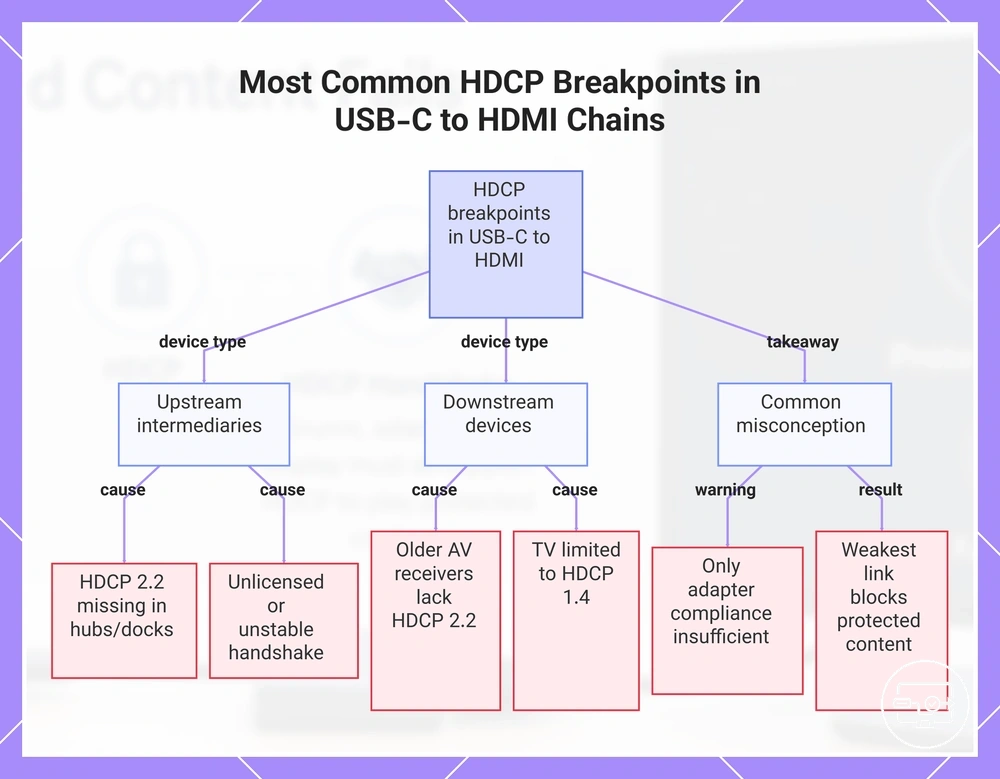
The most common HDCP breakpoints in a USB-C to HDMI chain are specific device types that fail the authentication handshake. Each intermediary between the source and display must pass the HDCP check, and a failure often points to a component that does not support the required version or lacks handshake stability. The categories group these breakpoints by device type.
For example, if a laptop connected through a USB-C hub to an AV receiver and then to a television encounters a hub or receiver that does not support HDCP 2.2, 4K protected streams may not play even though the adapter appears compliant.
- Hubs and docks – The integrated chipset may only support an earlier HDCP revision, causing the handshake to fail for content requiring HDCP 2.2 or later.
- AV receivers – Older or budget models may lack the required HDCP version, causing authentication breaks during input switching or 4K HDR pass-through.
- HDMI switches and splitters – Passive or unpowered models often fail to maintain HDCP state, and even compliant units may introduce instability if EDID emulation is poor.
- Capture devices and converters – Many are unlicensed for protected content, leading to HDCP authentication failures and black screens even in an otherwise compliant chain.
- Display input (TV or monitor) – Must support the required HDCP version; older TVs limited to HDCP 1.4 can cause 4K protected content to fail or fall back.
A common assumption is that only the USB-C to HDMI adapter needs to be HDCP compliant. The chain is only as strong as its weakest link. An older device in the chain can be the limiting factor, blocking protected content even when every cable and adapter is certified.
This chart identifies the device types most likely to cause HDCP authentication failures in a USB-C to HDMI connection and explains the weakest-link principle.
USB-C hubs and docks that alter the HDMI output path
A USB-C hub or dock introduces an HDMI controller layer that must itself be HDCP-compliant for protected content to play correctly. Several traits can correlate with HDCP handshake problems:
- Multiple outputs can correlate with HDCP handshake failures because the controller needs to manage separate encrypted streams for each connected display.
- Internal switching between video modes or ports can disrupt an active HDCP session and may require renegotiation.
- The HDMI controller's firmware version can affect HDCP compliance; outdated firmware can correlate with handshake instability.
- The controller's HDCP level needs to match or exceed the content's protection requirements; a mismatch can prevent protected playback.
AV receivers, switches, splitters, capture devices, and converters as handshake disruptors
Any intermediary HDMI device becomes part of the HDCP trust path when added to a signal chain. Its processing behavior—such as re-authentication delays, signal duplication, or re-encoding—can disrupt the handshake needed for protected playback.
- AV receiver: An AV receiver may re-authenticate the HDCP handshake when switching inputs, causing a temporary black screen or signal loss if the sink does not respond in time.
- Switch: Each time the source changes, an HDMI switch re-establishes the trust link. If the handshake fails, no video or audio passes through.
- Splitter: A splitter replicates the signal to multiple outputs. If one connected display fails HDCP authentication, the splitter can restrict all outputs, interrupting playback on working displays.
- Capture device: Capture devices often re-encode the signal, so HDCP restrictions may prevent recording or passthrough if the device cannot validate the full key chain.
- Converter: A converter that changes HDMI version or resolution can disrupt HDCP pass-through if its internal key exchange is incomplete, potentially blocking protected content on the downstream display.
Diagnosing which component is blocking HDCP in your USB-C to HDMI chain
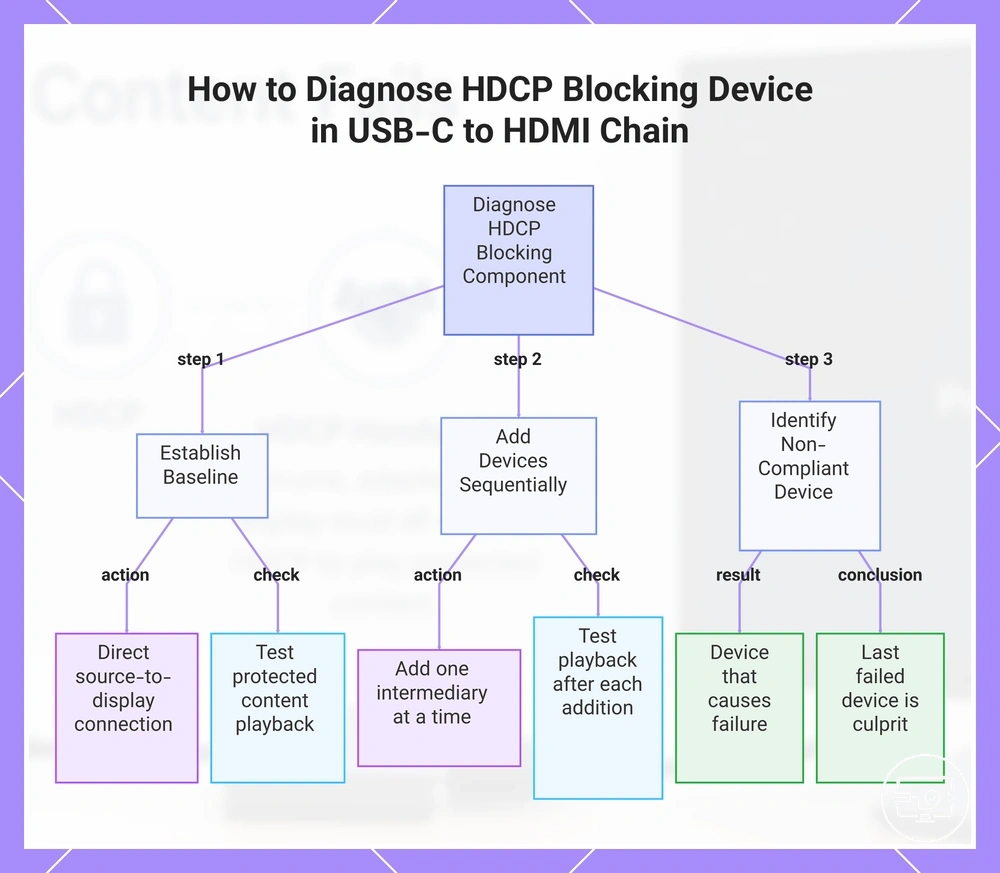
Isolate the non-compliant device by reducing the chain to a direct connection, then reintroduce each component one at a time.
When a protected video stream fails, first establish a controlled baseline. Remove all intermediaries such as adapters, docks, or switches and connect the source directly to the display. If protected content plays, the problem lies in one of the removed devices. The following checklist pinpoints which intermediary is blocking HDCP.
Keep brief notes during each test to track results and avoid false conclusions.
- Disconnect all devices between the source and display, then connect the source directly to the display using a known good cable.
- Test protected content (e.g., Netflix, Blu-ray) to confirm the baseline works.
- Add the first intermediary device (e.g., USB-C hub or adapter) to the chain and retest protected content.
- If playback fails, that device is the likely breakpoint. Remove it and proceed.
- Continue adding each piece in order—cable, KVM switch, extender, etc.—testing each time.
- Record any device that causes failure as a strong indication of non-compliance.
- Repeat until the full chain is rebuilt. The last device that caused failure is likely the non-compliant component.
For help with specific playback or signal symptoms, troubleshoot playback and signal issues.
This chart shows the step-by-step process to identify which intermediary device is blocking HDCP by establishing a direct connection baseline and testing each component sequentially.
Simplifying the chain to isolate the non-compliant link
Test the shortest possible device-to-display chain as a baseline. Then follow these steps to isolate the non-compliant link.
- Test the shortest chain: connect the source directly to the display and attempt protected playback.
- If the baseline passes, reconnect all components to form the full chain.
- Remove one component from the chain and retest protected playback.
- If the failure disappears after removal, that component is the likely breakpoint.
- Reintroduce the removed component and check if the failure returns.
- If the failure returns, that component is the likely breakpoint.
What to verify in specs and settings before replacing hardware
Checking specifications and settings before replacing hardware helps avoid unnecessary swaps by focusing on key details in the product listing or datasheet.
- HDCP version — If the HDCP version is missing or unclear, the risk of protected playback failure is higher; a compliant version is typically required for streaming and disc playback.
- HDMI output level — An unclear HDMI output level (e.g., 1.4, 2.0, 2.1) raises the risk of protected playback failure due to mismatched expectations.
- Explicit pass-through wording — Without clear pass-through wording, the device may not handle audio or video reliably, increasing the chance of protected playback failure.
- Firmware notes — Firmware notes indicate compatibility; missing update notes can raise the risk of protected playback failure.
- Driver update notes — Unstated driver requirements can increase the risk of protected playback failure.
HDCP-safe fixes that restore protected playback without changing the page into a general troubleshooting guide
Restore a compliant HDCP handshake between source and display rather than trying to bypass protection. This handshake-first approach requires each device to authenticate before playback resumes.
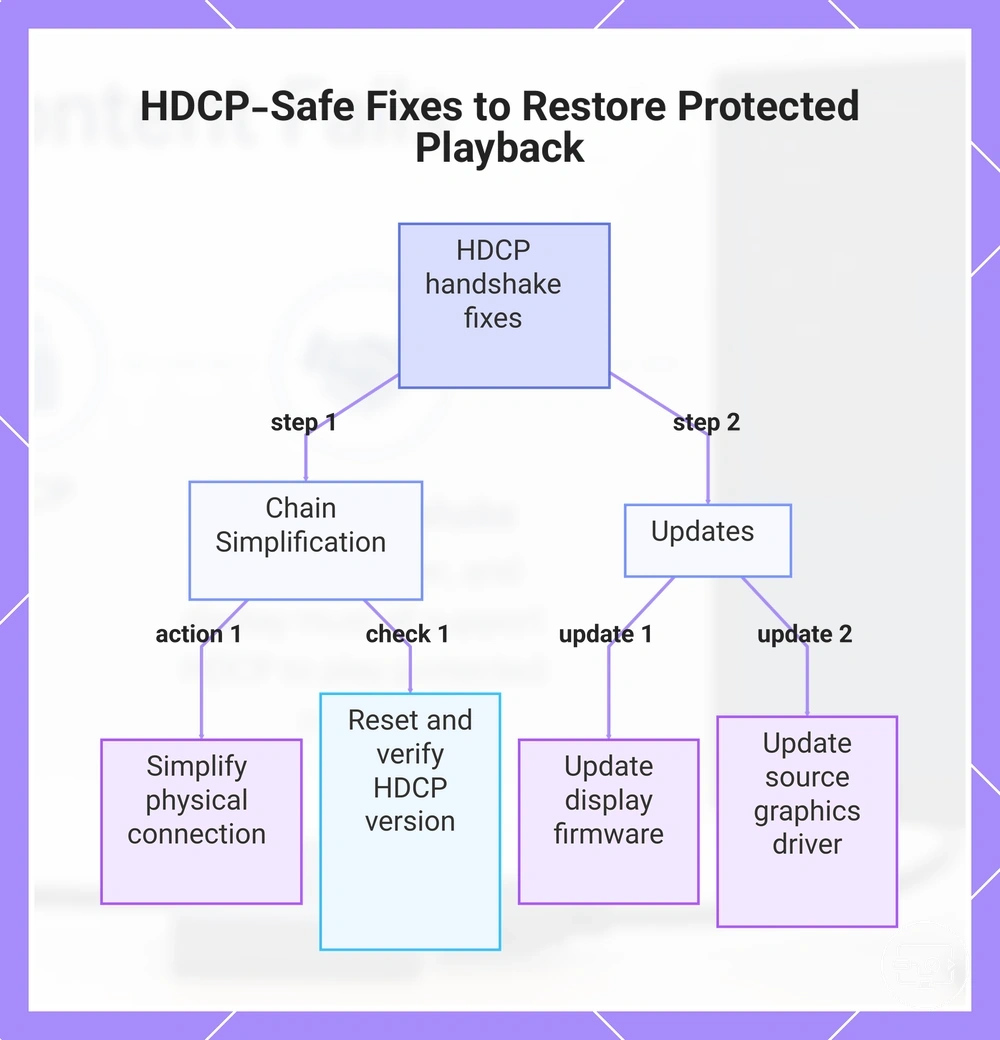
HDCP errors typically originate from a non-compliant path, an overly complex connection chain, or outdated software that interferes with the handshake. These fixes address both areas and are ordered by likelihood of resolution: start with chain simplification, then move to updates.
Chain Simplification
- Bypass intermediary devices by connecting the source directly to the display, removing any HDMI splitters, switches, or extenders. This often helps isolate a device that is not HDCP compliant or has an incompatible version.
- Replace the HDMI cable with a high-speed, HDCP-compliant cable. Damaged or substandard cables are a frequent cause of handshake failure.
- Power cycle all devices: unplug each, wait at least 30 seconds, then reconnect the display first and the source last. This forces a fresh HDCP negotiation.
- Verify that the HDCP version of every device in the chain is at least as high as the content requires. For example, 4K content often requires HDCP 2.2 or higher.
- For wireless projection, use the app’s built-in casting feature instead of full screen mirroring, or switch to a wired connection using an original HDMI adapter from the device manufacturer.
Updates
- Install the latest firmware on the TV, monitor, or projector. Firmware updates often improve HDCP compatibility and resolve known handshake problems.
- Update the graphics driver on the source computer if using a PC or laptop. A driver update can change how the source HDCP engine behaves and improve negotiation success.
- After any firmware or driver update, retest the connection. If the error persists, simplify the chain further and retest again.
A black screen or 'no signal' message is not always an HDCP error. If the display reports no input at all, the issue is more likely a physical connection, EDID, or resolution handshake problem. Those symptoms are covered under no signal fixes.
This chart shows the step-by-step approach to fix HDCP handshake errors using chain simplification and updates, ordered by likelihood of resolution.
Connection-path changes that often restore a stable HDCP handshake
Simplifying the connection path can often improve HDCP handshake stability because fewer intermediaries mean fewer points where authentication can fail.
- Test a direct-to-display connection by removing all intermediate devices, which retests the handshake without additional negotiation points.
- Bypass splitters, switches, or receivers that add extra processing, as these can introduce handshake delays or version mismatches.
- Connect the source to a different HDMI port on the display, which can cause the display to re-initiate the authentication sequence.
- Reduce the number of dock or adapter layers in USB-C to HDMI chains, since each conversion step can interrupt HDCP key exchange.
Driver, firmware, and app-level adjustments that can resolve HDCP errors
Updating the software layers responsible for HDCP negotiation—such as GPU drivers, dock firmware, OS, and apps—may improve handshake reliability and reduce errors.
- GPU driver update – The graphics driver controls how the GPU outputs protected content. An update may improve HDCP handshake reliability and reduce playback errors.
- Dock or hub firmware update – External display adapters and docking stations contain controllers that manage HDCP signaling. Firmware updates may resolve negotiation failures.
- Operating system update – An OS update may refresh the system's HDCP stack and driver components, improving compatibility with displays and reducing handshake timeouts.
- Streaming app update – Content delivery apps enforce DRM rules that interact with HDCP. Updating the app may align its DRM requirements with the current HDCP version, lowering the chance of enforcement errors.
- Firmware update for intermediary HDMI devices – Splitters, switches, or audio video receivers in the signal chain may support firmware updates that address HDCP handshake issues, especially when multiple HDCP versions coexist.
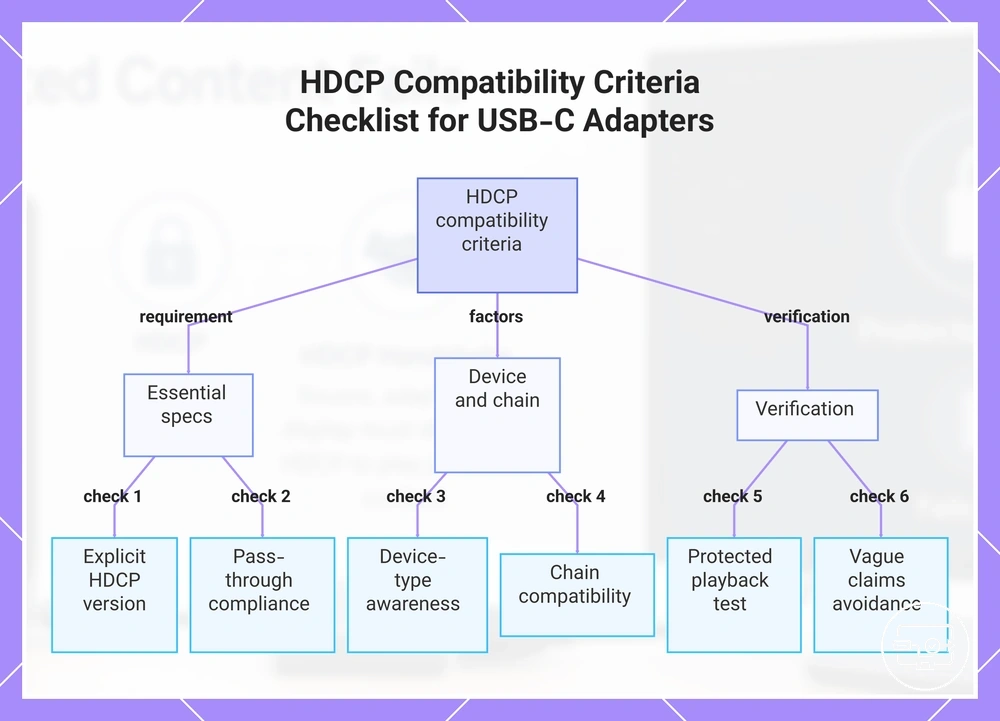
What “HDCP-compatible” should mean when choosing a USB-C to HDMI adapter, hub, or dock
Choosing an adapter, hub, or dock for protected playback depends on explicit HDCP version support and compliant pass-through behavior. HDCP compatibility is not a single checkbox; it requires the device to carry a stated HDCP version (for example, HDCP 2.2) and to pass that protection intact through the entire signal chain.
A missing or mismatched HDCP handshake often causes a black screen or reduced quality when connecting a USB-C adapter to a display. A criteria checklist helps prevent such mismatches by separating verified specs from marketing claims. Use the following criteria when evaluating an adapter, hub, or dock for protected playback.
- HDCP version explicitly stated – look for HDCP 2.2 or higher listed in the specifications.
- Confirmed pass-through compliance – the device must pass the HDCP handshake from source to display without interruption.
- Device‑type awareness – an adapter without built‑in video processing may rely entirely on the source, while a dock can add extra negotiation steps that affect compatibility.
- Chain compatibility – if the setup uses multiple adapters, hubs, or extenders, each link must support the same HDCP version for the signal to reach the display.
- Protected playback test – verify with a known HDCP‑protected source to confirm real‑world performance.
- Vague claims avoidance – reject phrases like “HDCP compatible” when no version or pass‑through detail is provided.
Many adapters, hubs, and docks claim “HDCP compatible” without specifying a version. A missing HDCP version often means limited or no support for protected playback.
This chart shows the essential criteria to verify when choosing a USB-C to HDMI adapter, hub, or dock for protected HDCP playback.
Spec language that matters: HDCP version, HDMI level, and conversion type
Three spec fields most reliably predict protected playback success: HDCP version, HDMI output level, and conversion type.
- HDCP version: an explicit number (e.g., HDCP 2.2) helps lower risk; a vague version raises risk.
- HDMI output level: a listed spec version (e.g., HDMI 2.0) helps lower risk; an unspecified output raises risk.
- Conversion type: wording specifying active conversion or pass-through (e.g., active conversion) helps lower risk; unclear wording raises risk.
When replacing the adapter is the only realistic compatibility fix
Only after a confirmed breakpoint confirms that the adapter cannot meet the required HDCP level is replacement appropriate. This checklist helps verify that replacement is the correct step.
- Check for persistent HDCP negotiation failures across multiple displays or sources.
- Confirm the isolation result by testing with a known-compliant cable or display to verify the adapter is the variable.
- Identify a spec mismatch by checking whether the adapter’s HDCP version does not match the required level for the content or receiving device.
When a failing link is traced to a missing required HDCP capability, replacing the adapter restores compliance, but only after confirming the breakpoint and ensuring no other link in the chain is at fault.
HDCP compatibility questions people ask most often about USB-C to HDMI
HDCP support refers to the inclusion of High-bandwidth Digital Content Protection in a USB-C to HDMI connection. Without it, protected content may fail to play on an external display. Each answer is brief for quick reference.
A common misconception is that all USB-C to HDMI cables include HDCP support. In truth, HDCP compliance is not universal. This FAQ covers residual doubts without repeating earlier criteria.
Question: Does my USB-C to HDMI cable support HDCP by default?
Answer: Depends on the cable or adapter; many do not include HDCP support, so compliance must be explicitly listed. Even if basic video works, protected content may still fail when HDCP is missing from the chain.
Question: Do I need HDCP 2.2 for 4K protected content?
Answer: Usually, yes; HDCP 2.2 is commonly required when the source and external display both support 4K and you intend to play protected content. Without HDCP 2.2, the video may be downgraded to a lower resolution or show a black screen.
Question: Why does my external display show a black screen when playing protected content?
Answer: Depends on the specific chain. A black screen is often caused by a device in the USB-C to HDMI path that is not HDCP compliant or uses an incompatible HDCP version. If the authentication handshake fails, the content may be blocked.
Question: Can device or app policies block external playback even when the entire chain is HDCP compliant?
Answer: Depends on the app or device. Some apps impose additional restrictions on external display output regardless of HDCP compliance, so a compliant chain can still be blocked by app policies outside HDCP scope.
Does USB-C to HDMI support HDCP by default?
HDCP support is not guaranteed for USB-C to HDMI connections. It depends on whether the adapter, hub, or dock in the chain supports the required HDCP version. Verify HDCP version claims and test protected playback on a simplified chain to confirm compatibility.
Why does protected content fail on an external display even when HDMI works otherwise?
Protected content can fail on an external display when DRM permits general HDMI output but blocks protected playback because the HDCP handshake is not acceptable. Common causes include a version mismatch between the source and display, a non-compliant intermediary device, or platform-specific policy restrictions that affect HDCP compliance.
Do I need HDCP 2.2 for 4K streaming over USB-C to HDMI?
For many protected 4K/UHD streams, HDCP 2.2 is expected for playback over USB-C to HDMI, but requirements vary by service and device. The entire chain often must be HDCP 2.2 compliant.
Scope boundaries for this page within the USB-C to HDMI compatibility hub
HDCP (High-bandwidth Digital Content Protection) defines the scope: conditions relevant to protected-content playback over USB-C to HDMI. Non-HDCP performance limits are out of scope; the focus is solely on HDCP.
See the dedicated guides for 4K and HDR performance boundaries, troubleshoot playback and signal issues, or no signal fixes. For an overall view, visit the USB-C to HDMI Compatibility hub.
- In scope: HDMI handshake behavior for HDCP.
- In scope: HDCP version criteria (e.g., 1.4 and 2.2).
- In scope: Compliance chain requirements (source, hub, display).
- In scope: HDCP-linked symptoms such as no signal or scrambled playback.
- Out of scope: Non-HDCP performance limits (resolution, refresh rate, color depth without content protection).
- Out of scope: General troubleshooting for no-signal issues not related to content protection.
Where 4K/HDR performance limits and broader “no signal“ fixes belong in the map
HDCP compliance is separate from 4K/HDR performance limits and general no-signal detection failures.
- Performance-related questions caused by bandwidth or hardware performance limits → performance limits guide.
- No-signal errors caused by input detection problems → no-signal troubleshooting section.
- HDCP compliance issues (protected-content compliance) → this section.