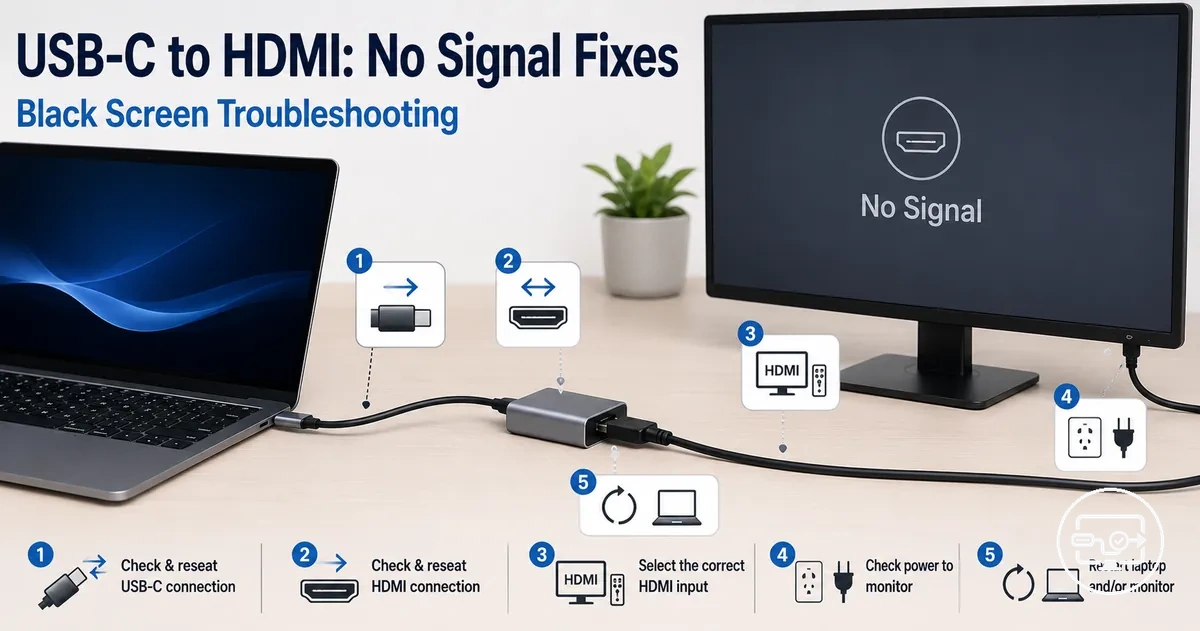
USB-C to HDMI No Signal and Black Screen Fixes
A no signal or black screen on a USB-C to HDMI connection usually indicates a breakdown in the signal path between the source device, the adapter, and the display. The two symptoms addressed are a monitor that detects a connection but shows a black screen, or a monitor that shows no signal at all.
The USB-C to HDMI signal path can be divided into three domains:
- Source video output – depends on the USB-C port supporting DisplayPort Alternate Mode.
- Conversion path – includes the adapter, hub, and cable that carry the signal.
- Display handshake – involves the monitor or TV accepting the incoming signal.
Any fix depends on which domain fails.
It is often assumed that any USB-C port can drive an external display, but video output typically requires DP Alt Mode support from the source device, and many USB-C ports are data-only or charge-only. The adapter or hub must also be in working condition and properly seated. The specific monitor or TV may not handshake correctly with the signal format. The device, operating system, and display all influence the root cause.
Begin by confirming that your source device’s USB-C port supports video output and that all connections are secure. Then move to the adapter and cable, and finally to the display settings and handshake.
Symptoms such as audio problems, screen flickering, or intermittent disconnects, rather than a persistent no-signal or black screen, may have different causes and require a separate diagnostic route not covered here.
What “No Signal” and “Black Screen” indicate in the USB-C to HDMI path
“No Signal” and “Black Screen” are display-reported states that typically indicate a handshake failure, unsupported video output, or a conversion-path mismatch between the source, adapter, and monitor. When the display receives power but cannot lock onto a compatible video signal, it either shows a “No Signal” message or remains black.
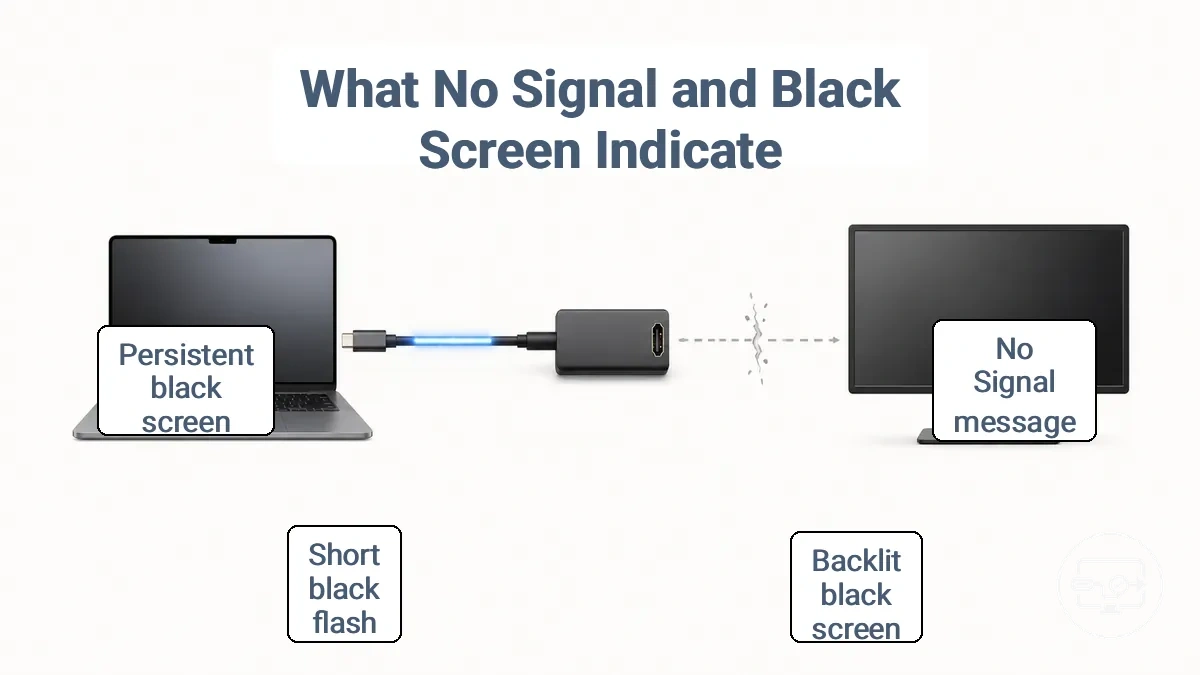
The two symptoms are not interchangeable, though they are often confused. A backlit black screen usually means the display has detected some signal but cannot render it—often due to a handshake or mode mismatch—while a “No Signal” message means the display has found no input on the selected source. The USB-C to HDMI Compatibility overview provides a structured explanation of the entire signal chain.
Mapping the symptom to its layer helps narrow diagnosis. A “No Signal” message often points to the source/output layer: the USB-C port may not support video output, the adapter may be wired for charging only, or the conversion path is incomplete. A black screen that occurs after the display briefly lights up often points to the conversion or display/input layer: the handshake may fail because of a bandwidth mismatch, an HDCP conflict, or an incompatible resolution. Use isolation checks—testing the adapter with another device or trying a direct HDMI connection—to confirm the layer.
How displays typically report these states separates what “No Signal” and “Black Screen” indicate:
- “No Signal” message – The display reports it cannot detect any input on the selected HDMI input.
- Backlit black screen – The display backlight is on but no content shows.
- Short black flash followed by normal picture – A temporary handshake renegotiation during a resolution or refresh rate change. This is usually normal and not a fault.
- Persistent black screen with power LED on – The display is powered and believes an input is present but cannot lock the signal.
Fast isolation checks to confirm whether the issue is the source device, the converter, or the display
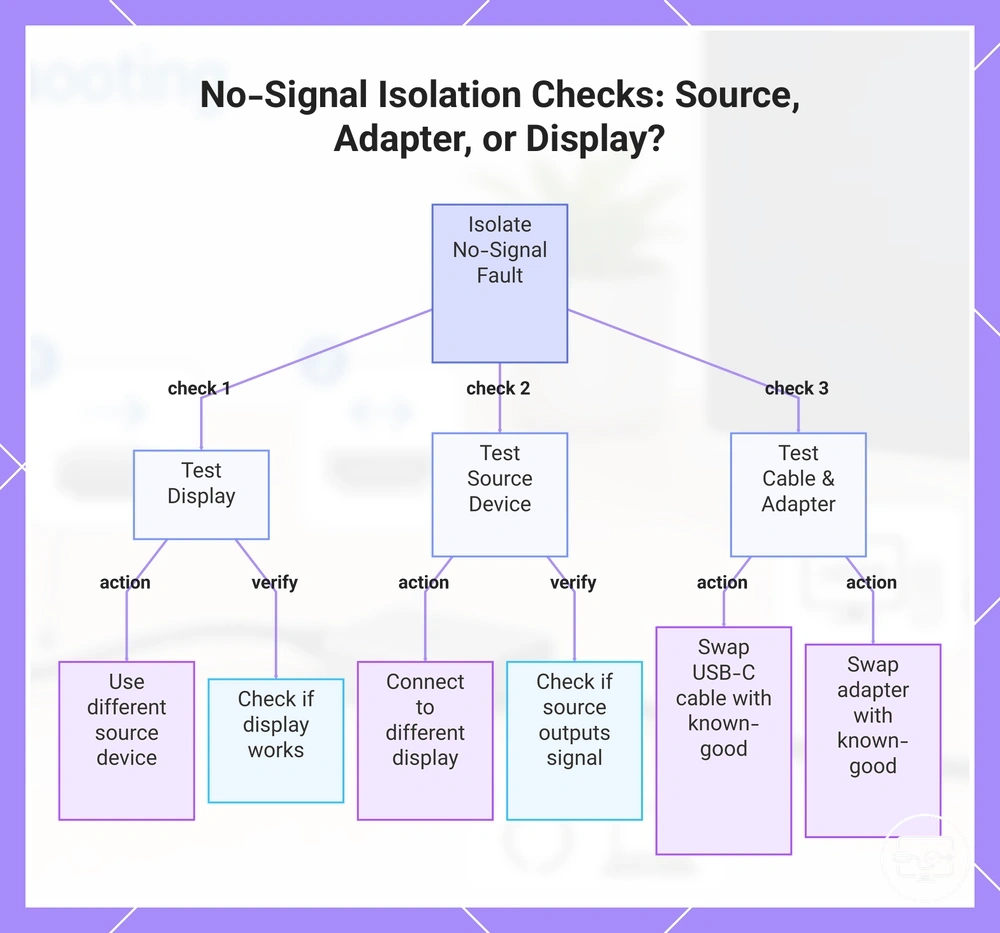
When your screen shows no signal or remains black, swapping one variable at a time reveals whether the fault lies in the source device, the adapter, or the display. If you have not done so already, follow the setup steps to confirm the basics to rule out simple connection issues.
The steps below isolate the failing layer by testing each component—source, adapter, display—one swap at a time.
- Test the display with a different source device (another laptop or game console). If it works, the original source is the likely culprit. If not, the display or its input port may be at fault.
- Test the source device with a different display. If the second display works, the original display or its cable connection is likely at fault. If it also fails, the source device or adapter is suspect.
- Swap the USB‑C cable with a known‑good cable. If the no‑signal problem disappears, the cable was likely the cause. If the problem remains, the cable is unlikely to be the cause.
- Try a different HDMI port on the display. If the image appears on another port, the original port is likely defective.
- Remove any intermediate hubs, docks, or extenders, and connect the adapter directly to the source device’s USB‑C port. If the display works now, the hub or dock was likely introducing a problem. If not, the adapter or source remains suspect.
- Test with a known‑good adapter (swap the current adapter for another that works). If a different adapter fixes the issue, the original adapter is likely faulty. If both adapters fail, the source or display is more likely the problem.
- If swapping the display is easier, test the source with another display first. This quickly indicates whether the source outputs a usable signal.
- If swapping the adapter is easier, test with a known‑good adapter first. This narrows down the adapter’s role without moving the display.
This chart shows the systematic swap tests to identify whether a no-signal issue originates from the source device, the adapter/cable, or the display.
USB-C video output prerequisites that must be true for HDMI to work
HDMI output via USB-C requires a video-capable standard such as DisplayPort Alt Mode or Thunderbolt along with a compatible adapter or converter. Without that support, the adapter cannot transmit a signal—video output support is required.
The annotated example shows what to look for on your port or device documentation to identify USB-C video output prerequisites that must be true for HDMI to work.
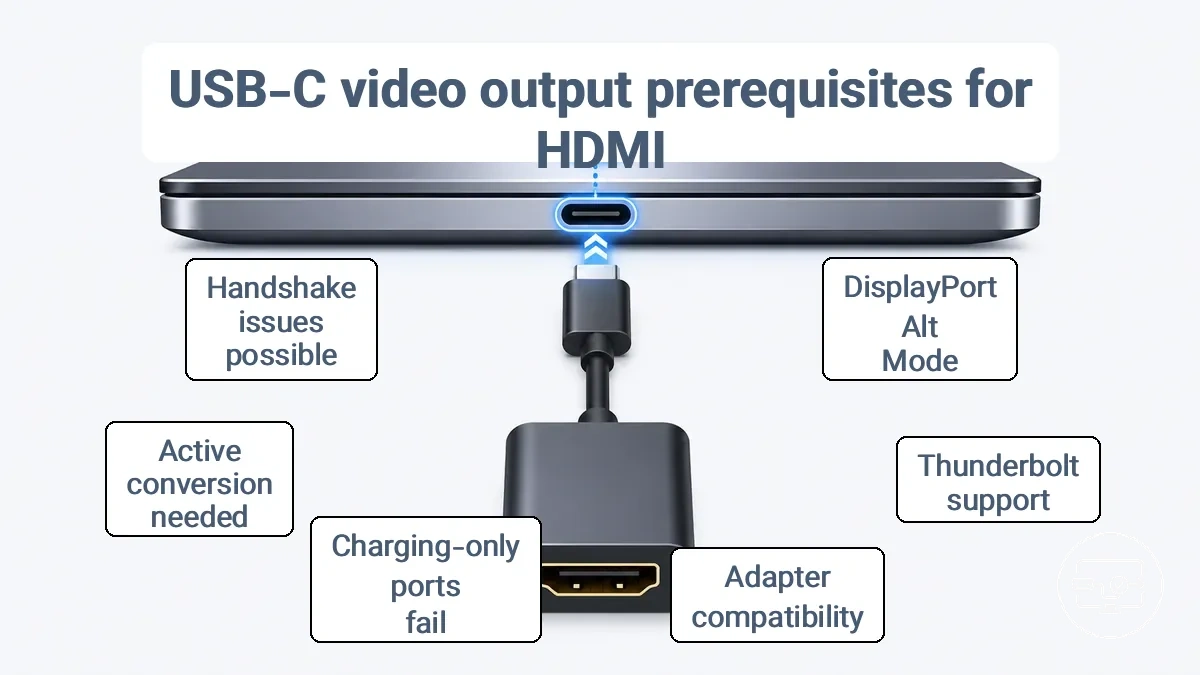
When the USB-C port lacks video output capability (for example, charging-only or data-only), the adapter receives no video signal and the display stays blank. The solution is to confirm the port supports DisplayPort Alt Mode or Thunderbolt; verify the port capability before blaming the display. Using a compatible converter or adapter can then produce a stable HDMI connection. A full port requirements checklist helps you identify what your device needs.
- USB-C port must support DisplayPort Alt Mode or Thunderbolt to output video
- Adapters and converters must be compatible with the source port protocol
- Charging-only and data-only ports cannot output video and produce no signal
- Video signal may require an active conversion path when the adapter uses DP-to-HDMI chips
- Even with capability present, handshake issues can still cause failure—covered in the next section
A common myth is that any USB-C cable or adapter can output HDMI, but only video-capable ports work due to strict prerequisites. The Alt Mode explanation explains why a capable port doesn’t always mean stable.
DisplayPort Alt Mode support as the most common compatibility blocker
USB-C video output via an HDMI connection depends on whether the source device supports DisplayPort Alt Mode. This mode allows the USB-C port to carry native DisplayPort signals to the connected adapter. Without Alt Mode, HDMI output won’t appear.
For example, a laptop that charges through USB-C but shows no signal when connected to an HDMI monitor often lacks DisplayPort Alt Mode. Thunderbolt ports often imply video capability through the same connector, but actual output support still depends on what the specs indicate.
Common indicators include:
- Explicit mention of 'DisplayPort Alt Mode' or 'DP Alt Mode' in product specifications
- Manufacturer documentation listing external display support over USB-C
- Port markings such as a DisplayPort icon or the letters 'DP' beside the USB-C connector, which may indicate support
Source-device limits that prevent external display output even with the right adapter
Some source devices cannot output to an external display even when the adapter is correct. Even with a properly working USB-C to HDMI adapter, a hardware or system policy restriction may cause a persistent no signal or black screen. If external display output is not supported at the device level, changing adapters will not produce HDMI output.
It is often assumed that any device with a USB-C port can output to an external display. This is often a design limit or a disabled setting, not a configuration issue. Confirm your device's support before further troubleshooting.
- Design limit: Hardware or chipset restricts external display output regardless of adapter.
- Policy restriction: In managed devices, external video output may be disabled via software policy even if hardware supports it.
Adapter, cable, and hub failure patterns that produce a blank display
Blank display after connecting a USB-C to HDMI adapter typically results from failure in the adapter, cable, or hub that degrades the video signal despite the device being powered on. The most direct first step is to simplify the signal path.
These failures follow predictable patterns in how the conversion path handles the video signal. An adapter that lacks proper conversion compatibility may deliver no signal at all, while a hub that shares power among multiple outputs can cause HDMI dropouts when its power delivery is strained. Cable integrity matters; a long or damaged cable can introduce signal loss that may manifest as a black screen.
This table maps common symptom patterns to likely cause classes and provides a quick check that indicates what each result means. Keep in mind stability and cable factors as additional criteria when interpreting the results.
| Symptom pattern | Likely cause class | Quick check | What it suggests |
|---|---|---|---|
| Adapter works on one display but not another; no signal | Conversion or compatibility | Test with a different monitor or TV | Adapter may not support that display's resolution or EDID |
| Hub passes USB data but HDMI stays black | Hub power or HDMI output | Disconnect other USB devices and retry | Hub may lack enough power for stable HDMI output |
| Black screen when using a long HDMI or USB-C cable | Cable length or integrity | Replace with a shorter, high-quality cable | Longer cables can degrade the signal enough to cause no display |
- When you encounter a blank display, start by testing with a direct connection—adapter to monitor—removing any hub from the path.
- If the display works, the hub is likely introducing a signal or power issue.
- Swap cables one at a time to isolate a faulty cable; a cable that works for USB but often fails for video indicates insufficient shielding or bandwidth.
Active vs passive conversion mismatches that lead to 'no signal'
A mismatch between active and passive conversion methods can trigger a no signal error even if all ports connect physically. A passive adapter or cable that relies on Alt Mode-based pass-through can fail if the source does not support native HDMI signaling, while an active converter with a dedicated conversion chip can handle DisplayPort or USB-C outputs that lack that support. The conversion type must match the source output.
Using the wrong conversion path results in a no signal message because the display does not receive a valid video stream. The source output type — whether DisplayPort Alt Mode or USB-C with video — determines what the adapter must do. If a passive adapter expects HDMI from the source but the source provides a DisplayPort signal that needs conversion, the monitor may not decode it. Testing with a known good active converter or a cable labeled for active HDMI conversion can confirm if the adapter is the problem.
Two distinct paths cause this mismatch: Alt Mode-based pass-through and conversion-chip.
- Alt Mode-based pass-through: Works only if the source USB-C port natively outputs HDMI; no active conversion needed; common in passive adapters and some direct cables.
- Conversion-chip: Uses an active converter to translate DisplayPort or other signals into HDMI; needed when the source does not output native HDMI; typical in active adapters and cables labeled as active or converter.
Power and hub limitations that break HDMI output stability
When a hub-connected display shows intermittent black screens or signal dropouts, the hub’s power negotiation and delivery state may be the cause. Bus-powered hubs draw all current from the host’s USB port, and their limited power budget can prevent the HDMI controller from initializing or maintaining a stable connection.
The following checks help determine whether power limits are destabilizing the HDMI output. If the display becomes stable after adding external power, the original instability was likely due to insufficient power delivery rather than a cable or port fault.
- Confirm whether the hub is bus-powered (no external adapter) or externally powered.
- Connect the hub’s external power adapter if one is available.
- Remove high-draw peripherals such as external drives or multiple charging cables that may exceed the hub’s power budget.
- Re-test the HDMI connection after powering the hub.
Display-side causes on TVs and monitors that look like adapter failure
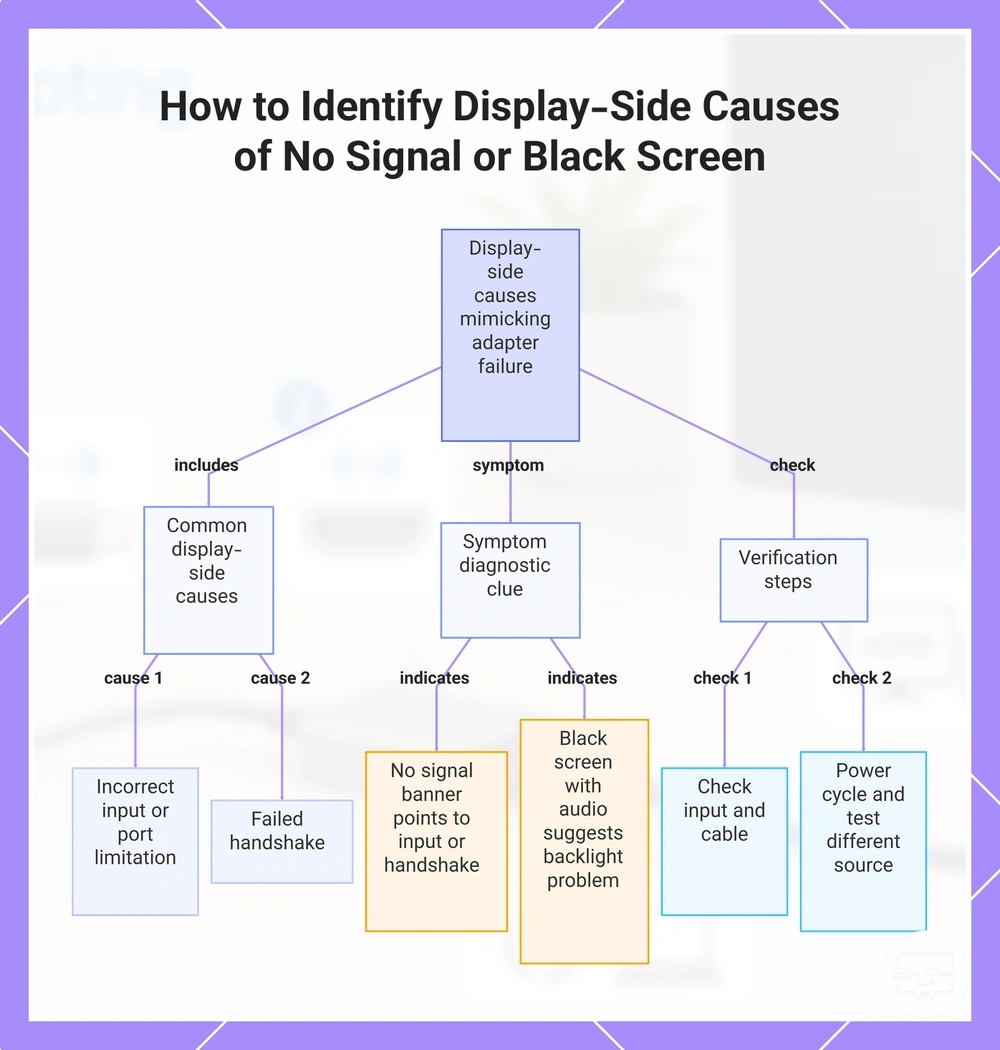
A no signal or black screen on a TV or monitor can come from the display side itself—through its input selection, port capability, or handshake behavior—rather than from the adapter. Before assuming the adapter has failed, verify the display input state.
Port capability may vary by input; certain ports support older HDMI versions or specific modes. A failed handshake between the source and display can also cause a black screen. Distinguishing between a 'no signal' banner and a black image helps: a 'no signal' message points to input or handshake issues, while a black screen with audio may indicate a backlight problem.
Rule out display-side blockers by verifying these common points:
- Confirm the correct HDMI input or source is selected on the TV or monitor.
- Check that the cable is fully inserted and not damaged.
- Test with a different source device to isolate the display's handshake behavior.
- Power cycle the display by unplugging it for 30 seconds to reset handshake and port detection.
Re-test after changing one display variable at a time, such as switching to a different input or trying a different cable.
This chart shows the common display-side issues that cause a no signal or black screen on a TV or monitor, helping you distinguish them from adapter failure and verify each cause.
Input selection, HDMI port behavior, and settings that commonly hide the signal
A black screen or 'no signal' message often means the display’s input selection, HDMI port behavior, or a setting is hiding a valid signal. This can happen when the wrong input is selected, a different port has different capabilities, or the HDMI handshake fails. Run these checks before swapping adapters.
- Cycle through the available input sources using the Input or Source button until the picture appears.
- Try a different HDMI port. If the signal appears, the original port may need service.
- If available, enable or disable compatibility mode in the display’s HDMI settings. This mode may help when the source uses a signal format the display does not recognize.
- Power cycle both the display and the source device. Unplug both from power, then plug the display back in first and the source second to reset the HDMI handshake.
EDID, resolution, refresh rate, HDR, and HDCP mismatches that trigger a black screen
An incompatible output mode can produce a black screen even when the connection is otherwise detected. The mismatch can occur in the handshake information—EDID, resolution, refresh rate, HDR, or HDCP—that devices exchange during link negotiation. Temporarily lowering the resolution to 1080p or reducing the refresh rate can help identify the mode mismatch. Caution: these are temporary changes for diagnosis only.
The table below maps common mode changes to diagnostic checks and what the result suggests.
| Mode change | What to check | Expected result | What it suggests |
|---|---|---|---|
| Lower resolution to 1080p | Stability of signal | Screen likely appears | Possible resolution or EDID mismatch |
| Reduce refresh rate to 60Hz | Refresh rate capability | Screen likely appears | Possible refresh rate handshake issue |
| Disable HDR | HDR handshake | Screen likely appears | Possible HDR compatibility problem |
One edge case: if the black screen occurs only during protected content (e.g., Netflix or Blu-ray), the mismatch may involve HDCP. In that case, lowering resolution or disabling HDR may not help; a direct connection without converters can be a more reliable diagnostic step.
Operating system and graphics configuration issues that stop USB-C external display detection
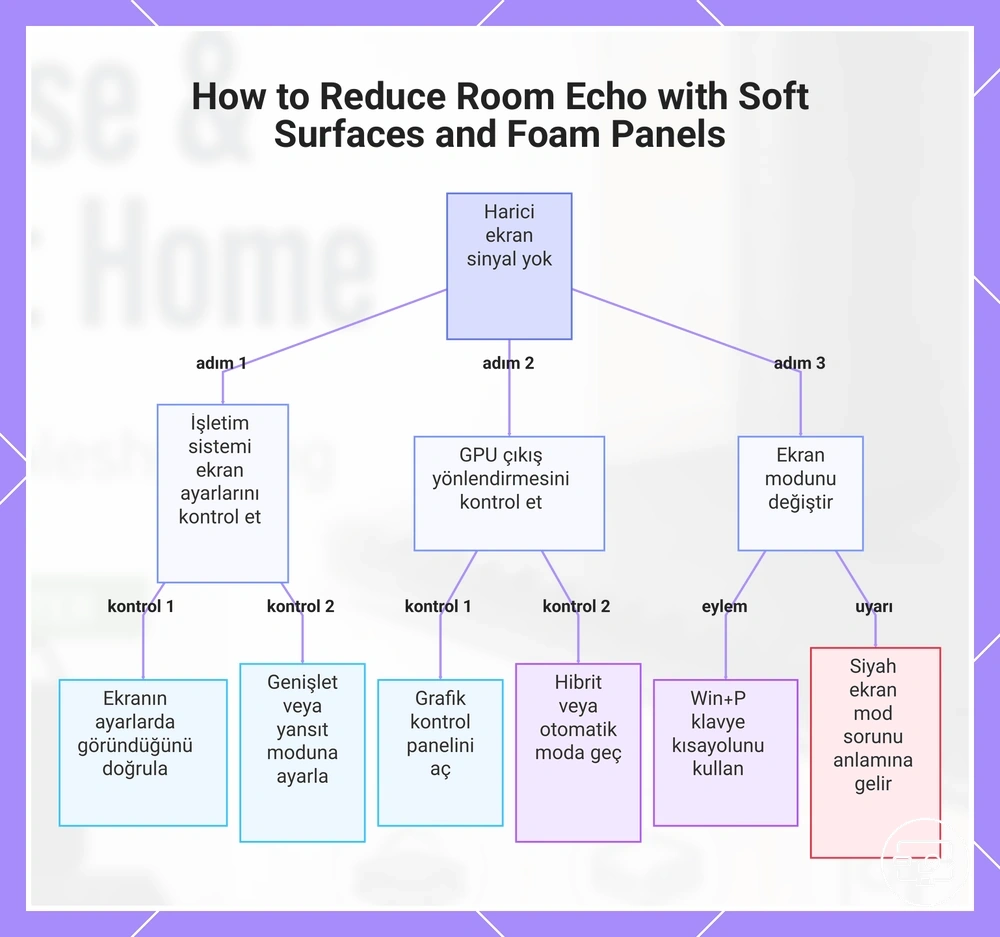
When an external display shows no signal despite a capable USB-C port, the cause is often in OS display settings or graphics output routing rather than port hardware. Start by verifying detection and output mode.
Use these checks to see if display detection settings or GPU output routing are blocking the external display. Re-test after each change.
- Confirm the external display appears in OS display settings and is set to extend or duplicate.
- Open the graphics control panel to see which GPU is assigned to the external monitor output.
- If a discrete GPU-only mode (e.g., dGPU in BIOS) is active, switch to hybrid or auto mode to restore display detection.
- Toggle the display mode using the keyboard shortcut (e.g., Win+P) to cycle through available options.
A black screen does not always mean a dead port or faulty cable. If the display is detected but stays black, treat it as a mode or handshake issue rather than a port capability issue. Escalate to driver reinstalls or firmware updates only when these basic checks fail.
This chart shows the key checks to identify if OS display settings or GPU routing are blocking an external display connected via USB-C.
Display mode selection and detection problems that keep output disabled
Output can remain disabled when no display mode is selected, often after switching displays, disconnecting a monitor, or rebooting with multiple screens, leaving a black screen. These steps assume the port, cable, and adapter path are already compatible. Run the actions below to re-enable output.
- Switch from single-display mode to Duplicate or Extend in display settings – toggling the layout can force the system to reassign the disabled output.
- Select the correct output from the display selection menu – ensuring the intended monitor is selected often re‑enables its signal.
- Use the Detect display option to scan for connected displays – this may detect a monitor that was not automatically recognized.
- Change the resolution to a supported value – an incompatible resolution can keep the output disabled; lowering it may bring the display back.
- Reconnect the cable or cycle display power – a brief disconnection resets detection and may activate the output.
Driver, firmware, and update regressions that break the HDMI output path
When a USB-C to HDMI connection stops showing a signal after it previously worked, a recent update change is a likely cause. Operating system updates, GPU driver updates, or firmware updates for the USB controller can introduce regressions that break video output. Note what changed recently before proceeding with troubleshooting.
Identify the update that may have triggered the problem. Apply only approved firmware updates and avoid risky BIOS flashes so the process remains reversible. Retest the connection after each safe change to confirm whether the regression is resolved.
Prioritize regression checks over configuration adjustments when hardware swaps do not change results and the setup worked before. The following checklist covers safe, reversible actions to isolate an update-driven regression:
- Roll back the GPU driver to a version that worked before the update.
- Reinstall the current GPU driver using a clean installation option if available.
- Uninstall the most recent Windows update or OS patch that coincides with the problem.
- Check for a firmware update for the USB-C controller or dock from the manufacturer’s support site.
- Restore the system to a restore point created before the update.
Connection order and reset sequence to recover a stuck HDMI handshake
A reset sequence often reinitializes the handshake and detection layers, resolving a stuck HDMI handshake that causes a black screen or no signal.
Stuck handshakes often result from a failed startup or incorrect device power-on sequence. A controlled power-down and reconnect in the correct order clears these states if the setup is otherwise compatible. Follow the order exactly once, then test.
The diagram illustrates the connection order and reset sequence for recovering a stuck HDMI handshake.
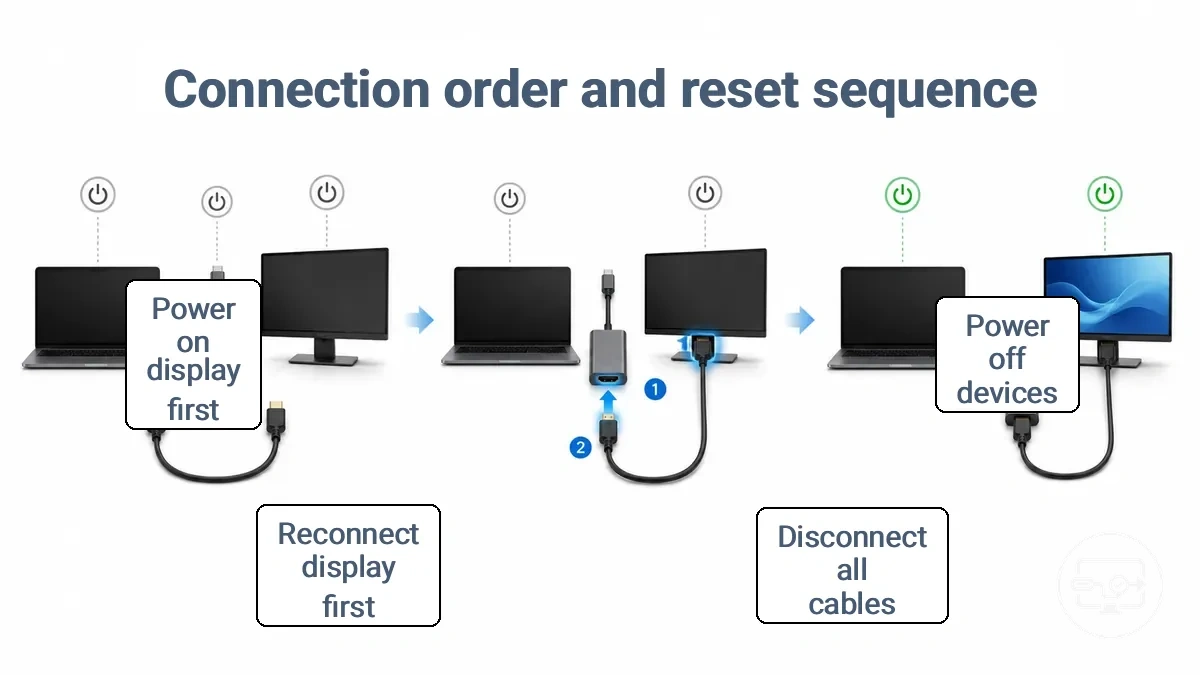
- Power off all devices (source, hub, and display). This clears the stored handshake state on every layer — the display no longer holds an old EDID, the hub resets its negotiation, and the GPU stops detection. Check that all LEDs are off and no signal is pending.
- Unplug the USB-C adapter from the source. This causes the source to reset its USB-C and DisplayPort negotiation. Verify that the source no longer tries to output video to the adapter.
- Disconnect the HDMI cable from the adapter and from the display. This removes the EDID and HDCP negotiation path. Confirm that the display shows a 'no input' message, indicating the link is broken.
- Reconnect the HDMI cable to the display first, then to the adapter. This allows the display to provide its EDID before the source begins negotiation. Check that the display shows a connected source message or remains in standby.
- Reconnect the USB-C adapter to the source. This triggers a fresh hub negotiation and GPU detection. Verify that the source detects a display and begins transmitting a signal.
- Power on the display first, then power on the source. This helps the source see the display's capabilities during the handshake. Confirm that a picture appears within a few seconds.
- If no signal appears, wait 10 seconds and repeat the entire sequence once. The second pass often completes a partial reinitialization. If the second attempt also fails, the issue may lie with compatibility rather than a stuck handshake.
Caution: Avoid repeatedly hot-plugging the USB-C adapter during troubleshooting, as this can stress the connector and cause intermittent handshake failures.
When it connects briefly and then goes black again
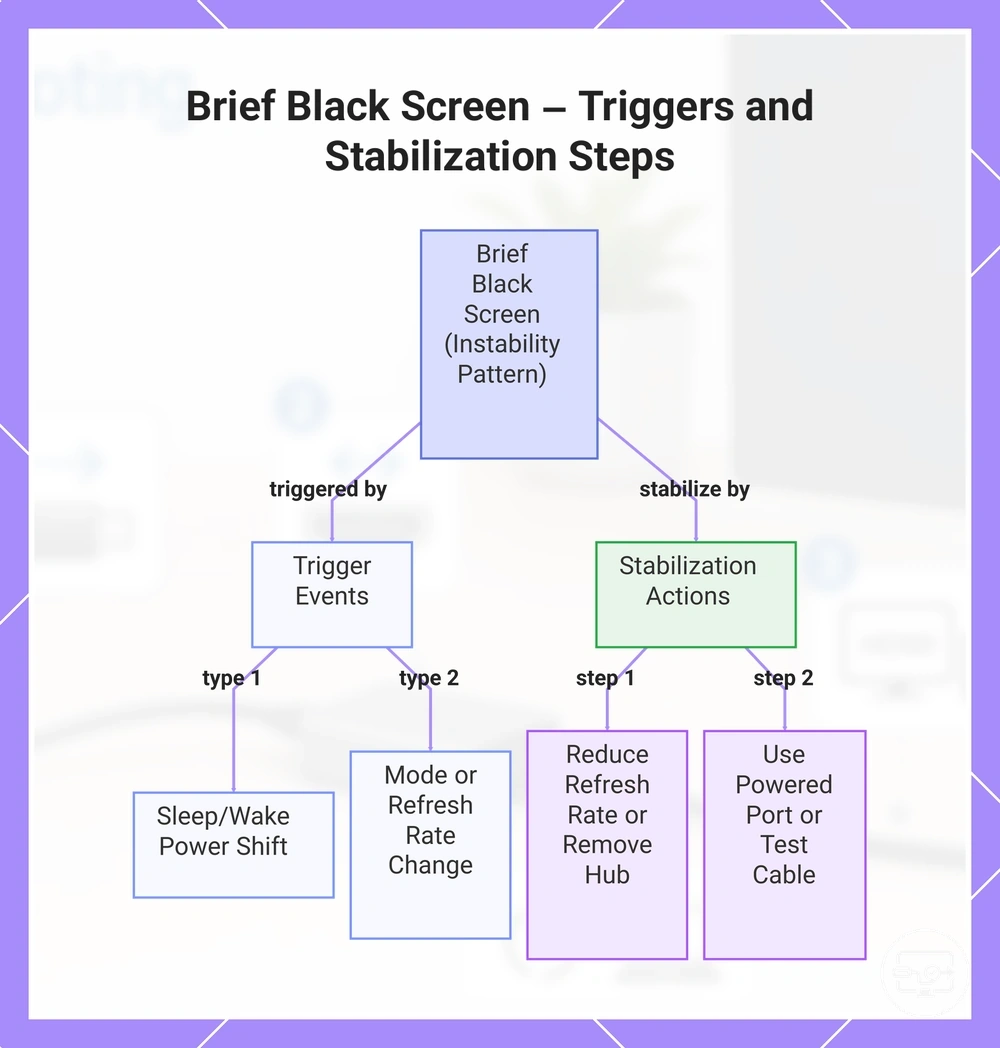
A brief connection that goes black signals an instability pattern, not a permanent failure. It most often points to power draw, bandwidth limits, a mode or refresh rate change, or cable movement as the trigger.
After plugging in or waking, the image appears stable, but a trigger—such as launching a game, moving the mouse, or changing the refresh rate—then causes a blackout. The dropout repeats as the system retries the same unstable link. Two common trigger families are sleep/wake power state shifts and mode changes (resolution or refresh rate) that the cable or hub may not sustain.
To stabilize, start by identifying the trigger. If blackout follows a mode change, reduce the refresh rate (e.g., to 60 Hz) or remove an intermediary hub; if power draw is likely, use a powered USB‑C port or a self‑powered hub; cable movement can cause intermittent flicker‑to‑black—test by moving the cable near the connector. Re‑test after one stabilization change at a time. When the connection is brief then goes black, these causes are most likely:
- Power draw – especially after sleep/wake if the USB‑C port cannot supply enough power.
- Mode change – resolution or refresh rate shift that the cable may not sustain.
- Cable movement – intermittent black screen when the cable is moved near the connector.
- Bandwidth limitation – long or low‑spec cable may not carry required signal at current resolution and refresh rate.
- Driver handshake – GPU may fail to renegotiate the display link after a trigger.
This chart shows the common triggers for a brief black screen after connection and the recommended stabilization actions.
Residual edge cases that don't fit the main failure patterns
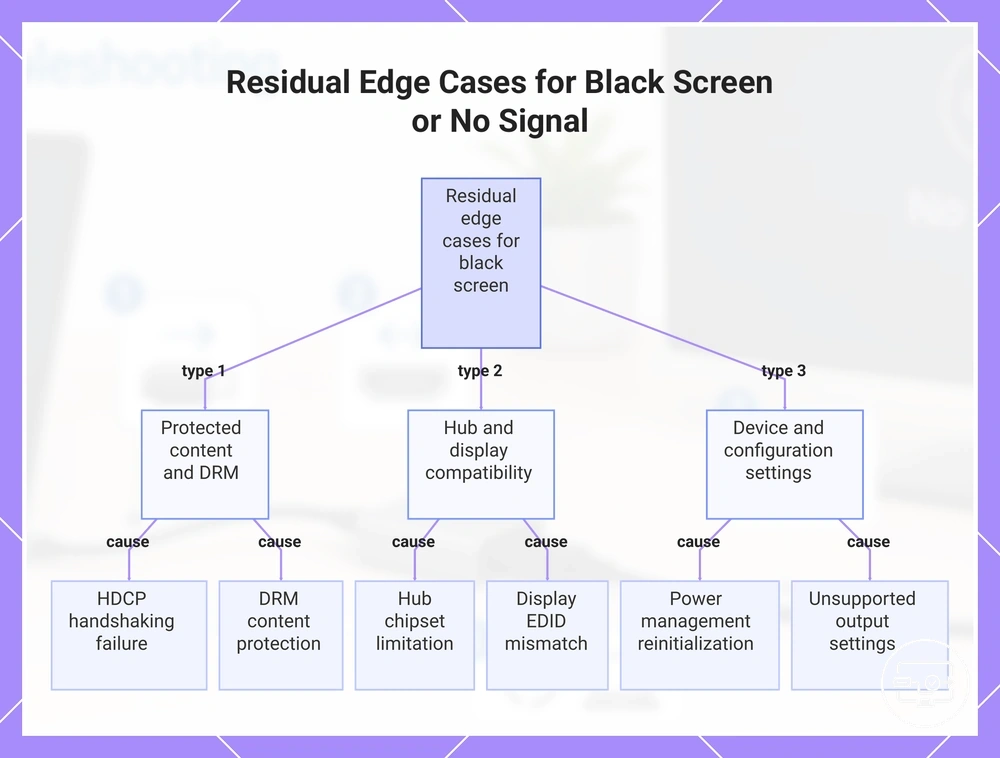
Residual edge cases depend on device and configuration. For the main troubleshooting flow, go back to troubleshooting router. Answers stay conditional to device and setup.
Can protected content cause a black screen?
Yes, protected content can trigger a black screen when HDCP handshaking fails. It depends on the source device and display configuration. Using different ports or cables may help in some setups.
Does one display work while another shows no signal?
Yes, one display can work while another shows no signal when compatibility differs between displays. This edge case depends on the display's supported resolutions and EDID data. Trying a different display or adjusting the graphics output may resolve it.
Why does the screen go black only during video playback?
A black screen only during video playback may indicate HDCP or DRM issues rather than a cable fault in some setups, often due to the display or adapter not fully supporting protected content. Checking the display's HDCP version or using a different playback app can help.
Can connecting through a hub or dock cause a black screen?
Yes, connecting through a hub or dock can cause a black screen if the hub does not pass through the full video signal. It depends on the hub's chipset and the output configuration. Connecting directly to the device can test if the hub is the cause.
What happens when the device wakes from sleep?
A black screen after wake from sleep may happen if the display does not reinitialize correctly. This edge case depends on the device's power management settings. Disabling and re-enabling the display in system settings can often restore the signal.
Can configuration differences between devices cause no signal?
Yes, configuration differences between devices can cause no signal when output settings like refresh rate or color depth are not supported by the display. This edge case depends on the specific device and display combination. Adjusting the output settings to a lower resolution may fix it.
Does a black screen occur with certain display resolutions or refresh rates?
A black screen can occur when the output resolution or refresh rate exceeds the display's capabilities. It often appears with older displays or certain monitors. Changing the output to a standard resolution is a safe first check.
This chart shows common residual edge cases for black screen or no signal issues that depend on device and configuration, including HDCP, hub compatibility, and device settings.